Your first hour
Work through this list once and your clients get a finished-looking app on day one. Facia shows the same list as the setup checklist at the top of your business settings (HQ → Settings → your business), and ticks things off as you do them.
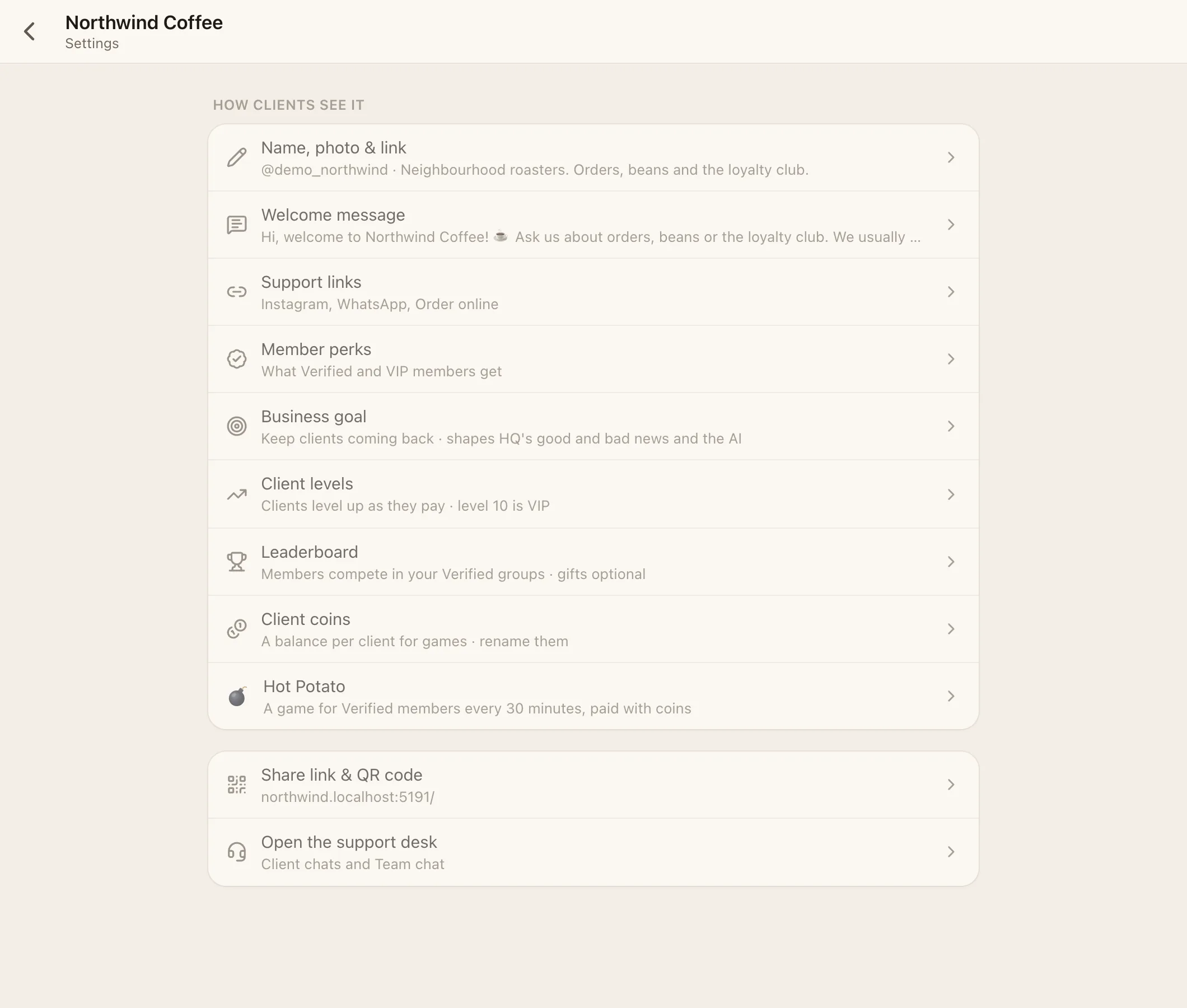
#1. Name, logo and link (5 min)
HQ → Settings → your business → Name, photo & link
- Upload a square logo. It's used for your chat avatar, the installed app icon, notification icons, the loading screen and link previews on WhatsApp, Telegram and iMessage.
- Check your name and @handle, and write a one-line description.
#2. Welcome message (5 min)
HQ → Settings → your business → Welcome message
This is sent automatically when someone starts a chat. Say hello, what you help with and when you answer. You can add up to 4 photos (opening hours, a price list, how-to screenshots).
#3. Support links (3 min)
HQ → Settings → your business → Support links
Add your WhatsApp, Telegram, Instagram, website, email and so on (up to 10). For each link you choose where it shows: your welcome page, inside chats, or on other sites when you're embedded.
#4. Your look (5 min)
HQ → Settings → Business look
Pick a preset (Clean, Warm, Mist, Sage, Rose, Sand, Ink), an accent colour (or your exact brand hex), and soft or sharp corners. See Look and style.
#5. Features (5 min)
HQ → Settings → Features
Pick a bundle to start:
- Support: just the chat.
- Community: adds Verified clients, groups, channels and levels.
- Club: Community plus coins, the leaderboard, Hot Potato and High Card.
You can fine-tune every switch underneath. See Features.
#6. Invite your team (5 min)
HQ → Team
Create a login for each person, or send an invite link (it's valid for 72 hours). Choose their role (admin, manager or agent) and which businesses they work on. Then check HQ → Settings → Agent permissions. See Team and roles.
#7. Set your goal (2 min)
HQ → Settings → your business → Business goal
Choose Help desk, Keep clients coming back or Just the numbers. The goal decides which numbers HQ calls good or bad and how the AI judges things.
#8. Your address (optional, 10 min)
You already have yourhandle.facia.chat. To use your own domain, like chat.yourbrand.com, follow Domains. To send sign-in emails from your own domain, follow Email.
#9. Share your link
HQ → Settings → your business → Share link & QR code
Put the link in your bio, on your website, and on a QR code at the counter. Add ?src=instagram (or any name) to links so HQ → Clients → Sources shows which campaign brought each client. See Growth and invites.
#10. Try it as a client
Open your link in a private browser window and send a message. Check the welcome message, the links and the look. Then answer from the inbox on your phone. Turn on notifications in Settings → Notifications so you hear about new chats.
#Done. What next?
- Start a community: Groups and channels
- Reward regulars: Membership and tiers, Levels and coins
- Add games: Games, Blocks
- Turn on the AI: The AI bot