Get started
Create a server
A server is your business on Facia: your app, your team, your clients. There are two ways to get one.
#With a referral code (instant)
If someone already on Facia invited you, they can give you a referral code (XXXX-XXXX-XXXX) or a link with ?ref= in it.
- Open facia.chat and choose Create a chat server. Opening a referral link fills in the code for you.
- Fill in:
- Server name: what clients will see, e.g. "Acme Support". You can change it later.
- Your name and Email.
- Your login username and a password (8+ characters).
- Referral code. Facia shows who referred you once the code checks out.
- Press Create my server. You're signed in as the owner, and your server exists immediately.
Owners hand out codes from HQ → Settings → Refer a server. A code or link lasts 30 days. See Growth and invites.
#Without a code (apply)
- Open facia.chat and choose Create a chat server.
- Tell Facia who you'll chat with and what about (at least a sentence). Add how big your team is, your website and how you heard about Facia if you like.
- Pick your owner login.
- Send it. The Facia team reviews it, usually quickly. Once you're approved you get an email with a one-time setup link (
/setup/…) that finishes creating your server and signs you in.
#What you get straight away
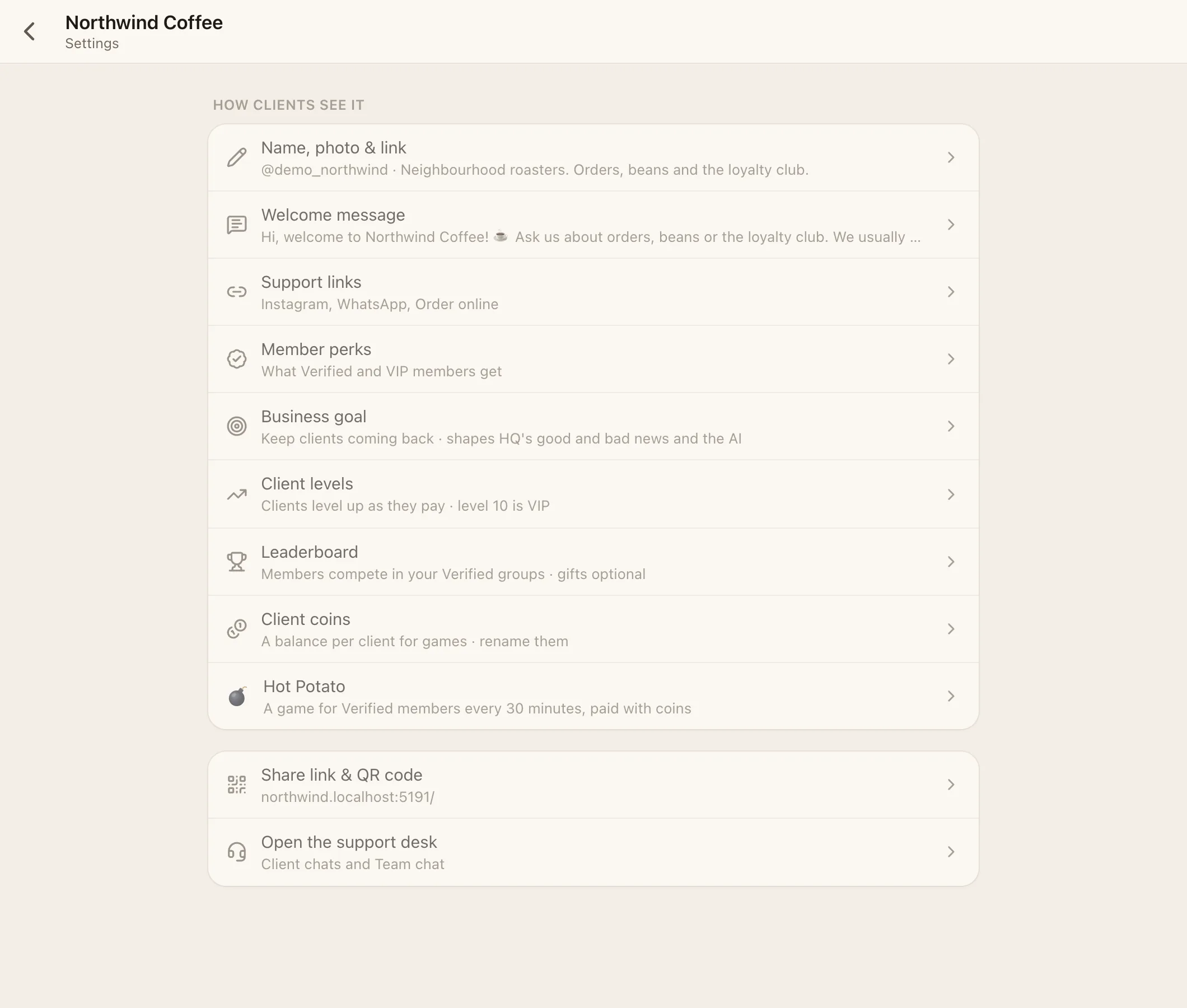
- Your business, with its own chat, Team chat and HQ.
- A free address:
yourhandle.facia.chat. Your handle is 4 to 32 characters, starting with a letter (letters, numbers and_). Your page is also atfacia.chat/@yourhandle. - Every feature, ready to turn on in HQ → Settings → Features.
- A setup checklist at the top of your business settings.
#Signing in
- Owners and staff sign in with a username and password at your address, or at facia.chat.
- Clients don't need to sign in to start chatting. They start as guests and can save their account later with a password, or by getting verified.
On facia.chat, someone who belongs to several businesses sees a switcher in the top-left that lists each business with its unread count. On your own address, Facia only ever shows your business.
#Next
Go through Your first hour: logo, welcome message, links, team, features, and sharing your link.