Team and roles
HQ → Team (/hq?tab=team). Owners and admins manage everyone. Managers manage agents. Agents see a read-only list of what they're allowed to do.
#Add someone
Two ways:
- Create employee login: you choose their username and password and hand them over. Good for shared devices or quick starts.
- Invite link: pick agent, manager or admin, copy the link and send it. They choose their own login. Links last 72 hours, and Active invite links lets you revoke them.
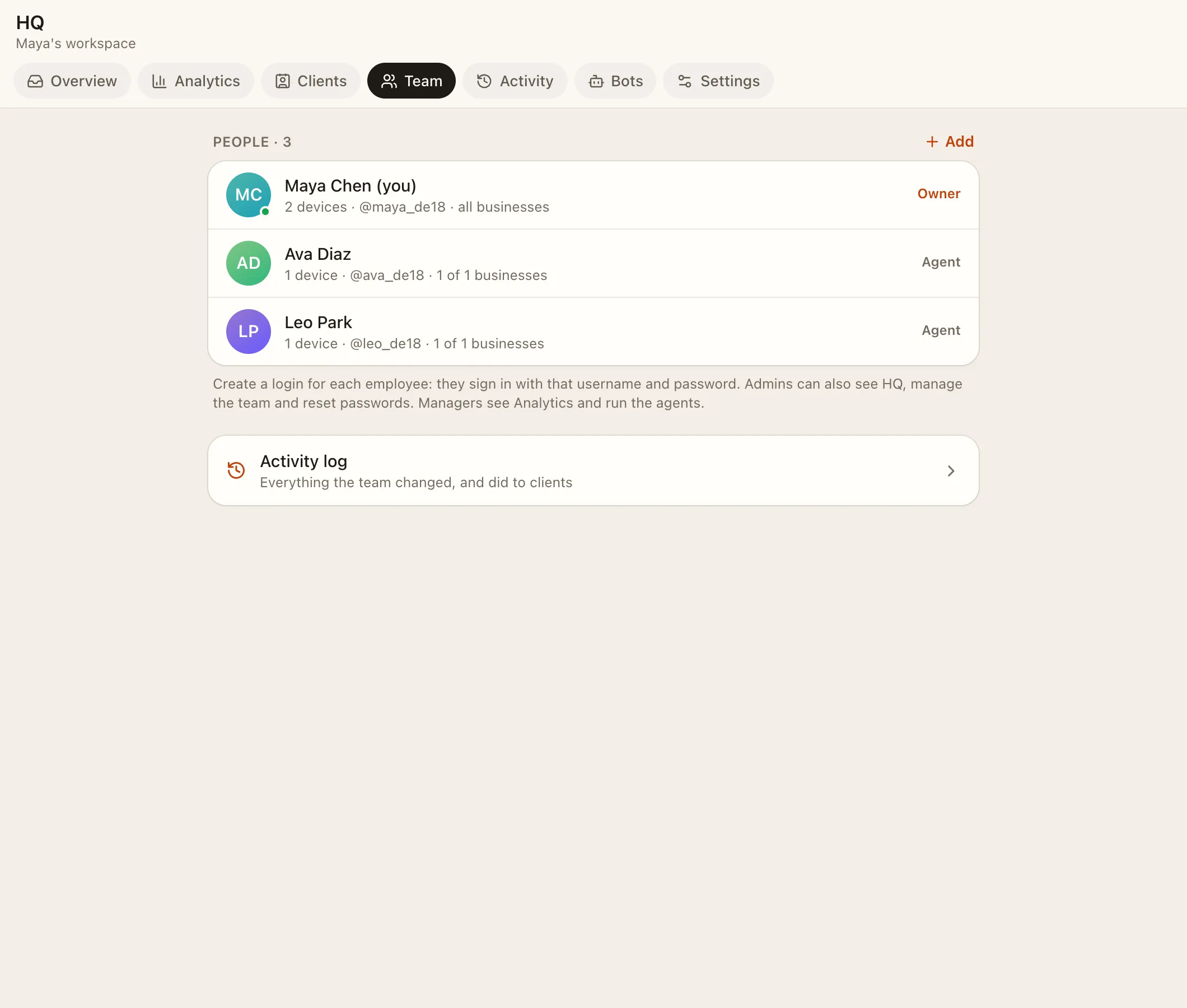
Then choose which businesses they work on. A person only sees the inboxes of their businesses.
#Roles
| Role | Can |
|---|---|
| Owner | Everything: billing-level settings, AI keys, other admins, final deletions |
| Admin | Everything in their businesses: settings, features, blocks, apps, team, activity log |
| Manager | Analytics, Clients insights, running agents (their permissions and businesses), Live TV. Never sees Payments or photo readings |
| Agent | Answers clients. Extra powers come from permissions |
Staff are automatically admins in their businesses' groups and channels.
#Permissions
HQ → Settings → Agent permissions (page=perms) or a person's sheet in HQ → Team. Owners and admins always have every permission. A manager can only hand out permissions they hold themselves.
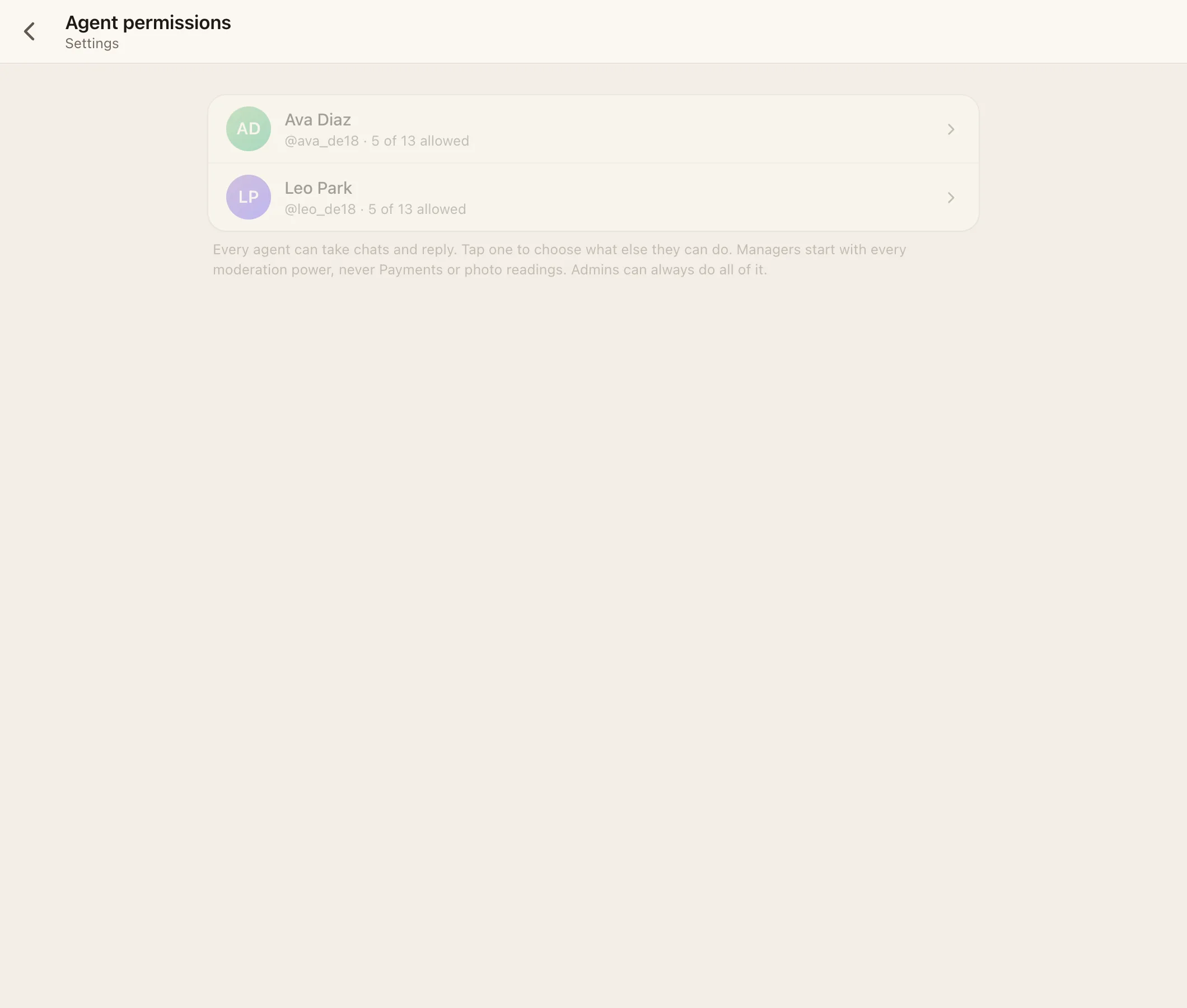
| Permission | Agent default | What it allows |
|---|---|---|
| See flags | On | Returning-client flags and "same person?" banners |
| Create client logins | Off | Give a guest a username and password |
| Reset client passwords | On | Set a new password for a client (signs them out everywhere) |
| Delete messages | Off | Delete anyone's message in a client's chat |
| Delete clients | Off | Remove a client and their whole chat |
| Block clients | Off | Stop a client from writing, or let them write again |
| Change client tiers | On | Guest, Verified, VIP, Spam; invite or approve Get verified |
| Change client coins | On | Add or take coins (logged) |
| See Clients insights | Off | HQ → Clients and client insights in a chat |
| See Payments | Off | HQ → Payments (never for managers) |
| See photo readings | Off | What the AI read under photos (never for managers) |
| Manage game cards | Off | Which game cards the group chat shows |
| Make calls | On | Voice calls, when Voice calls is on |
The full table, including manager defaults, is in Roles and permissions.
#Change or remove someone
From their sheet in HQ → Team you can:
- rename them (the name clients see),
- change their role and businesses,
- set a new password or turn their login back on,
- open their activity in the activity log,
- remove them from the workspace. Their messages stay.
#Staff devices
Each person's signed-in devices are listed, like "iPhone · Safari", with a rough city. IP addresses are never shown or stored. The owner can sign anyone out of any device, and admins can sign out agents and their own devices.
#Team chat and staff messages
Every business has a Team chat for staff only. Staff can also message each other directly. Use @name to tag someone; tags get through mutes.