Groups and channels
Turn on Community groups and Channels in Features (both are on by default). Owners and admins create them from the chat list with New group or New channel.
#Groups
Groups are where clients talk to each other and to your team.
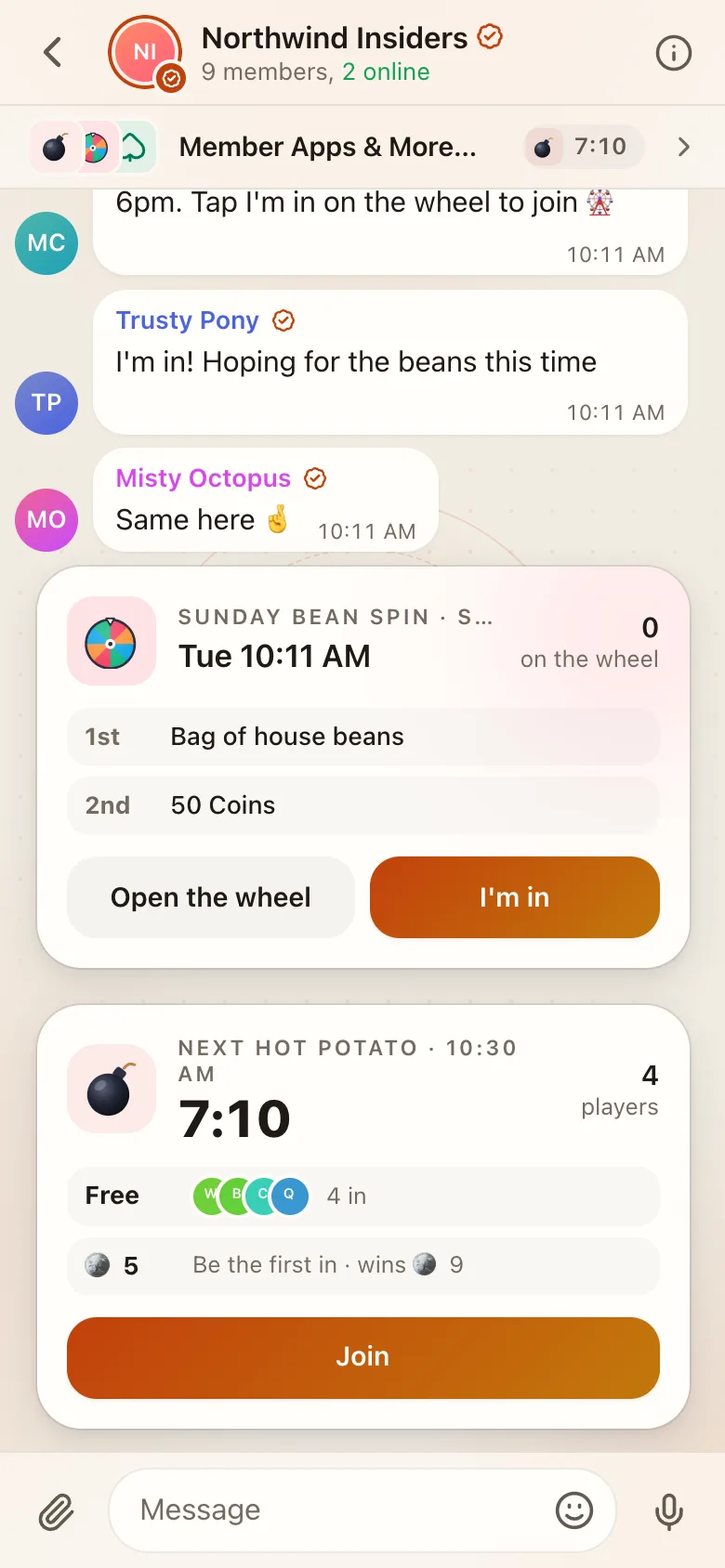
- Clients appear under a random two-word name, like "Silver Fox", with no photo or username. Clients never see each other's real names.
- Your team appears with real names and a Team badge, and sees each client's real name next to their alias.
- The group header shows N members, M online to everyone. Your team can see who's online in Chat info → Members.
- Tap a member to see who they are (team only), rename their alias, open their support chat or remove them.
#Group settings
| Setting | What it does |
|---|---|
| Topics | Turns the group into a forum with topics. Members can create topics lets clients add them |
| Only the team can send messages | Clients read and react; only staff post |
| Reactions | On or off |
| Public | Listed for your clients to find and join |
| Who can join | Everyone, Verified only, or VIP only |
| Add new clients automatically | New clients join without doing anything |
| Add all current clients | Adds everyone you already have, in one go |
| Invite links | Copy, show as a QR code, or revoke. A link stops working if the person who made it is no longer an admin |
#Members-only groups
A group for Verified only or VIP only fills itself. Getting verified adds the client, and the group posts "🎉 Silver Fox just got verified" or "👑 … just became a VIP" under their alias. Your first Verified group is created for you when the first client gets verified. Guests see it locked in their chat list, which gives them a reason to get verified.
#Channels
Channels are one-way: only your team posts, and subscribers read and react. Subscribers can't see each other.
- Sign posts shows which admin wrote each post.
- Post without notifying subscribers sends a silent post (channel admins only).
- Reactions can be turned off.
To schedule a post for later, use an Announcement block.
#Internal notes in groups
Owners, admins and managers can write internal notes inside groups and channels. Only the team sees them.
#Tags and mentions
@nametags someone in a group. Clients are tagged by alias.@everyone/@alltags the whole group. Clients can't use it in community groups.- Tags get through mutes.
#Mutes
Anyone can mute a chat for 1 hour, 8 hours, 2 days, or until they turn it back on.
#Pins and read receipts
Admins pin messages in groups and channels. Owners, admins and managers can see who read a message in groups, channels and the Team chat. Read receipts are never shown in DMs or client chats.
#Voice rooms
With Voice calls and Group voice rooms on, groups and the Team chat get live audio rooms: your team hosts, clients listen and raise a hand to talk.
#Apps bar and games
The Verified group can show a slim Member Apps & More… bar under its header. It opens the group's Apps page with games, live activities and the leaderboard. See Games.