# Facia Docs
> How to run a business on Facia, set it up (domains, email, AI keys), and build on it (blocks, apps, the partner API). For owners, teams, builders and developers.
Source: https://docs.facia.chat/
# Facia Docs
> Everything you can do on Facia, and how to do it. For business owners, teams, builders and developers.
# Facia Docs
Facia is a support chat and community app that runs under your business's own name. These docs cover all of it: setting up your server, running your support desk and community, connecting your domain, email and AI, and building your own blocks and apps on top.
## Who these docs are for
| You are… | Start here |
| --- | --- |
| **A business owner** setting up support or a community | [What is Facia](https://docs.facia.chat/start/what-is-facia), then [Your first hour](https://docs.facia.chat/start/first-hour) |
| **An admin, manager or agent** on a team | [Roles and permissions](https://docs.facia.chat/reference/roles-permissions), then [The support inbox](https://docs.facia.chat/business/inbox) |
| **A builder** who wants games, pages and announcements without code | [Blocks](https://docs.facia.chat/business/blocks) and [Games](https://docs.facia.chat/business/games) |
| **A developer** making an app that runs inside Facia | [Build on Facia](https://docs.facia.chat/build/overview), then [Your first app](https://docs.facia.chat/build/first-app) |
| **Putting Facia inside your own website or app** | [Embed Facia](https://docs.facia.chat/setup/embed) |
| **An AI assistant** helping someone with Facia | [Docs for AI assistants](https://docs.facia.chat/reference/llms) and [llms-full.txt](https://docs.facia.chat/llms-full.txt) |
## What you can do
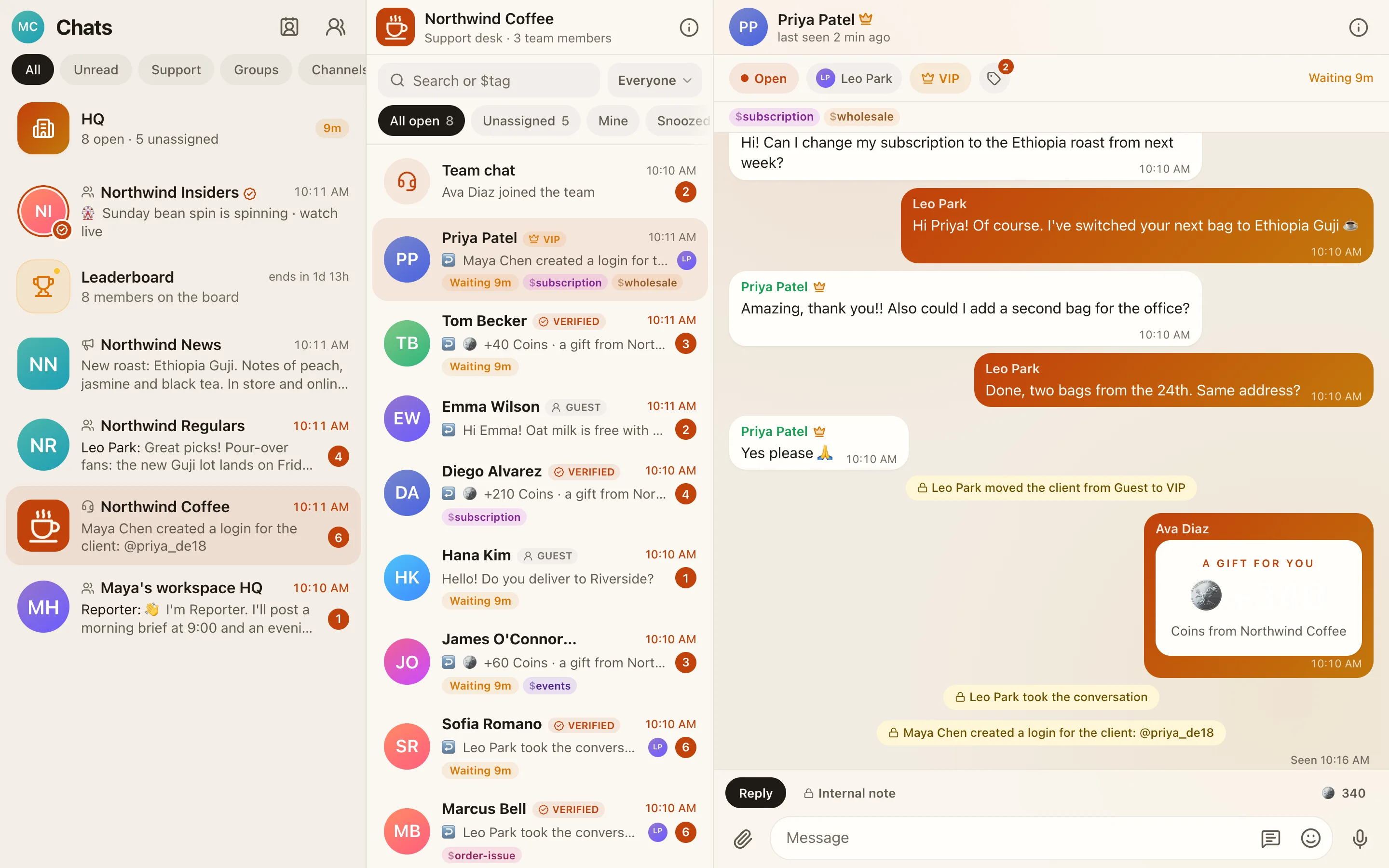
- **Support chat.** Each client gets a private chat with your team. There's an inbox with assigning, snoozing, internal notes, saved replies, tags and client history. See [The support inbox](https://docs.facia.chat/business/inbox).
- **Community.** Groups where clients talk under random names, channels where only your team posts, and voice rooms. See [Groups and channels](https://docs.facia.chat/business/community).
- **Membership.** Guest, Verified and VIP clients, levels, perks, coins and a leaderboard. See [Membership and tiers](https://docs.facia.chat/business/membership).
- **Games and activities.** Hot Potato, High Card, raffle spins, polls and missions. See [Games](https://docs.facia.chat/business/games) and [Blocks](https://docs.facia.chat/business/blocks).
- **Numbers.** HQ shows how fast you answer, who is coming back, where clients come from and what money came in. See [HQ](https://docs.facia.chat/business/hq).
- **AI.** A business bot that reads your chats, answers your questions about the business, reads receipts and suggests improvements for you to approve. See [The AI bot](https://docs.facia.chat/business/ai).
- **Your brand everywhere.** Your name, logo, colours, domain and email address. See [Look and style](https://docs.facia.chat/business/look), [Domains](https://docs.facia.chat/setup/domains) and [Email](https://docs.facia.chat/setup/email).
- **Your own code.** Apps you host appear as tabs inside Facia and can use coins, scores, badges, posts and notifications. See [Apps](https://docs.facia.chat/build/overview).
> [!TIP]
> Every page can be copied as Markdown with **Copy page for AI** at the bottom. Paste it into Claude or ChatGPT and ask it to walk you through the setup.
## How the docs are organised
- **Get started** covers what Facia is, how to create a server, the first-hour checklist, the key ideas, and doing the setup with AI.
- **Run your business** goes through every screen an owner, admin or agent uses, one topic per page.
- **Connect your stuff** is step-by-step setup for domains, email (Resend), AI provider keys, embedding and connecting websites.
- **Build on Facia** is the developer guide for apps: the token, the frame bridge, the partner API, listing and recipes.
- **Reference** has the lookup tables: roles and permissions, features, limits, addresses, a glossary, and what's in beta.
Pages marked Beta are built and working but may still change.
---
Source: https://docs.facia.chat/start/what-is-facia
# What is Facia
> A support chat and community app that a business runs under its own name, with your look, your domain and your rules.
# What is Facia
Facia is a chat app for businesses. Your clients message your team, join your community and play your games. Your team answers from one inbox and sees how it's going in HQ. All of it runs under your name, at your address, in your colours.
## The idea in one paragraph
A business creates a **server** on Facia and gets the whole app. It picks a look, turns on the features it wants, and shares its link. Clients open the link (your own domain, `yourname.facia.chat`, or an embed on your website) and only ever see your business. If you want more, you can compose your own pages and games with [blocks](https://docs.facia.chat/business/blocks), bring your own [AI key](https://docs.facia.chat/setup/ai-keys), or run your own [app](https://docs.facia.chat/build/overview) inside Facia.
## What your clients get
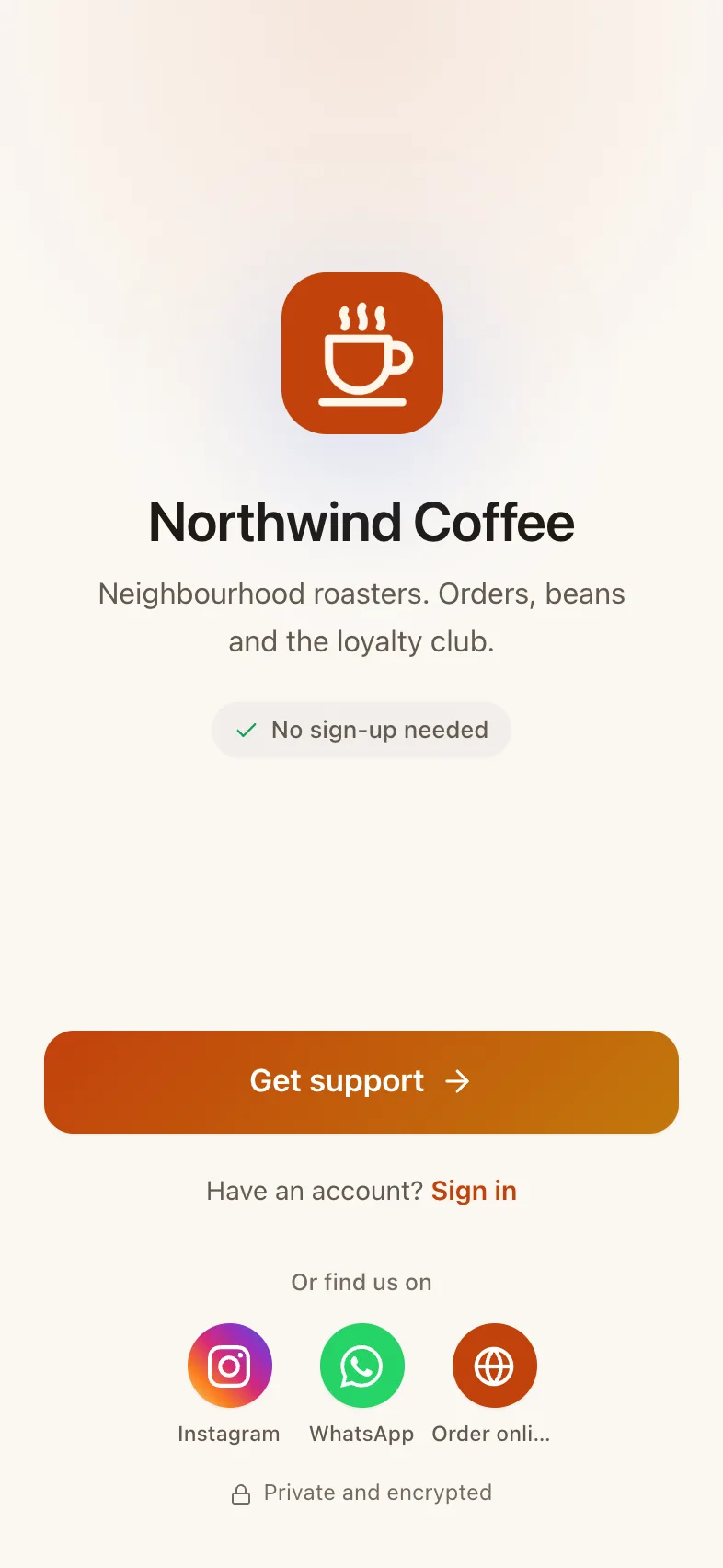 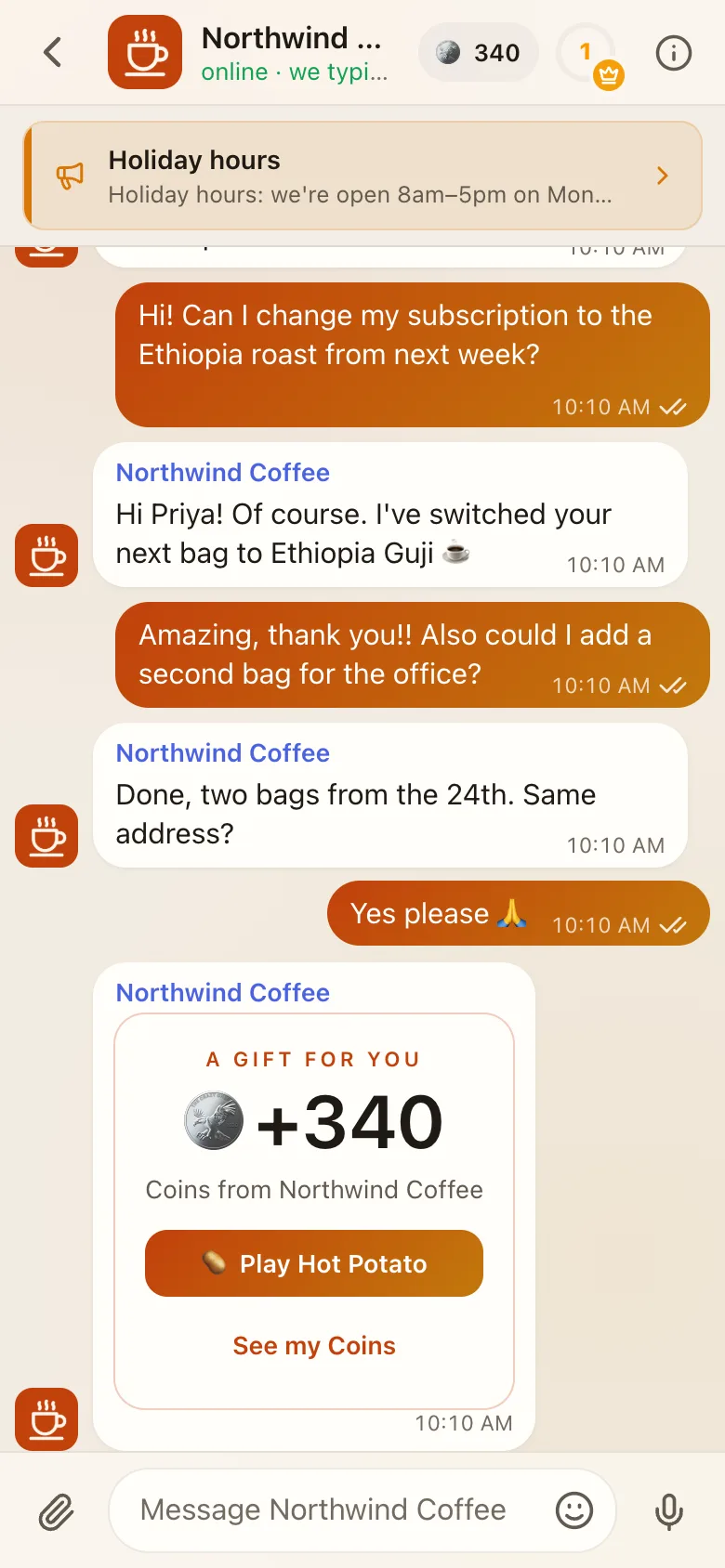 
- A private support chat with your team, from any browser, with no download and no sign-up needed to start.
- An app they can install on their home screen with your name and logo, plus notifications.
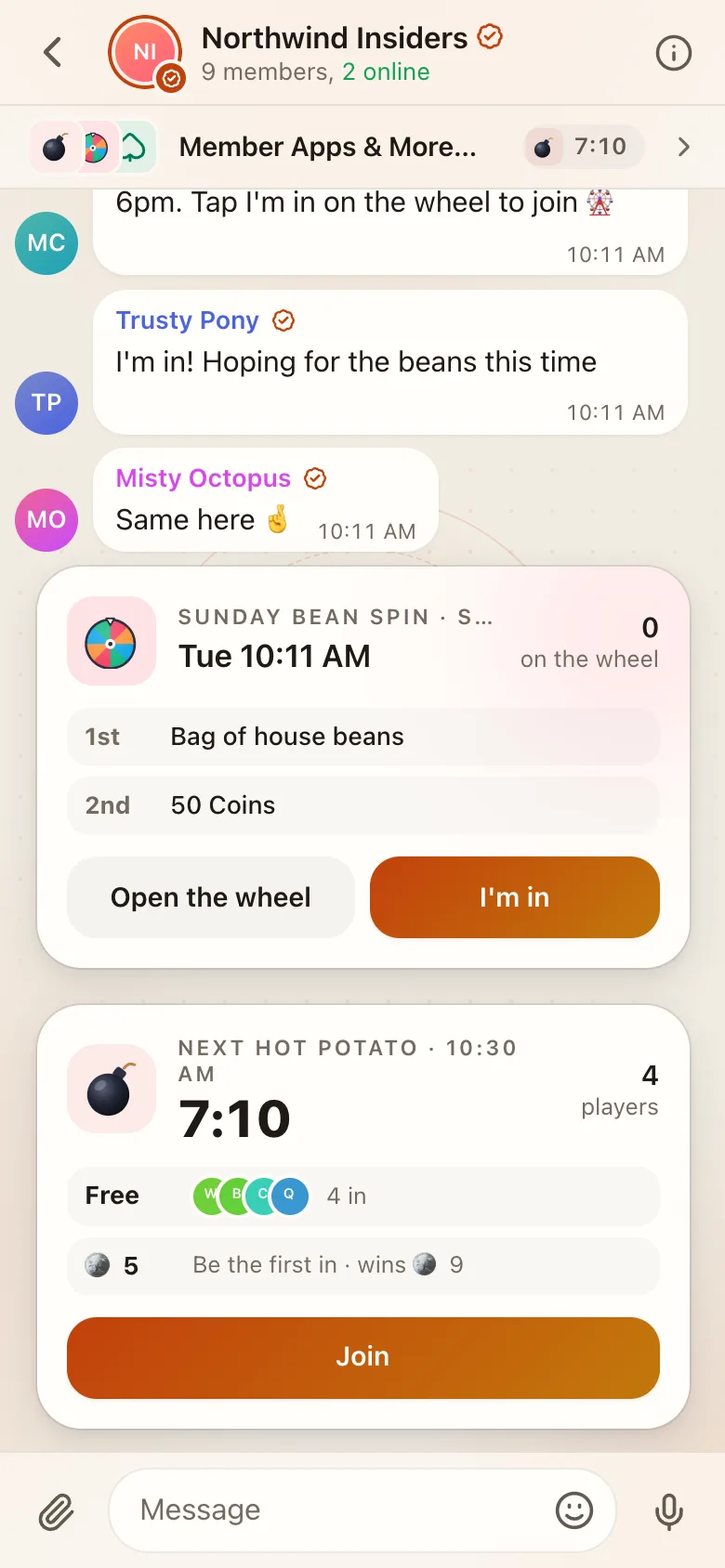
- If you turn them on: community groups, channels, membership levels, perks, coins, games and a leaderboard.
- Privacy. Other clients never see their real name; in groups everyone gets a random two-word name.
## What your team gets
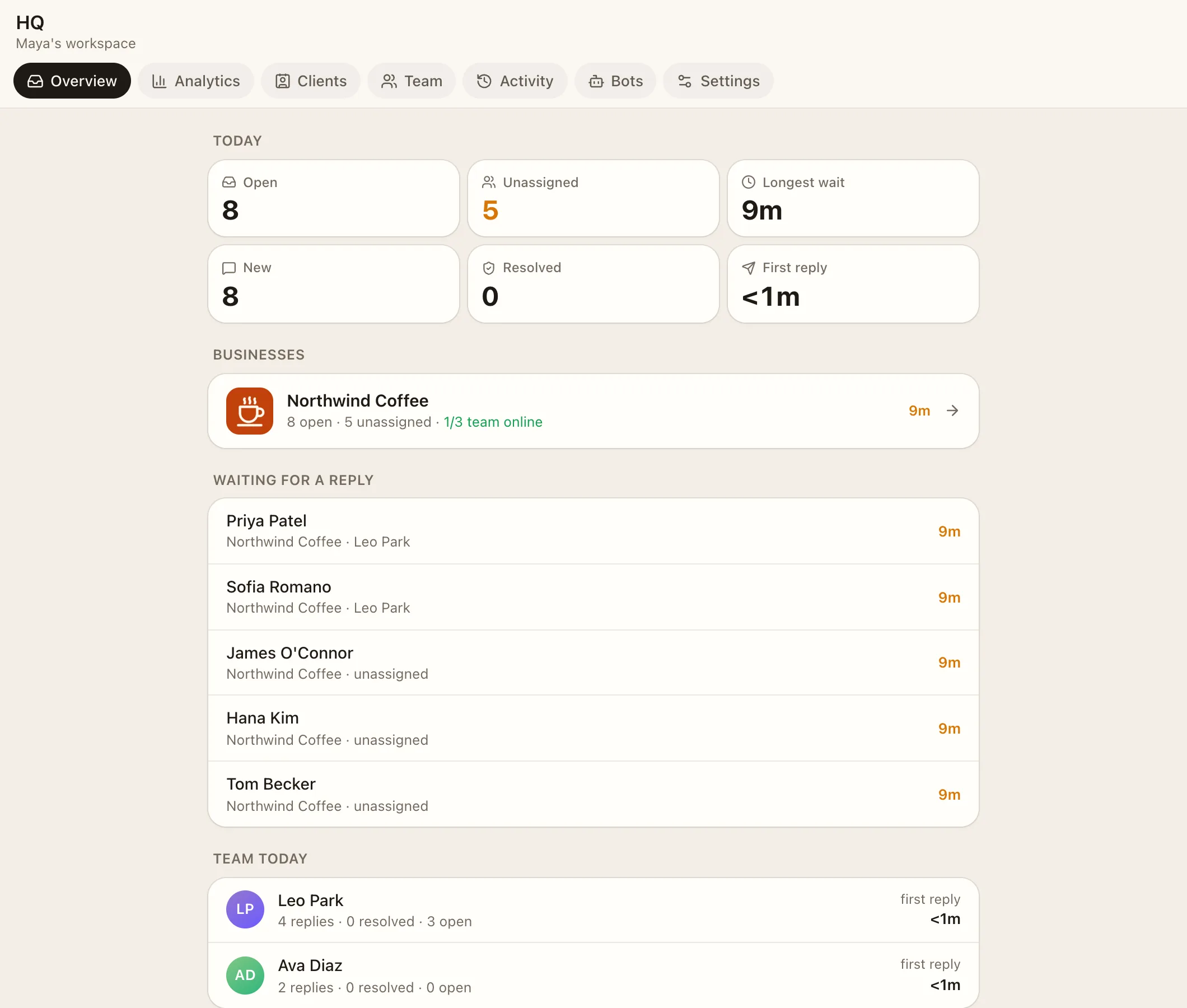
- An inbox with assigning, snoozing, resolving, internal notes, saved replies and `$tags`.
- Client history: returning-client signals, merges, tiers and coins.
- **HQ**, the business's control room: today's numbers, analytics, clients, payments, team, activity log, bots and settings.
- A daily Reporter, alerts when clients wait too long, and (optionally) an AI bot you can ask anything about the business.
## The layers
| Layer | Who sets it up | What it is |
| --- | --- | --- |
| **Features** | Owner, with a switch | Built-in parts you turn on: Verified clients, levels, coins, games, groups, channels, calls, AI, payments |
| **Look** | Owner | Preset, accent colour, corners and style. The whole app follows |
| **Blocks** | Owner or admin, no code | Pages, polls, announcements, missions and raffle spins you compose in HQ |
| **AI** | Owner | The business bot, photo reads and proposals, on your own provider key if you like |
| **Apps** | A developer | Your own web page shown as a tab inside Facia, with a signed token and an API |
| **Embed** | A developer | Facia inside your own website or native app |
## Principles
These hold everywhere in Facia:
- **Every business gets everything.** The only difference is what you turn on.
- **Clients only see you.** A client sees Facia itself only if they belong to more than one business.
- **Names stay private.** Clients never see other clients' real names, and a business never learns which other businesses a client uses.
- **You pick feelings, not paint.** Presets and tones keep everything consistent. Gold means VIP and nothing else.
- **Nothing you add runs as code inside Facia.** Blocks are settings and apps are a window. Facia's rules decide coins, levels and messages, whoever asks.
## Words you'll see
**Server** and **business** mean the same thing: one brand on Facia. **Workspace** is the team account that can hold several businesses. **HQ** is the staff control room. **Clients** are the people you support. See the [Glossary](https://docs.facia.chat/reference/glossary) for the rest.
---
Source: https://docs.facia.chat/start/create-a-server
# Create a server
> Get your business on Facia, with or without a referral code, and sign in for the first time.
# Create a server
A **server** is your business on Facia: your app, your team, your clients. There are two ways to get one.
## With a referral code (instant)
If someone already on Facia invited you, they can give you a referral code (`XXXX-XXXX-XXXX`) or a link with `?ref=` in it.
1. Open [facia.chat](https://facia.chat) and choose **Create a chat server**. Opening a referral link fills in the code for you.
2. Fill in:
- **Server name**: what clients will see, e.g. "Acme Support". You can change it later.
- **Your name** and **Email**.
- **Your login username** and a password (8+ characters).
- **Referral code**. Facia shows who referred you once the code checks out.
3. Press **Create my server**. You're signed in as the owner, and your server exists immediately.
Owners hand out codes from **HQ → Settings → Refer a server**. A code or link lasts 30 days. See [Growth and invites](https://docs.facia.chat/business/growth).
## Without a code (apply)
1. Open [facia.chat](https://facia.chat) and choose **Create a chat server**.
2. Tell Facia who you'll chat with and what about (at least a sentence). Add how big your team is, your website and how you heard about Facia if you like.
3. Pick your owner login.
4. Send it. The Facia team reviews it, usually quickly. Once you're approved you get an email with a one-time **setup link** (`/setup/…`) that finishes creating your server and signs you in.
> [!NOTE]
> A setup link works once. If yours expired, ask Facia support for a new one.
## What you get straight away
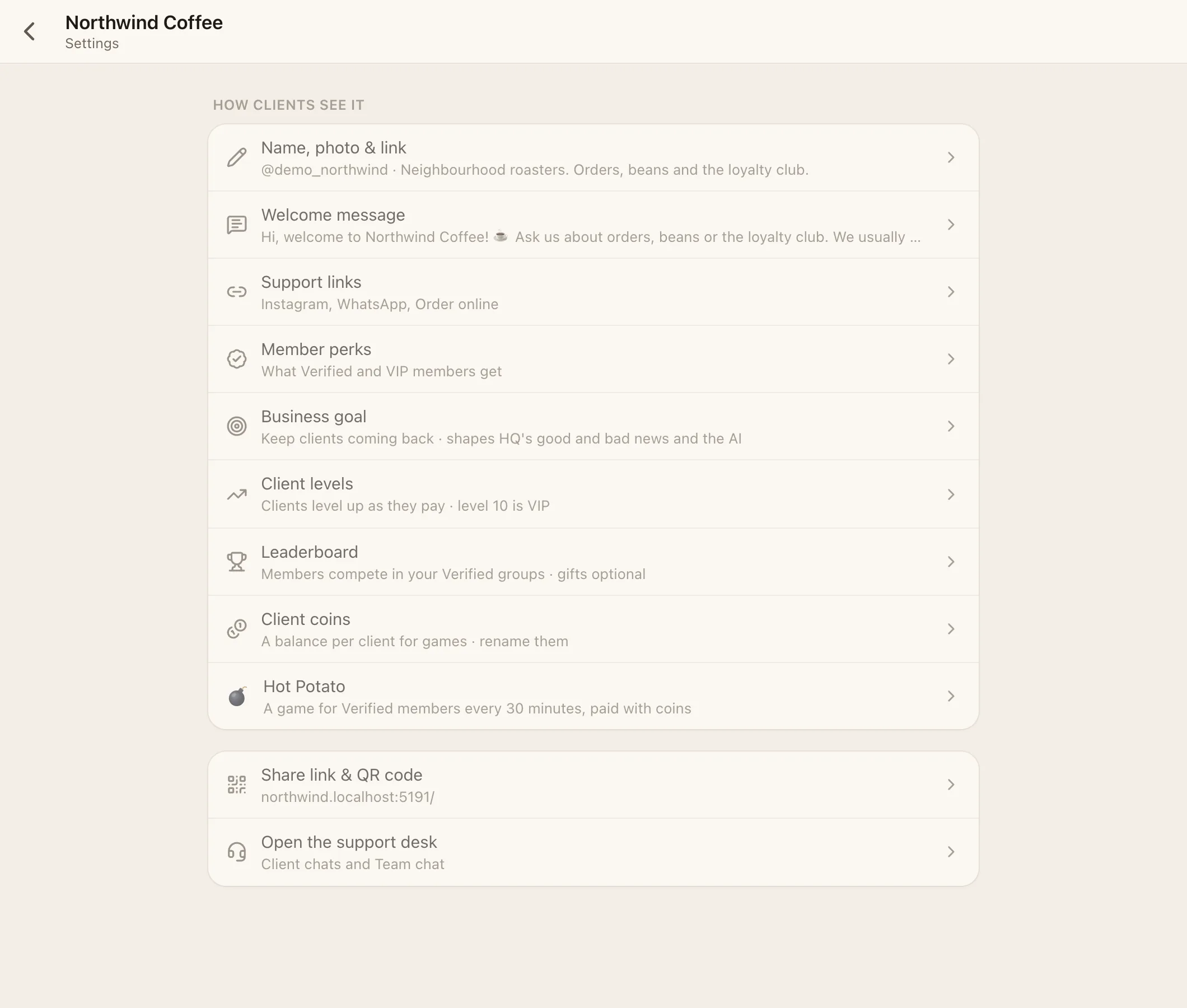
- **Your business**, with its own chat, Team chat and HQ.
- **A free address**: `yourhandle.facia.chat`. Your handle is 4 to 32 characters, starting with a letter (letters, numbers and `_`). Your page is also at `facia.chat/@yourhandle`.
- **Every feature**, ready to turn on in **HQ → Settings → Features**.
- **A setup checklist** at the top of your business settings.
## Signing in
- **Owners and staff** sign in with a username and password at your address, or at facia.chat.
- **Clients** don't need to sign in to start chatting. They start as guests and can save their account later with a password, or by [getting verified](https://docs.facia.chat/business/membership).
On facia.chat, someone who belongs to several businesses sees a switcher in the top-left that lists each business with its unread count. On your own address, Facia only ever shows your business.
## Next
Go through [Your first hour](https://docs.facia.chat/start/first-hour): logo, welcome message, links, team, features, and sharing your link.
---
Source: https://docs.facia.chat/start/first-hour
# Your first hour
> The checklist that takes a new server from empty to ready for clients.
# Your first hour
Work through this list once and your clients get a finished-looking app on day one. Facia shows the same list as the **setup checklist** at the top of your business settings (**HQ → Settings → your business**), and ticks things off as you do them.

## 1. Name, logo and link (5 min)
**HQ → Settings → your business → Name, photo & link**
- Upload a **square logo**. It's used for your chat avatar, the installed app icon, notification icons, the loading screen and link previews on WhatsApp, Telegram and iMessage.
- Check your **name** and **@handle**, and write a one-line **description**.
## 2. Welcome message (5 min)
**HQ → Settings → your business → Welcome message**
This is sent automatically when someone starts a chat. Say hello, what you help with and when you answer. You can add up to 4 photos (opening hours, a price list, how-to screenshots).
> [!AI]
> Ask your AI: "Write a warm, short welcome message for my support chat. We are [business], we help with [topics], we usually answer within [time]. Two or three sentences, no emojis overload."
## 3. Support links (3 min)
**HQ → Settings → your business → Support links**
Add your WhatsApp, Telegram, Instagram, website, email and so on (up to 10). For each link you choose where it shows: your welcome page, inside chats, or on other sites when you're embedded.
## 4. Your look (5 min)
**HQ → Settings → Business look**
Pick a preset (Clean, Warm, Mist, Sage, Rose, Sand, Ink), an accent colour (or your exact brand hex), and soft or sharp corners. See [Look and style](https://docs.facia.chat/business/look).
## 5. Features (5 min)
**HQ → Settings → Features**
Pick a bundle to start:
- **Support**: just the chat.
- **Community**: adds Verified clients, groups, channels and levels.
- **Club**: Community plus coins, the leaderboard, Hot Potato and High Card.
You can fine-tune every switch underneath. See [Features](https://docs.facia.chat/business/features).
## 6. Invite your team (5 min)
**HQ → Team**
Create a login for each person, or send an invite link (it's valid for 72 hours). Choose their role (admin, manager or agent) and which businesses they work on. Then check **HQ → Settings → Agent permissions**. See [Team and roles](https://docs.facia.chat/business/team).
## 7. Set your goal (2 min)
**HQ → Settings → your business → Business goal**
Choose **Help desk**, **Keep clients coming back** or **Just the numbers**. The goal decides which numbers HQ calls good or bad and how the AI judges things.
## 8. Your address (optional, 10 min)
You already have `yourhandle.facia.chat`. To use your own domain, like `chat.yourbrand.com`, follow [Domains](https://docs.facia.chat/setup/domains). To send sign-in emails from your own domain, follow [Email](https://docs.facia.chat/setup/email).
## 9. Share your link
**HQ → Settings → your business → Share link & QR code**
Put the link in your bio, on your website, and on a QR code at the counter. Add `?src=instagram` (or any name) to links so **HQ → Clients → Sources** shows which campaign brought each client. See [Growth and invites](https://docs.facia.chat/business/growth).
## 10. Try it as a client
Open your link in a private browser window and send a message. Check the welcome message, the links and the look. Then answer from the inbox on your phone. Turn on notifications in **Settings → Notifications** so you hear about new chats.
## Done. What next?
- Start a community: [Groups and channels](https://docs.facia.chat/business/community)
- Reward regulars: [Membership and tiers](https://docs.facia.chat/business/membership), [Levels and coins](https://docs.facia.chat/business/levels-coins)
- Add games: [Games](https://docs.facia.chat/business/games), [Blocks](https://docs.facia.chat/business/blocks)
- Turn on the AI: [The AI bot](https://docs.facia.chat/business/ai)
---
Source: https://docs.facia.chat/start/concepts
# Key ideas
> Servers, workspaces, roles, clients, tiers, chats, HQ and features, and how they fit together.
# Key ideas
Ten ideas explain almost everything in Facia.
## Server (business)
One brand on Facia, with its own name, logo, handle, address, clients, groups and settings. In the app it's called a **business**, and on the Facia front page a **server**. Clients of one business never see another.
## Workspace
The team account behind one or more businesses. Staff, the AI bot, the activity log and some settings (time zone, AI, payments) live at the workspace level. A workspace with two brands has two businesses that share one team.
## Roles
| Role | In short |
| --- | --- |
| **Owner** | Everything, including other admins, AI keys and deleting things for good |
| **Admin** | Everything in the business except owner-only settings |
| **Manager** | Runs agents and sees analytics. Never sees payments or photo readings |
| **Agent** | Answers clients. Extra powers are per-person [permissions](https://docs.facia.chat/reference/roles-permissions) |
| **Client** | The people you support. Guests have no login yet |
## Chats
- **Support chat**: one private chat per client with your team. It lives in your business's inbox.
- **Team chat**: your staff room, one per business.
- **HQ chat**: where the Reporter and the AI bot post for the owner and admins.
- **Groups**: clients talk to each other under random names. See [Groups and channels](https://docs.facia.chat/business/community).
- **Channels**: only your team posts; clients read and react.
- **Direct messages** between staff.
## Conversations
A support chat is one long thread. A **conversation** is a stretch of it: a new conversation starts after a quiet gap (10 minutes by default). Open, waiting, first reply, resolved and the analytics all count conversations, not messages.
## Tiers
Every client is a **Guest**, **Verified**, **VIP** or **Spam**. Tiers decide which groups, blocks, apps and games they get. Guests become Verified through the [Get verified](https://docs.facia.chat/business/membership) flow, and VIP comes from a level or an invitation. Spam is a team-only label.
## Aliases
In groups, games and leaderboards, clients appear to each other under a random two-word name such as "Silver Fox". Your team sees the real name next to it. A client always sees their own real name.
## HQ
The staff control room at `/hq`: Overview, Analytics, Clients, Payments, Team, Activity, Bots, Live TV and Settings. Which tabs you see depends on your role and permissions. See [HQ](https://docs.facia.chat/business/hq).
## Features
Built-in parts you switch on per business, in **HQ → Settings → Features**. Some need others: coins need Verified clients, and Hot Potato needs coins. The Facia team can also make a feature unavailable for a business. See [Features](https://docs.facia.chat/business/features) and the [feature table](https://docs.facia.chat/reference/features).
## Mounts
The places where blocks and apps can show up: **under the chat header**, **in Membership**, **at the top of the Verified group**, and on the **Games & more** page. You choose the mount when you create a [block](https://docs.facia.chat/business/blocks) or register an [app](https://docs.facia.chat/build/overview).
---
Source: https://docs.facia.chat/start/setup-with-ai
# Set it up with AI
> Copy-paste prompts that let Claude, ChatGPT or any assistant plan your server, write your texts, set up your domain and email, and build apps with you.
# Set it up with AI
You don't have to read every page. An AI assistant like Claude can read these docs for you and walk you through each step, write your texts, or build an app with you. This page has ready-made prompts.
## Step 0: give your assistant the docs
Every page here is also plain Markdown, written so assistants can read it:
| Address | What it is |
| --- | --- |
| `https://docs.facia.chat/llms.txt` | A short index of every page, with links |
| `https://docs.facia.chat/llms-full.txt` | All of the docs in one file |
| Any page + `.md` | That page as Markdown, e.g. `https://docs.facia.chat/setup/email.md` |
| **Copy page for AI** (bottom of each page) | Copies the page so you can paste it into a chat |
If your assistant can open web pages (Claude, ChatGPT with browsing, Claude Code, Cursor…), just give it the `llms-full.txt` address. If it can't, open that address yourself, copy everything, and paste it in.
> [!WARNING]
> Never paste passwords, API keys, app secrets or Cloudflare tokens into a chat with an AI. Paste them only into Facia's own fields. The prompts below never need them.
## Plan your whole server
```text
Read https://docs.facia.chat/llms-full.txt. I run [describe your business: what you sell,
who your clients are, how many staff, where clients find you today].
Plan my Facia server with me:
1. Which feature bundle (Support, Community or Club) and which extra switches, and why.
2. My welcome message, a one-line description, and my support links.
3. Which groups and channels to create, who can join each, and the first post for each.
4. What Verified and VIP members should get (perks), and whether to use levels and coins.
5. Two or three blocks (pages, polls, announcements, missions, spins) for my first month.
6. The team roles and agent permissions I should use for [N] people.
Ask me questions first if something is unclear. Then give me a checklist I can tick off
in HQ, with the exact menu path for each step.
```
## Write your texts
```text
Using the Facia docs (https://docs.facia.chat/llms-full.txt), write for my business [name, what we do]:
- a welcome message (max 3 short sentences) and up to 4 ideas for welcome photos,
- a one-line business description,
- Verified member perks and VIP perks (3–5 each, short),
- 10 saved replies for the questions we get most: [list them],
- level rewards for levels 2, 5 and 10.
Match this tone: [friendly / formal / playful]. Keep everything short; it's read on phones.
```
## Set up your own domain
```text
Read https://docs.facia.chat/setup/domains.md. My domain is [yourbrand.com], registered at
[GoDaddy / Namecheap / Cloudflare / …]. I want my Facia chat at [chat.yourbrand.com].
Walk me through it one step at a time with screenshots-level detail for my registrar:
which DNS record to add, exactly what to type in each field, and how to check it worked.
Wait for me to say "done" after each step.
```
## Send email from your own domain (Resend)
```text
Read https://docs.facia.chat/setup/email.md. I want Facia's sign-in and verification emails
to come from [no-reply@mail.yourbrand.com]. My DNS is at [Cloudflare / other].
Tell me which of the three options fits me best (Facia's address, my own domain through
Facia, or my own Resend account), then walk me through it step by step. If I use
Cloudflare, tell me exactly how to create the one-time API token Facia asks for.
```
## Connect an AI provider key
```text
Read https://docs.facia.chat/setup/ai-keys.md. Help me connect [Anthropic / OpenAI / my own
OpenAI-compatible server] to my Facia business bot. Tell me where to create the key,
which model to pick for a small business on a budget of about [$X] a month, and what
monthly cap to set in Facia. Don't ask me to paste the key here.
```
## Design your games and activities
```text
Read https://docs.facia.chat/business/blocks.md and https://docs.facia.chat/business/games.md.
My community is [describe]. Design a 4-week plan of blocks: for each one, give the kind
(page, poll, announcement, mission or raffle spin), every field exactly as Facia names it
(title, where it shows, who sees it, layout, tone, text, prizes, times), and why it helps.
Keep coin prizes within [budget] coins a week.
```
## Build an app with Claude Code (or any coding assistant)
Open your coding assistant in an empty folder and paste:
```text
Read https://docs.facia.chat/llms-full.txt, especially the "Build on Facia" pages.
Build me a Facia app: [describe it — e.g. "a daily trivia game where Verified members
answer 5 questions and the top scores go on the leaderboard board 'trivia'"].
Requirements:
- A small Node (Express) server plus one static page. Keep it simple.
- Read facia_token from the page address, send it to the server, verify it there with
FACIA_APP_SECRET and FACIA_APP_ID (HS256, issuer "facia", audience = app id).
- Apply Facia's theme with facia-app.js and call Facia.ready() when drawn.
- Use only the partner API calls the app needs, with a ref on every coin call.
- Store data keyed by the token's biz + sub. Never ask for names, emails or payment details.
- Read secrets from a .env file (FACIA_APP_ID, FACIA_APP_SECRET, FACIA_API). Add .env to .gitignore.
- Tell me which permissions to tick in HQ → Settings → Apps, and how to deploy it.
```
When it's done, register it as in [Your first app](https://docs.facia.chat/build/first-app#4-register-it-in-hq) and paste the secret into the server's `.env` yourself.
## Let an assistant use Facia directly
Coming soon A Facia MCP server will let assistants register apps, rotate secrets and read your setup with your permission. Until then, the assistant plans and builds, and you click through HQ. Each step above tells you exactly where.
## Tips for good answers
- Say what your business is and who your clients are. The setup depends on it.
- Ask for **exact menu paths** ("HQ → Settings → …"). The docs have them for every screen.
- Ask the assistant to **wait for "done"** between steps when you're changing DNS or settings.
- If something on screen doesn't match, tell the assistant what you see, and check [What's in beta](https://docs.facia.chat/reference/status).
---
Source: https://docs.facia.chat/business/settings
# Business settings
> Name, logo, handle, welcome message, support links, perks, goal and the other settings of one business.
# Business settings
Each business has one settings page. Open it from **HQ → Settings → your business** (`/hq?tab=settings&business=`) or from **Details** in your business's chat. Only owners and admins can change it.
## Setup checklist
The top of the page shows what's left to do before you share your link: add your logo, write a welcome message, add support links, invite your team, set your goal, and share your link. Each item opens the right sheet and ticks itself off.

## Name, photo & link
| Field | Notes |
| --- | --- |
| **Name** | Shown to clients everywhere, including the installed app name and email sender name |
| **Photo (logo)** | Square, at least 512 × 512 works best. Used for the avatar, home-screen icon, notification icon, loading screen and link previews |
| **@handle** | 4–32 characters, starting with a letter; letters, numbers and `_`. Gives you `facia.chat/@handle` and `handle.facia.chat` |
| **Description** | One line, shown on your page and in link previews |
## Welcome message
Sent automatically the first time someone writes. Text plus up to **4 photos**. Leave it empty to send nothing.
## Support links
Up to **10** links, each with a label of up to 30 characters. Kinds: WhatsApp, Telegram, Signal, Viber, Messenger, Instagram, Facebook, X, TikTok, YouTube, Discord, Snapchat, Threads, Twitch, Kick, Email, Phone, Website, or any link.
For each link, choose where it shows:
- **Welcome page**: the page people see before their first message.
- **Chats**: inside the client's support chat.
- **Other sites**: when you're [embedded](https://docs.facia.chat/setup/embed) on another website.
## Member perks
What **Verified** and **VIP** members get, each with an icon. Clients see them in the Get verified sheet and in Membership. An empty VIP list hides VIP from clients. See [Membership and tiers](https://docs.facia.chat/business/membership).
## Business goal
| Goal | Use it when |
| --- | --- |
| **Help desk** | You mostly answer questions. Speed and resolving matter most |
| **Keep clients coming back** | Returning clients and loyalty matter most |
| **Just the numbers** | You want HQ's numbers without judgement colours |
You can add a few words about your goal in your own language. HQ uses the goal for its green and red, and the AI uses it to judge what's going well.
## Client levels, leaderboard, coins and Hot Potato
Shortcuts to the same settings as in [Features](https://docs.facia.chat/business/features):
- **Client levels**: on or off, the amount for level 2 and its currency, the VIP level, how clients become VIP (reach a level, or by invitation), and level rewards. See [Levels and coins](https://docs.facia.chat/business/levels-coins).
- **Leaderboard**: on or off, how often it starts fresh (day, week or month), and gifts for places 1–10.
- **Client coins**: rename your coins and pick an emoji (default "Coins" 🪙).
- **Hot Potato**: run it or not. See [Games](https://docs.facia.chat/business/games).
## Other switches
- **Show agent first names**: clients see which agent is answering.
- **Add "Support" to the app name**: the installed app is called "*Name* Support".
- **Share link & QR code**: your link and a QR code to print.
- **Open the support desk**: jumps to your inbox.
## Workspace settings
**HQ → Settings → General** holds the workspace name and **time zone**. The time zone is used for report times, "today", leaderboard periods and analytics. **Use this device's zone** sets it in one tap.
---
Source: https://docs.facia.chat/business/look
# Look and style
> Presets, accent colours, corners and styles (Classic, Futuristic or your own) for your business, plus each person's own look.
# Look and style
Facia uses your colours everywhere: chats, HQ, blocks, games, cards, the loading screen and the phone's status bar, in light and dark.
## Business look
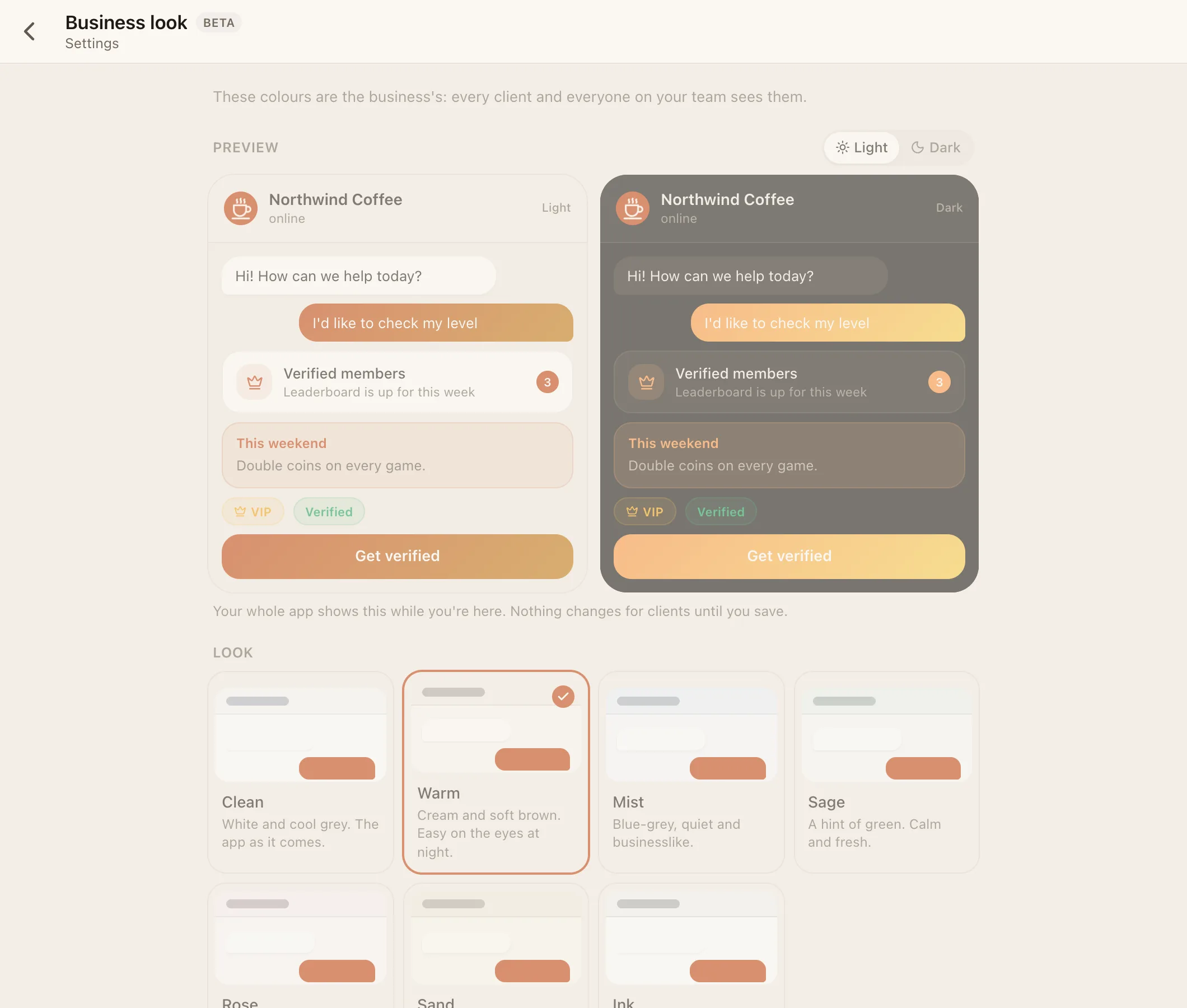
**HQ → Settings → Business look** (`/hq?tab=settings&page=appearance`). Owners and admins.
| Setting | Choices |
| --- | --- |
| **Preset** | Clean (default), Warm, Mist, Sage, Rose, Sand, Ink |
| **Accent** | Blue, Violet, Ocean, Teal, Green, Coral, Copper, Graphite, or any colour as `#rrggbb` |
| **Corners** | Soft (default) or Sharp |
| **Style** | Classic, Futuristic, one of your own, or one Facia approved for everyone. Applies to everyone at the business |
The page previews changes live, and **Save** applies them. Clients see the new look the next time a screen loads.
> [!TIP]
> Use your brand's main colour as the accent. Facia works out readable text colours and light and dark variants for you. Avoid gold: in Facia, gold means VIP.
## Styles
A **style** decides the overall treatment, while your preset and accent decide the colours.
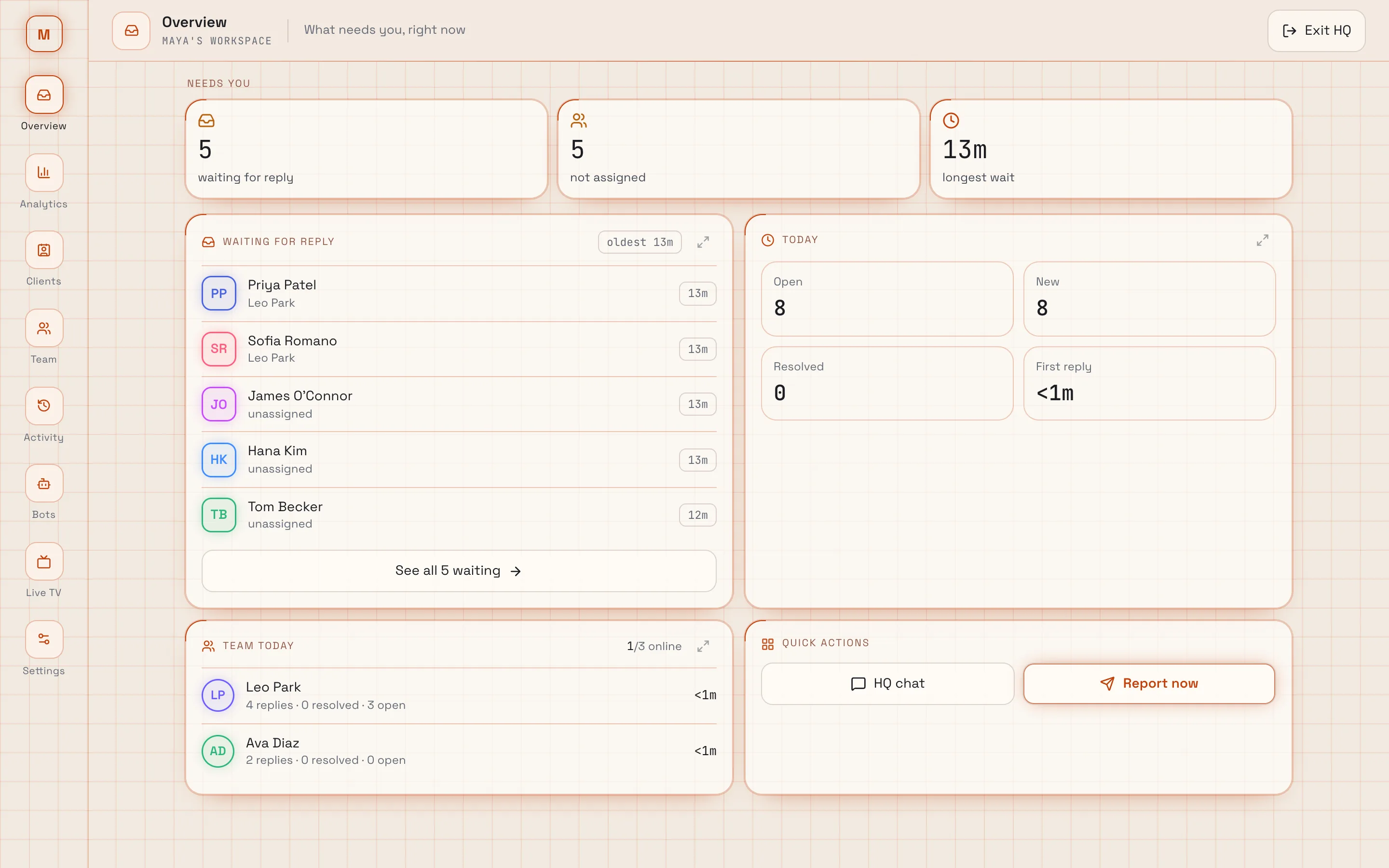
- **Classic**: calm, filled surfaces and soft shadows. The default.
- **Futuristic** Beta: outlined surfaces, corner marks, a subtle grid, display fonts and a widget-style HQ with a side rail. **Live TV** is only in Futuristic.
Futuristic covers everything: chats (photo viewer, voice notes, reactions), HQ, the sign-in and welcome pages, the loading screen, blocks, the leaderboard, membership, and every game (Hot Potato, Spin, High Card and any game added later). [Apps](https://docs.facia.chat/build/bridge#matching-the-style) are told the style so they can match it.
Everyone who comes to your business (your address, subdomain or embed) gets the style you pick, unless they choose their own in Settings → Look. It switches when you **Save**, not while you're choosing.
## Make your own style
Beta **HQ → Settings → Business look → Your styles → New style.**
| Setting | What it is |
| --- | --- |
| **Name** | What it's called in the Style list |
| **Base** | Classic or Futuristic: the shapes, outlines and glow your style starts from |
| **Colours** | Six colours, each for light and dark: background, cards, text, lines, gold and win. Anything left on **auto** keeps the base's colour |
| **Background grid** | On or off |
The whole app shows your colours while you edit.
- **Use for my business** saves the style and picks it in the Style list. Press **Save** on the look to apply it for everyone.
- **Offer to everyone** sends it to Facia for review. Once approved, every business and every person can pick it (your name isn't shown). If it's turned down, you'll see the reason. Changing a listed style sends it back for review.
> [!NOTE]
> A style is only a name and colours. It can't contain code, so it can never fake a button, a sign-in screen or a payment page, hide anything, or send data anywhere.
## Personal look
Everyone can change how Facia looks on their own device, without changing it for anyone else.
 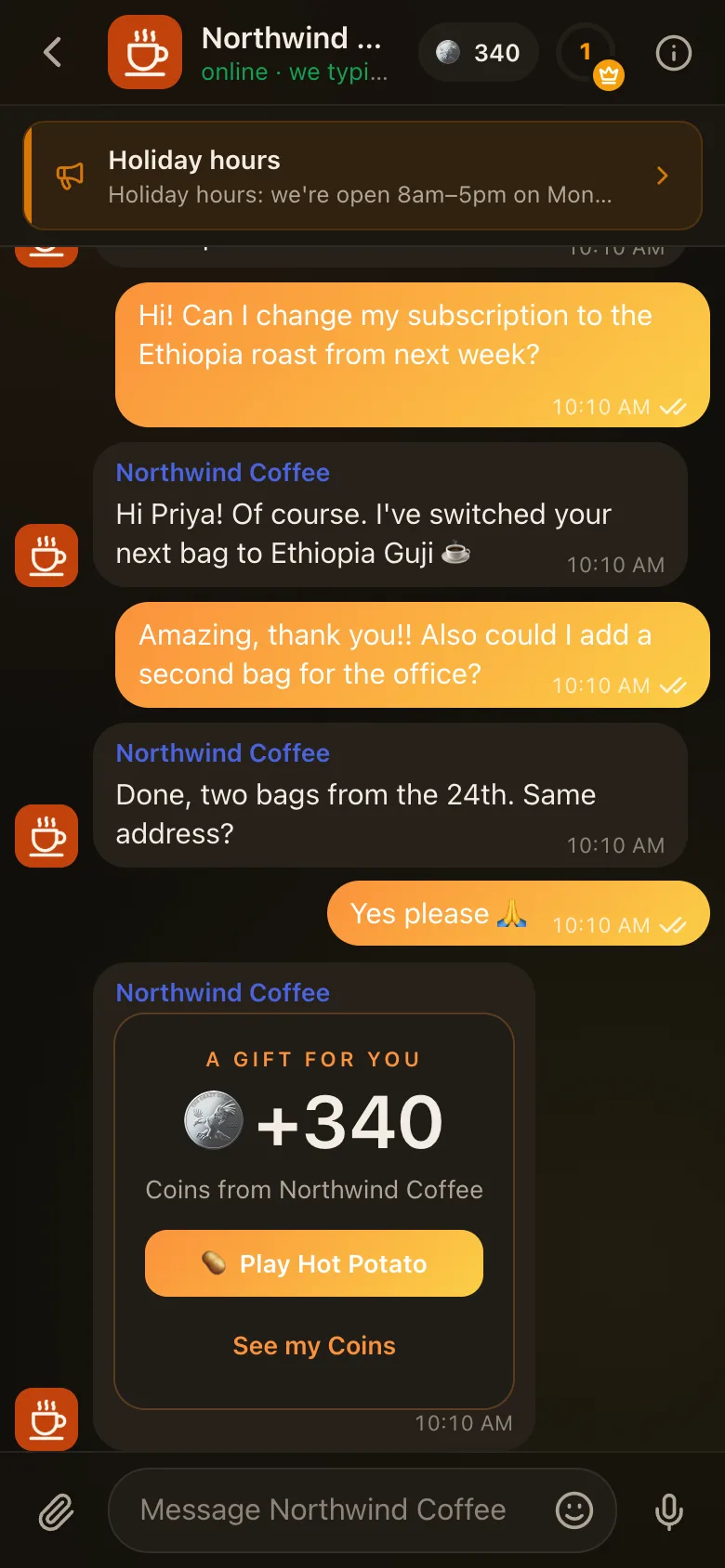
- **Settings → Appearance**: Auto, Light or Dark.
- **Settings → Look** (`/settings?page=look`) Beta: **Business** (follow the business, the default), **Classic**, **Futuristic**, or any style Facia has approved for everyone, plus any preset and accent. It's saved on this device only.
## How blocks and apps match
[Blocks](https://docs.facia.chat/business/blocks) don't take colours. They take a **tone**: Quiet, Accent, Good news, Heads up or VIP gold. [Apps](https://docs.facia.chat/build/bridge) receive your theme as CSS variables. Either way, everything someone adds follows your look automatically.
---
Source: https://docs.facia.chat/business/features
# Features
> Turn built-in parts of Facia on and off per business, with bundles, dependencies and per-feature settings.
# Features
**HQ → Settings → Features** (`/hq?tab=settings&page=features`). Owners and admins.
Every optional part of Facia is a switch on this page. Each one says what it does, **what clients will see** if you turn it on, and what it needs.
## Bundles
Three quick picks at the top switch the matching features in one go:
| Bundle | Turns on |
| --- | --- |
| **Support** | Just the chat. No client-facing extras |
| **Community** | Verified clients, groups, channels, levels |
| **Club** | Community, plus coins, leaderboard, Hot Potato and High Card |
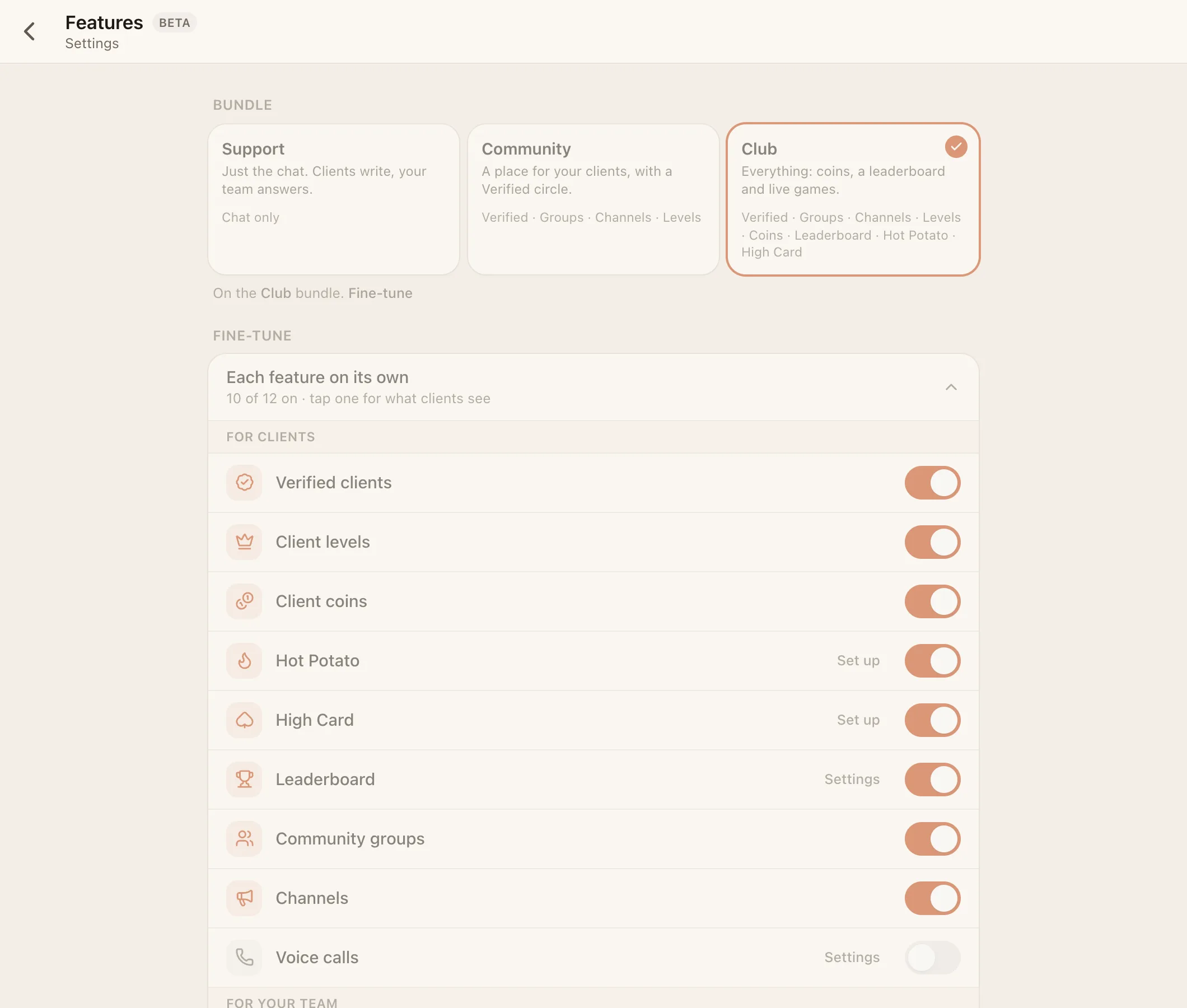
The bundle shows as **Custom** once your switches match none of them. Bundles never change voice calls, the AI, payments, apps or resolving. Those are always set by hand.
## Every feature
| Feature | Default | Needs | Settings |
| --- | --- | --- | --- |
| **Resolve conversations** | On | – | – (off removes Resolved and the status buttons) |
| **Verified clients** | On | – | – |
| **Client levels** | Off | Verified | VIP at level 2–100 (default 10) |
| **Client coins** | On | Verified | – |
| **Hot Potato** | Off | Coins | Tables (free, 5, 20, 100) and house cut 0–25% (default 5%) |
| **High Card** Beta | Off | Verified | House cut 0–25% (default 5%) |
| **Leaderboard** | Off | Verified | Period: day, week or month (default week) |
| **Community groups** | On | – | – |
| **Channels** | On | – | – |
| **Voice calls** Beta | Off | – | Who can call whom, and voice rooms. See [Voice calls](https://docs.facia.chat/business/calls) |
| **Apps** Beta | On | – | See [Build on Facia](https://docs.facia.chat/build/overview) |
| **AI assistant** | Off | – | Workspace-wide. See [The AI bot](https://docs.facia.chat/business/ai) |
| **Payments** | Off | AI | Workspace-wide. Adds HQ → Payments |
A feature only works when its switch is on, everything it needs is on, and it's available for your business. If one of those fails, the page says **Needs …** or **Not available for your business**. Some features can be made unavailable by the Facia team, for example while a plan doesn't include them.
## Private business
Under **Visibility**, **Private business** makes your business members-only. It's left off the Facia front page and directory, it can only be reached on your own address or by invite link, and new clients join only through a member's invite link.
## What turning a feature off does
Turning a feature off hides it. Nothing is deleted. Coins balances, levels and leaderboard history come back when you switch it on again.
See the full [feature reference](https://docs.facia.chat/reference/features) for where each feature shows up.
---
Source: https://docs.facia.chat/business/team
# Team and roles
> Invite staff, pick roles, choose businesses, set per-person permissions and manage devices.
# Team and roles
**HQ → Team** (`/hq?tab=team`). Owners and admins manage everyone. Managers manage agents. Agents see a read-only list of what they're allowed to do.
## Add someone
Two ways:
- **Create employee login**: you choose their username and password and hand them over. Good for shared devices or quick starts.
- **Invite link**: pick **agent**, **manager** or **admin**, copy the link and send it. They choose their own login. Links last **72 hours**, and **Active invite links** lets you revoke them.
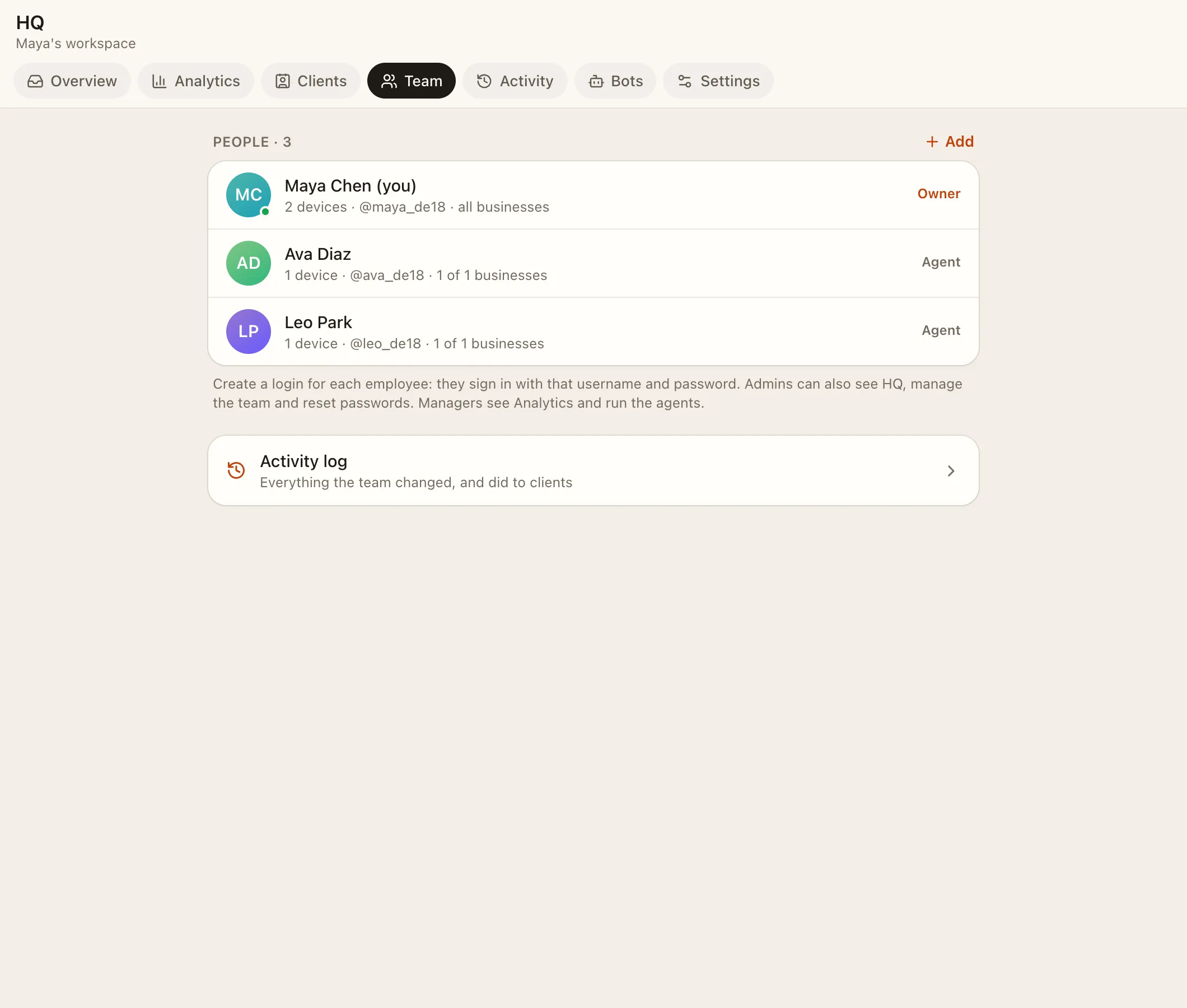
Then choose **which businesses** they work on. A person only sees the inboxes of their businesses.
## Roles
| Role | Can |
| --- | --- |
| **Owner** | Everything: billing-level settings, AI keys, other admins, final deletions |
| **Admin** | Everything in their businesses: settings, features, blocks, apps, team, activity log |
| **Manager** | Analytics, Clients insights, running agents (their permissions and businesses), Live TV. Never sees Payments or photo readings |
| **Agent** | Answers clients. Extra powers come from permissions |
Staff are automatically admins in their businesses' groups and channels.
## Permissions
**HQ → Settings → Agent permissions** (`page=perms`) or a person's sheet in **HQ → Team**. Owners and admins always have every permission. A manager can only hand out permissions they hold themselves.
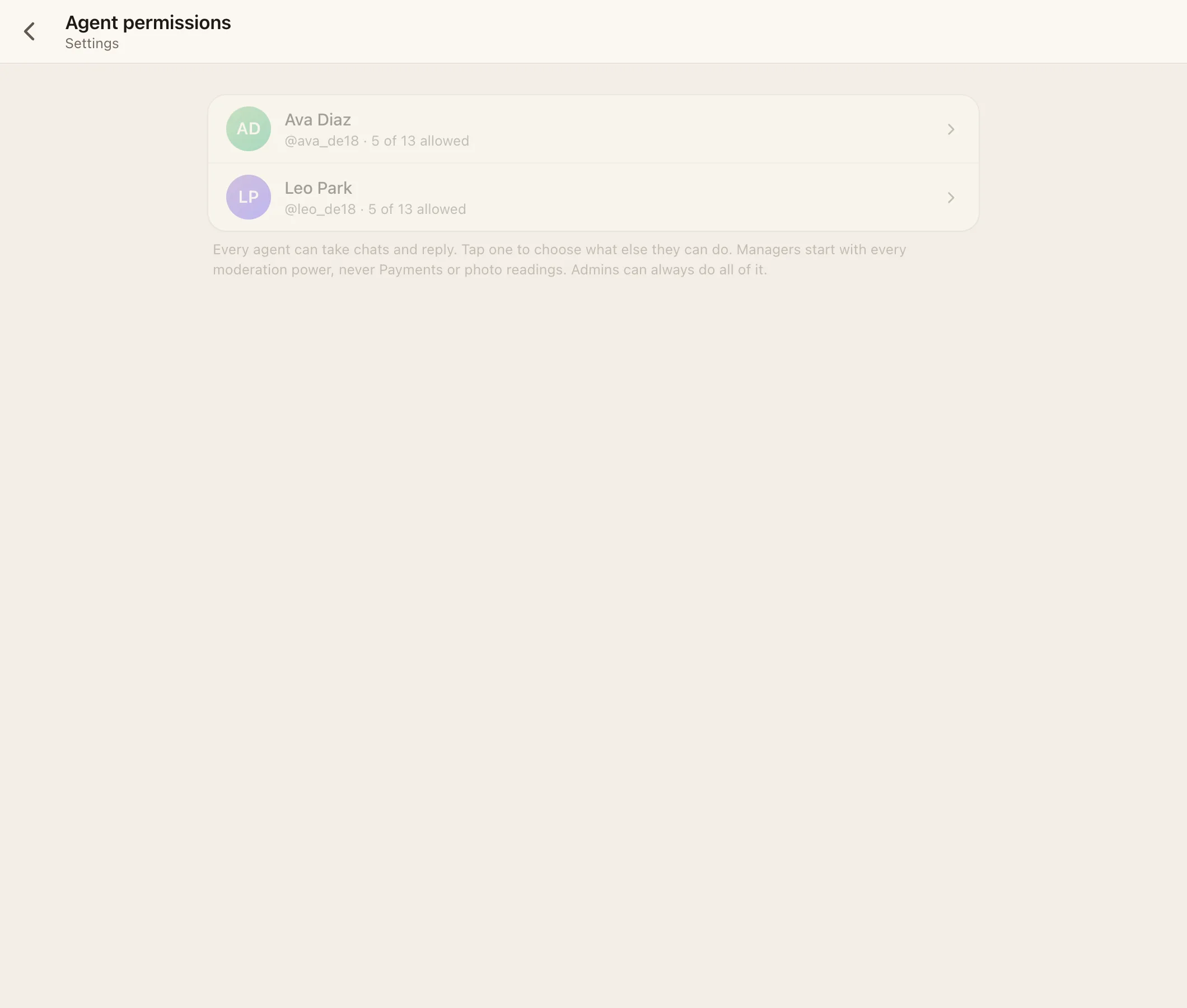
| Permission | Agent default | What it allows |
| --- | --- | --- |
| See flags | On | Returning-client flags and "same person?" banners |
| Create client logins | Off | Give a guest a username and password |
| Reset client passwords | On | Set a new password for a client (signs them out everywhere) |
| Delete messages | Off | Delete anyone's message in a client's chat |
| Delete clients | Off | Remove a client and their whole chat |
| Block clients | Off | Stop a client from writing, or let them write again |
| Change client tiers | On | Guest, Verified, VIP, Spam; invite or approve Get verified |
| Change client coins | On | Add or take coins (logged) |
| See Clients insights | Off | HQ → Clients and client insights in a chat |
| See Payments | Off | HQ → Payments (never for managers) |
| See photo readings | Off | What the AI read under photos (never for managers) |
| Manage game cards | Off | Which game cards the group chat shows |
| Make calls | On | Voice calls, when Voice calls is on |
The full table, including manager defaults, is in [Roles and permissions](https://docs.facia.chat/reference/roles-permissions).
## Change or remove someone
From their sheet in HQ → Team you can:
- rename them (the name clients see),
- change their role and businesses,
- set a new password or turn their login back on,
- open their activity in the [activity log](https://docs.facia.chat/business/hq#activity),
- **remove** them from the workspace. Their messages stay.
## Staff devices
Each person's signed-in devices are listed, like "iPhone · Safari", with a rough city. IP addresses are never shown or stored. The owner can sign anyone out of any device, and admins can sign out agents and their own devices.
## Team chat and staff messages
Every business has a **Team chat** for staff only. Staff can also message each other directly. Use `@name` to tag someone; tags get through mutes.
---
Source: https://docs.facia.chat/business/inbox
# The support inbox
> Answer clients: tabs, assigning, snoozing, resolving, notes, saved replies, tags, returning clients, merges, blocking and deleting.
# The support inbox
Your business's chat (`/c/`) is the support desk. Every client has one private chat with your team, and the list shows who's waiting.

## Tabs and filters
| Tab | Shows |
| --- | --- |
| **All open** | Every open conversation (just **All** when resolving is off) |
| **Unassigned** | Open and nobody's on it |
| **Mine** | Assigned to you |
| **Snoozed** | Hidden until a time you picked |
| **Resolved** | Finished conversations (only while [Resolve conversations](https://docs.facia.chat/business/features) is on) |
The **tier chips** filter by Guest, Verified, VIP or Spam. **Search** finds names, `@usernames` and `$tags`.
## Working a conversation
- **Assign to me**, assign to a teammate, or **Unassign**.
- **Snooze** for 1 hour or until tomorrow. **Wake up now** brings it back early. A client writing again also wakes it.
- **Resolve** when it's done. The client writing again reopens it.
- **New conversation** starts a fresh one in the same chat.
Admins can turn on **Close silent chats** (in HQ → Clients → How clients are counted) to resolve conversations that have gone quiet for a number of days.
## The composer
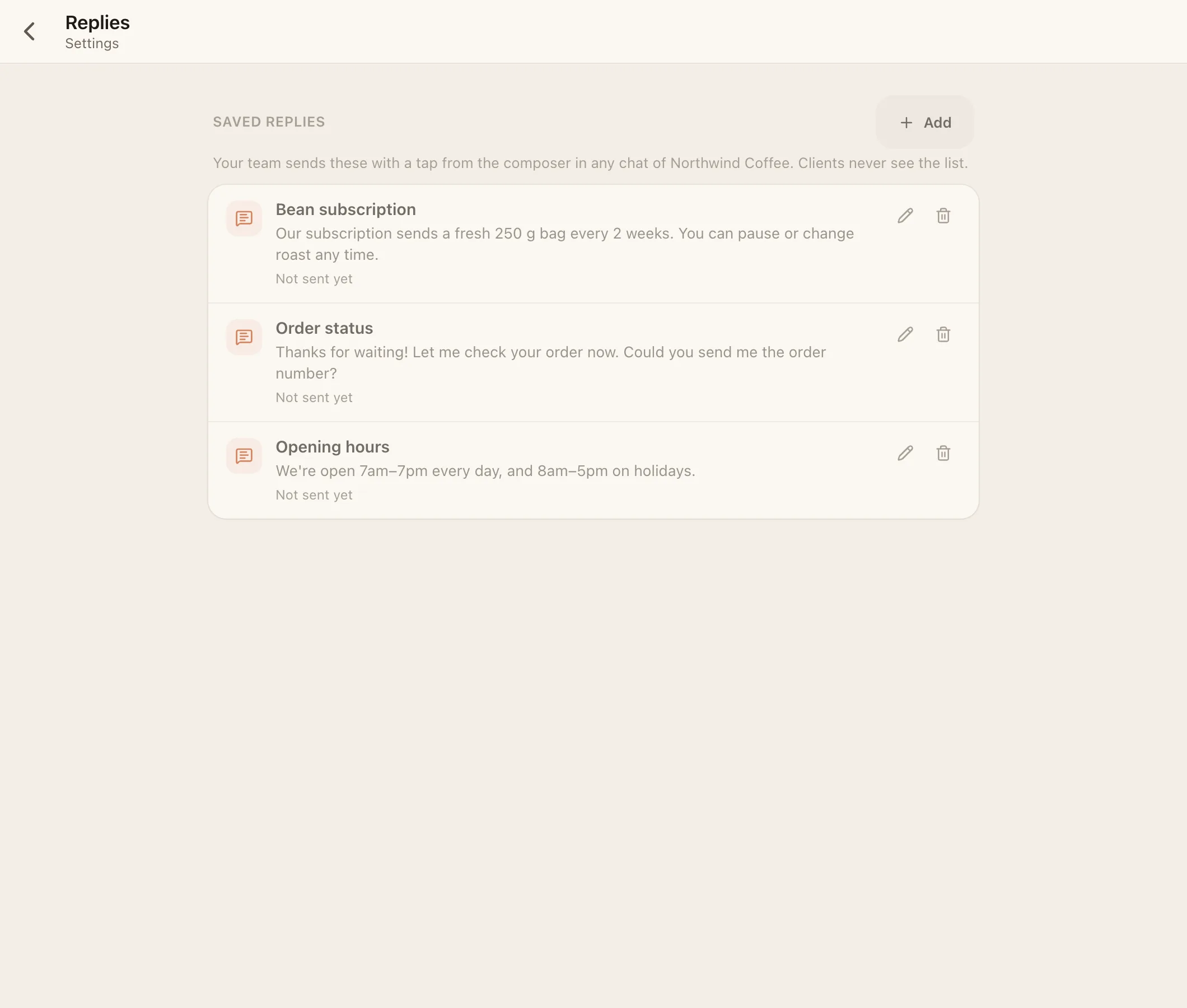
- **Internal note**: only your team sees it. Use it for hand-offs and context.
- **Saved replies**: tap to send an answer you wrote earlier. Owners and admins manage them in **HQ → Settings → Replies**, and the AI may suggest new ones.
- Photos and videos, the camera, files, **voice messages**, and a **photo editor** (draw, pixelate to hide details, add text, crop, rotate).
- **@tags** for teammates, inside internal notes.
- **Coins tray**: +5, +20 or +100 coins, sent with your message (needs the coins permission).
## Client details
Tap the client's name to open **Details**. What you can do depends on your [permissions](https://docs.facia.chat/business/team#permissions):
- rename the client or change their `@username`,
- **Tier**: Guest, Verified, VIP or Spam,
- **Tags**, **Client coins**, **Client insights**, and first contact and first response times,
- **Create a login** for a guest, or **Reset password**,
- **Block** or **Unblock** (logged as an internal note),
- **Remove client & delete chat**.
## Tags
Write `$` and a word to tag a client, like `$wholesale` or `$late-payer`. Tags are free-form, up to 20 per client and 24 characters each, and only your team sees them. Search `$tag` in the inbox to find everyone with it. If the AI is on, it adds a tag when a theme comes up on two or more days. If you remove one, it never adds it back.
## Returning clients and merges
Facia notices when a new chat is probably someone you already know. It uses signals from the device, never anything the client typed, and keeps them for 90 days.
- **Same device, guest without a password**: their old chat simply continues.
- **Probably the same person**: a banner in the chat with **Same person** (merge the chats) or **Not the same**.
- **Same network**: a heads-up in HQ.
Every flag is also posted in the Team chat. You need the **See flags** permission. When you merge, the chat whose client has a password is kept (or the older one, if neither has). Messages, tags, receipts, invited friends and coins move over, and old links to the merged chat lead to the kept one. Two clients who both have passwords can't be merged.
## Message actions
Long-press or right-click a message to **Reply**, **Copy**, **Save**, **Pin** (up to 100 per chat), see **Info** (who read it and when), **Edit** your own (within 48 hours), see the edit history, **React** or **Delete**.
## Deleting, and who still sees it
A deletion is final for everyone below the person who deleted it, and kept for 30 days for the ranks above:
| Deleted by | Still visible to |
| --- | --- |
| Agent | Managers, admins, owner |
| Manager | Admins, owner |
| Admin | Owner |
| Owner or client | Nobody in the business |
Ranks above see "Deleted by …". In HQ, owners and admins can type `@deletedmsg` to list recent deletions. The owner can also clear the Team chat's history.
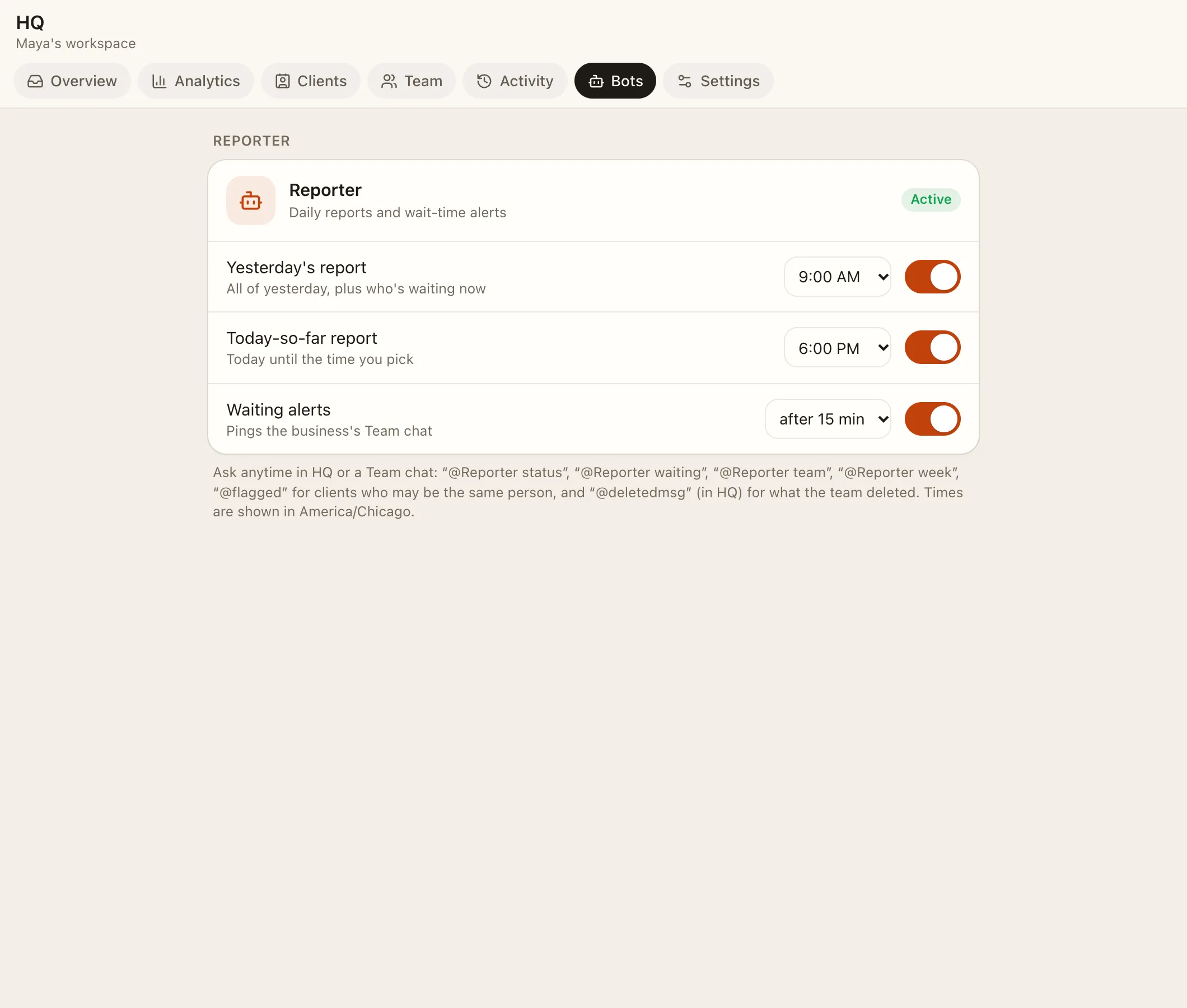
## The Reporter
A built-in bot (no AI) posts **yesterday's report** and **today so far** at times you choose, and alerts the Team chat when a client has waited longer than your **Alert after** minutes. Set it up in **HQ → Bots → Reporter**. In HQ, ask it `@Reporter status`, `@Reporter waiting`, `@Reporter team` or `@Reporter week`.
---
Source: https://docs.facia.chat/business/community
# Groups and channels
> Community groups where clients talk under random names, channels where only your team posts, invite links, mutes, tags and pins.
# Groups and channels
Turn on **Community groups** and **Channels** in [Features](https://docs.facia.chat/business/features) (both are on by default). Owners and admins create them from the chat list with **New group** or **New channel**.
## Groups
Groups are where clients talk to each other and to your team.

- **Clients appear under a random two-word name**, like "Silver Fox", with no photo or username. Clients never see each other's real names.
- **Your team appears with real names** and a Team badge, and sees each client's real name next to their alias.
- The group header shows **N members, M online** to everyone. Your team can see who's online in **Chat info → Members**.
- Tap a member to see who they are (team only), rename their alias, open their support chat or remove them.
### Group settings
| Setting | What it does |
| --- | --- |
| **Topics** | Turns the group into a forum with topics. **Members can create topics** lets clients add them |
| **Only the team can send messages** | Clients read and react; only staff post |
| **Reactions** | On or off |
| **Public** | Listed for your clients to find and join |
| **Who can join** | Everyone, Verified only, or VIP only |
| **Add new clients automatically** | New clients join without doing anything |
| **Add all current clients** | Adds everyone you already have, in one go |
| **Invite links** | Copy, show as a QR code, or revoke. A link stops working if the person who made it is no longer an admin |
### Members-only groups
A group for **Verified only** or **VIP only** fills itself. Getting verified adds the client, and the group posts "🎉 *Silver Fox* just got verified" or "👑 … just became a VIP" under their alias. Your first Verified group is created for you when the first client gets verified. Guests see it locked in their chat list, which gives them a reason to get verified.
## Channels
Channels are one-way: only your team posts, and subscribers read and react. Subscribers can't see each other.
- **Sign posts** shows which admin wrote each post.
- **Post without notifying subscribers** sends a silent post (channel admins only).
- Reactions can be turned off.
To schedule a post for later, use an [Announcement block](https://docs.facia.chat/business/blocks#announcement).
## Internal notes in groups
Owners, admins and managers can write internal notes inside groups and channels. Only the team sees them.
## Tags and mentions
- `@name` tags someone in a group. Clients are tagged by alias.
- `@everyone` / `@all` tags the whole group. Clients can't use it in community groups.
- Tags get through mutes.
## Mutes
Anyone can mute a chat for **1 hour**, **8 hours**, **2 days**, or **until they turn it back on**.
## Pins and read receipts
Admins pin messages in groups and channels. Owners, admins and managers can see who read a message in groups, channels and the Team chat. Read receipts are never shown in DMs or client chats.
## Voice rooms
With [Voice calls](https://docs.facia.chat/business/calls) and **Group voice rooms** on, groups and the Team chat get live audio rooms: your team hosts, clients listen and raise a hand to talk.
## Apps bar and games
The Verified group can show a slim **Member Apps & More…** bar under its header. It opens the group's Apps page with games, live activities and the leaderboard. See [Games](https://docs.facia.chat/business/games).
---
Source: https://docs.facia.chat/business/client-view
# What clients see
> The client's side of Facia, from first message to saved account, settings, install and privacy.
# What clients see
It's worth knowing exactly what your clients go through. Open your own link in a private browser window to try it.
## First visit
 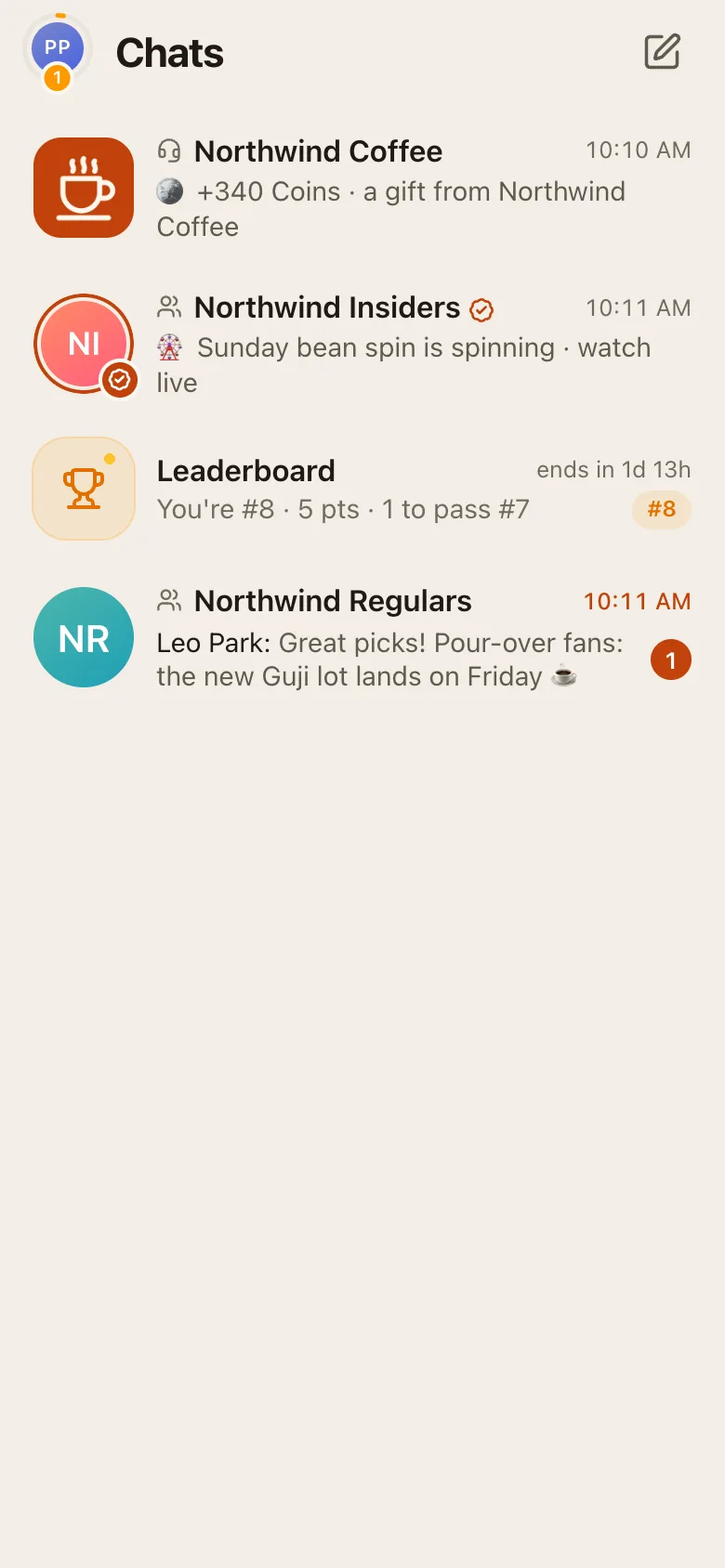 
1. They open your link: your domain, `yourhandle.facia.chat`, `facia.chat/@yourhandle`, a group invite, or your website's chat button.
2. They see your logo, name, description and support links.
3. They press **Get support** and write. **No sign-up is needed**: they start as a **guest**.
4. Your welcome message arrives. After their first message, Facia offers to turn on notifications.
## Guests and saved accounts
A guest's chat is tied to their browser. To keep it on another device, or after clearing their browser, they **save their account** in **Settings → Keep your chat**, by adding a username and password or by getting verified. Guest chats are kept for 90 days after the last visit.
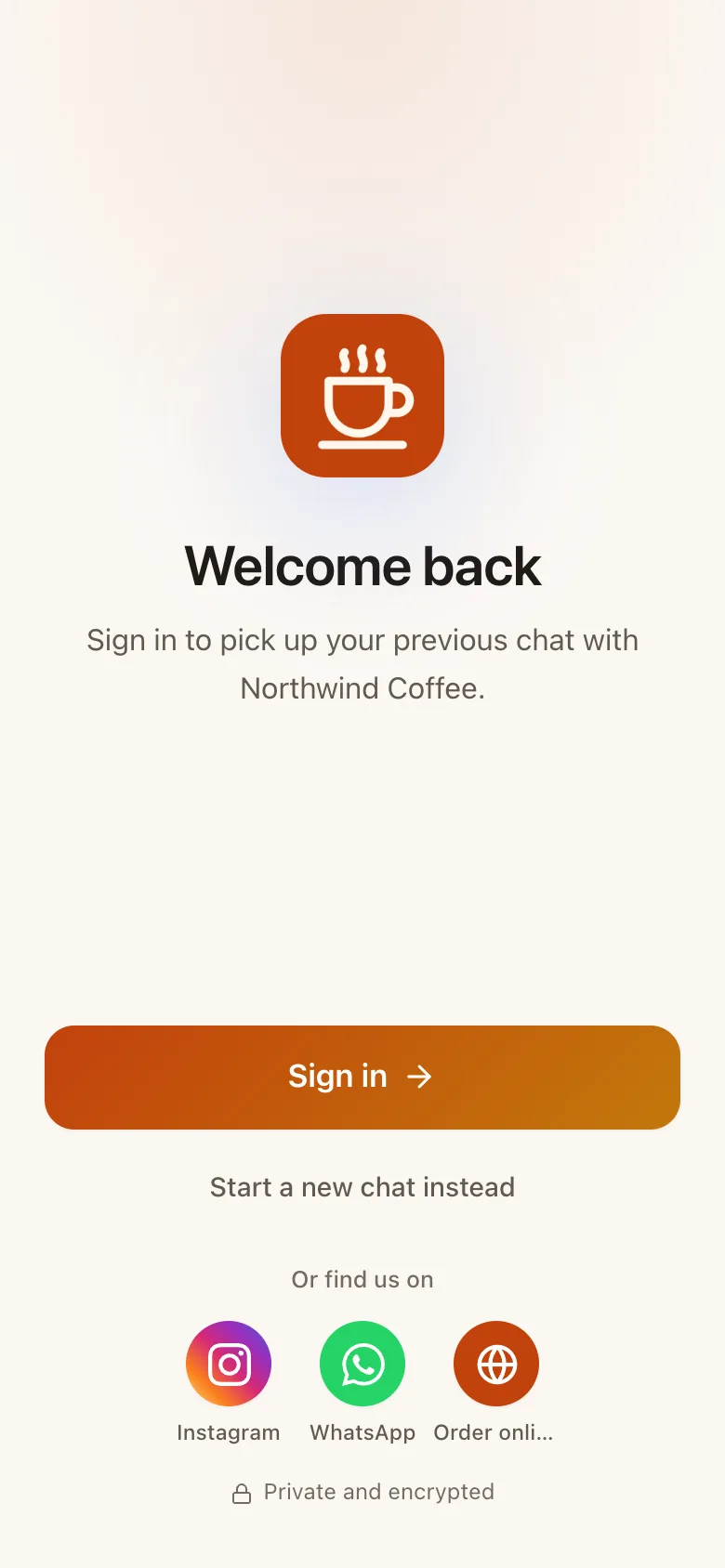
Your team can also create a login for a guest from their chat, with the **Create client logins** permission.
## Getting verified
Clients press **Get verified** in the chat header, in Membership, or on an invite card your team sent. They pick a photo and a public `@username`, add their email, and enter a 6-digit code. See [Membership and tiers](https://docs.facia.chat/business/membership).
## Settings
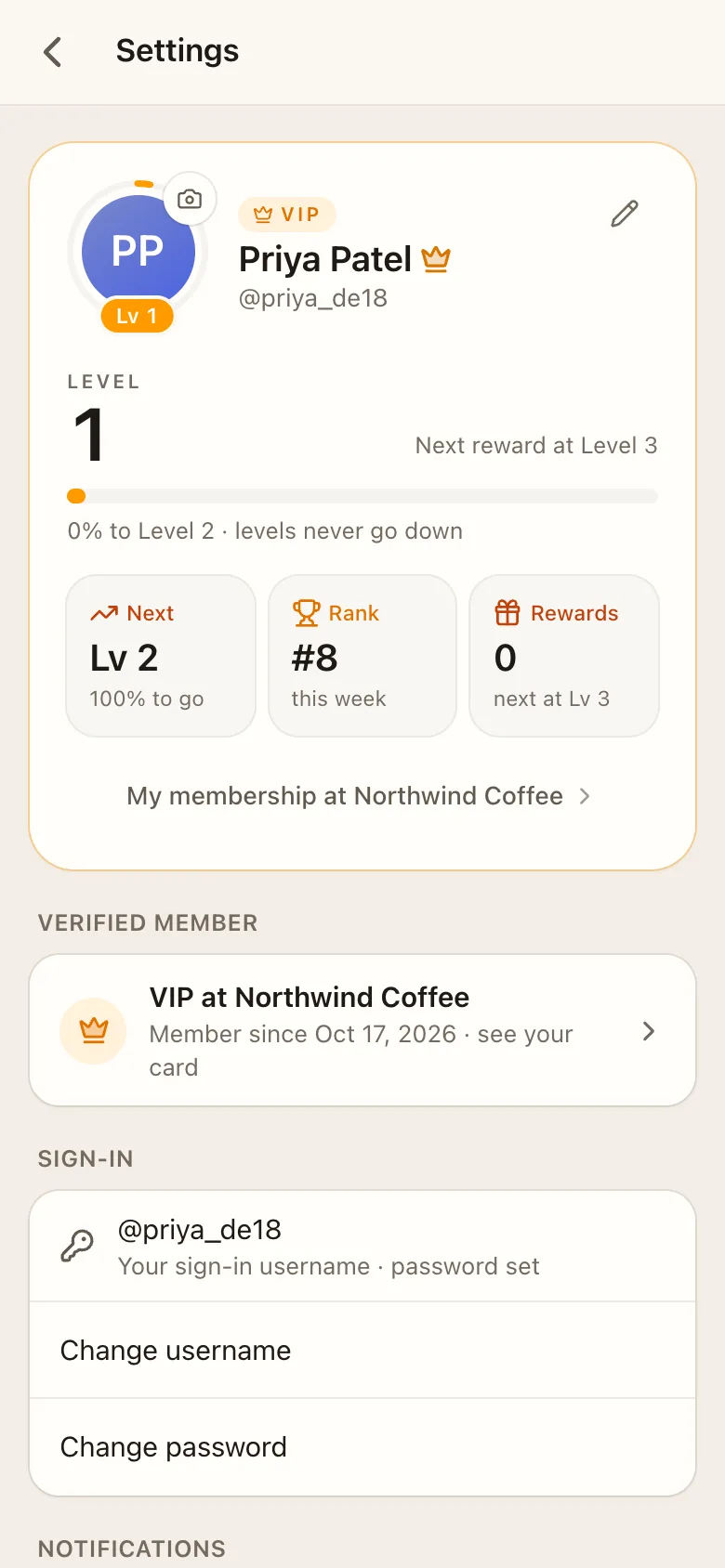
Under **Settings**, clients have:
- their profile: photo, name, username and bio,
- **Verified member** status for each business,
- **Sign-in**: change username or password,
- **Get the app**: install it on the home screen,
- **Notifications**: on or off, show message text, send a test,
- **Appearance**: light, dark or auto,
- **Sign out**, or **Leave and forget this chat** for guests.
## Inside your app
Depending on your [features](https://docs.facia.chat/business/features), clients also see:
- the **membership button** in the chat header (a level ring, check mark or crown),
- **groups** and **channels** in their chat list, locked ones included,
- **blocks** under the header, in Membership or in the Verified group,
- **app tabs** your developers registered,
- **games**, the **leaderboard** and their **coins**.
## Privacy, from the client's side
- Other clients only ever see their alias in groups, games and leaderboards.
- They always see their own real name.
- Your team sees their real name, username and history in your business only.
- Message text is encrypted at rest.
- If they also use another business on Facia, neither business can tell.
## On facia.chat
A client of several businesses who opens facia.chat gets one sign-in and a switcher (top-left) listing each business with unread counts. Each business keeps its own alias, tier, coins and level for them.
---
Source: https://docs.facia.chat/business/membership
# Membership and tiers
> Guest, Verified, VIP and Spam; the Get verified flow; perks; VIP by level or invitation; members-only groups and the membership hub.
# Membership and tiers
Membership turns one-off chatters into members. It needs **Verified clients** on in [Features](https://docs.facia.chat/business/features), which is the default.
## Tiers
| Tier | Who | Gets |
| --- | --- | --- |
| **Guest** | Everyone at first | Support chat, public groups and channels |
| **Verified** | Confirmed an email and picked a username | Verified perks, members-only groups, coins, games, leaderboard |
| **VIP** | Reached your VIP level, or invited | VIP perks, VIP-only groups, VIP blocks and apps, the gold crown |
| **Spam** | A team label | Nothing extra: no blocks, games, boards or calls. New sign-ups from the same device can land here automatically |
Clients see a check mark (Verified) or crown (VIP) on their own membership, and other clients see it next to aliases. Spam is never shown to the client.
Agents change tiers from the client's **Details → Tier** with the **Change client tiers** permission. Every change is logged.
## Get verified
**How it starts:**
- **Your team invites**: from the client's chat. An invite card appears for the client, and they're Verified as soon as they finish.
- **The client asks**: from **Get verified** in the chat header, the card, or **Settings → Verified member**. When they finish, they wait for your team to **approve** or **decline**. HQ Overview lists who's waiting.
**What the client does:**
1. Sees your perks.
2. Picks a photo and an `@username`. It's their public name and their sign-in name.
3. Adds an email, and a password if they're a guest.
4. Enters the 6-digit code from the email. Codes last 10 minutes and allow 5 tries.
Then there's confetti, they join your members-only groups, and the groups announce them under their alias.
> [!TIP]
> Email for these codes is sent under your business's name. To send it from your own domain, see [Email](https://docs.facia.chat/setup/email).
## Perks
Write what Verified and VIP members get in **business settings → Member perks**, each with an icon. Leave VIP empty to hide VIP from clients until you're ready.
## VIP
Choose how clients become VIP under **Client levels → How clients become VIP**:
- **Reach a level**: automatic at your VIP level (default 10). Needs [levels](https://docs.facia.chat/business/levels-coins).
- **By invitation**: only your team makes VIPs, from the client's Tier.
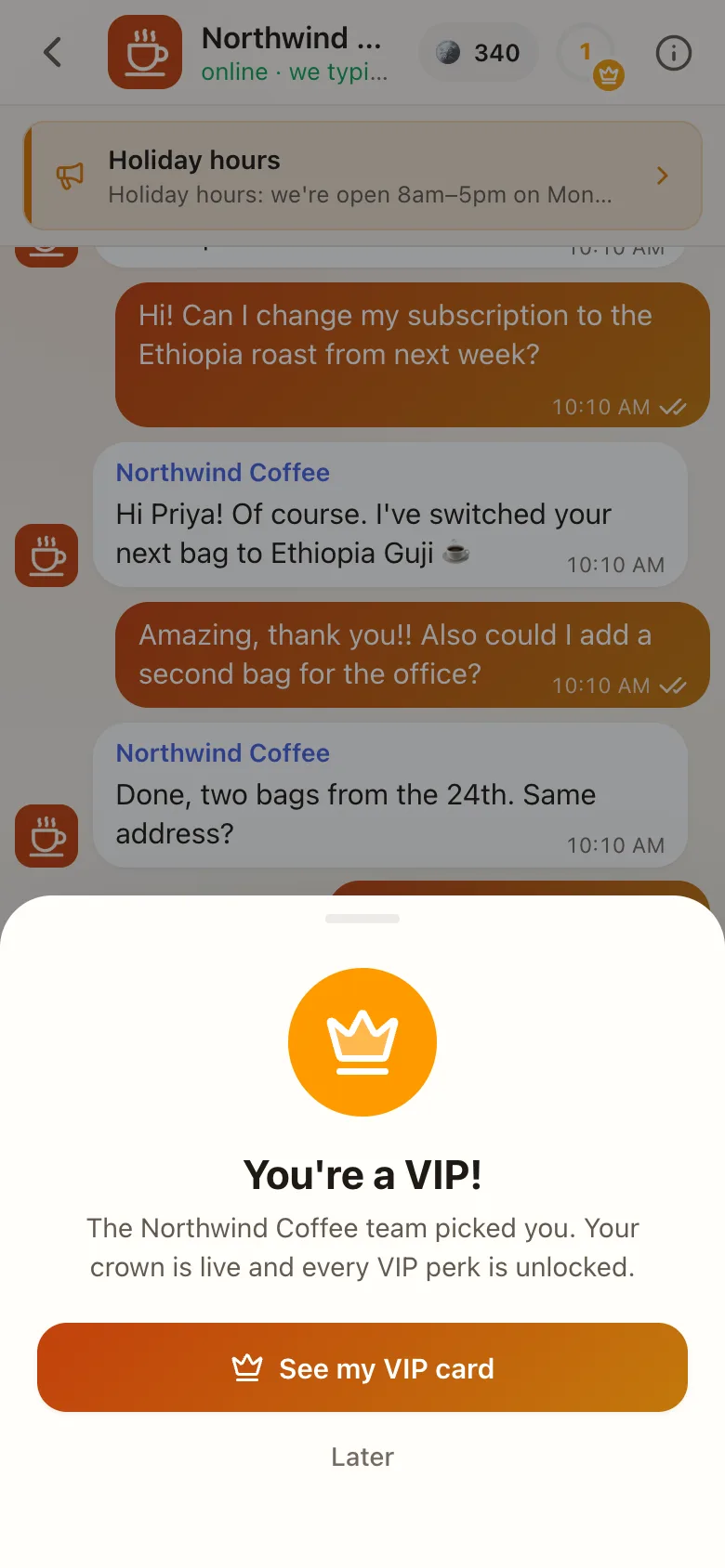
## The membership hub
The button in the client's chat header opens **Membership**:
- their card: level, progress ring and member since,
- perks, coins, rewards to claim and the road to VIP,
- [blocks](https://docs.facia.chat/business/blocks) and [apps](https://docs.facia.chat/build/overview) placed "In Membership".
Guests see **Get verified** there instead.
## Members-only groups
Set a group's **Who can join** to Verified or VIP. Members are added automatically when they qualify. See [Groups and channels](https://docs.facia.chat/business/community#members-only-groups).
---
Source: https://docs.facia.chat/business/levels-coins
# Levels and coins
> Client levels from payments, level rewards, and per-client coin balances with a full ledger.
# Levels and coins
## Levels
Levels reward clients for coming back. Turn on **Client levels** in [Features](https://docs.facia.chat/business/features) (needs Verified clients).
**How levels go up.** Facia counts payments: deals the AI read from conversations, and receipts no deal already covers (see [Payments](https://docs.facia.chat/business/hq#payments)). Each level costs a bit more than the last, and there's no top level. Levels never go down, except when money that counted is later corrected.
**What clients see.** Their level and a progress ring, never money amounts. They get a "🎉 Level N!" card in their chat when they level up.
**Settings** (business settings → Client levels):
| Setting | Meaning |
| --- | --- |
| **Amount for level 2** and currency | What a client spends to reach level 2. Later levels scale from it |
| **VIP at level** | 2–100, default 10 |
| **How clients become VIP** | Reach a level, or by invitation |
| **Level rewards** | A level and what they get, e.g. "Level 5: free delivery" |
When a Verified member claims a reward, your team gets a note to send it.
> [!NOTE]
> Levels rely on payments being counted, which needs the [AI](https://docs.facia.chat/business/ai) with Payments on.
## Coins
Coins are a per-client balance for games, prizes and rewards. They're not money and can't be bought or cashed out inside Facia. Turn on **Client coins** in Features (needs Verified clients).

- **Only Verified and VIP clients** have coins. Guests have none.
- Whole numbers, never below zero.
- **Every change is a ledger row** with who did it and why.
- Rename them and pick an emoji in business settings → **Client coins** (e.g. "Stars ⭐").
### Who changes coins
| Who | How |
| --- | --- |
| Agents with **Change client coins** | The coins tray in the composer (+5/+20/+100) or Details → Client coins. Adding posts a gift card; taking is silent |
| Games | Hot Potato and High Card entries and wins, spin prizes, mission rewards |
| [Apps](https://docs.facia.chat/build/partner-api) | `coins.charge` and `coins.pay`, if the business allowed them |
| Owners and admins | Can also change staff balances (for testing games) |
**What clients see:** their balance (chat header and membership card) and their wins. When a game takes coins, they only see it inside that game.
## Leaderboard
See [Games → Leaderboard](https://docs.facia.chat/business/games#leaderboard).
---
Source: https://docs.facia.chat/business/games
# Games
> Hot Potato, High Card, raffle spins, the leaderboard, the Games & more page and game cards in the group chat.
# Games
Games give members a reason to come back every day. They run inside Facia, the server deals every round, and they use [coins](https://docs.facia.chat/business/levels-coins#coins). Most are for Verified and VIP members and your team.
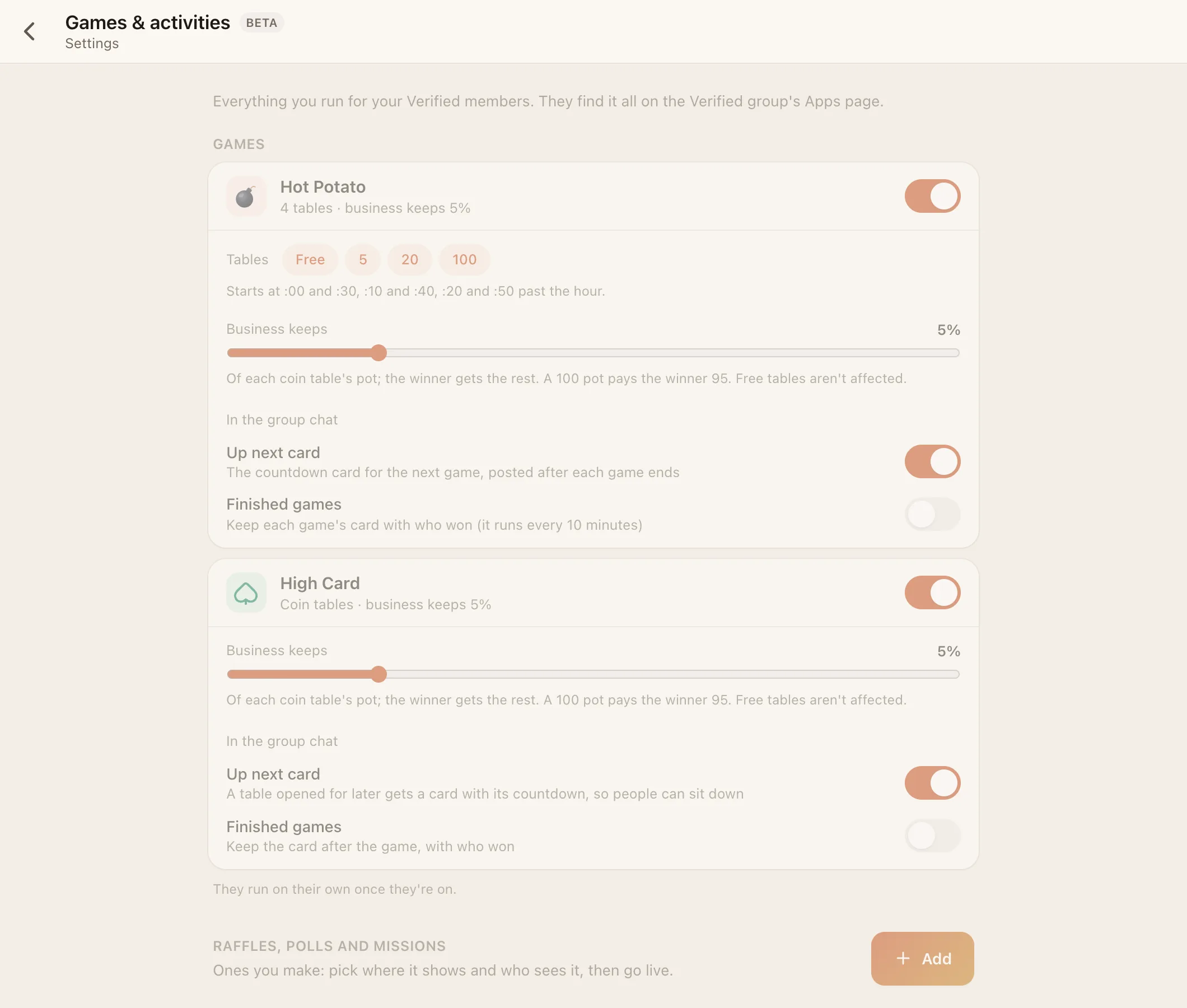
**HQ → Settings → Games & activities** (`page=games`) holds the game settings, raffles, polls, missions and game cards in one place.
## Hot Potato
A round-based coin game for the Verified group. Needs **Client coins** and **Hot Potato** on.
- **Four tables, every half hour**: free and 5-coin tables at :00 and :30, 20-coin tables at :10 and :40, 100-coin tables at :20 and :50. Choose which stakes run in the feature settings.
- The **winner takes the pot** minus the house cut (0–25%, default 5%). Clients never see the cut.
- A table with only one player is cancelled and refunded.
- **Practice** against bots is open every 6 hours.
- Watchers can react while a round plays.
- Owners and admins get insights on who plays and what the house kept.
## High Card Beta
A card-pick game at `/cards/`. Needs **Verified clients** and **High Card** on.
- Up to **8 seats** per table.
- Modes: **High** (first to win a set number of rounds), **Low**, and **Elimination**.
- **Free tables** always run. 5, 20 and 100-coin tables run when coins are on.
- House cut 0–25% (default 5%). Tables that never fill are refunded.
## Raffle spins Beta
A prize wheel the whole group watches. Spins are [blocks](https://docs.facia.chat/business/blocks#raffle-spin), so you create them in **Games & activities**:
- Up to 5 prizes, written ("Free hoodie"), coins, or both.
- Who's on the wheel: people who opt in with "I'm in", everyone, people you pick, or options you write (2–24).
- **One spin picks the winner** or **last one standing**.
- A set time or **Spin now**, optionally every week, with a reminder an hour before.
The wheel opens by itself for everyone in the group 10 seconds before the spin. The server decides the result; phones only animate it.
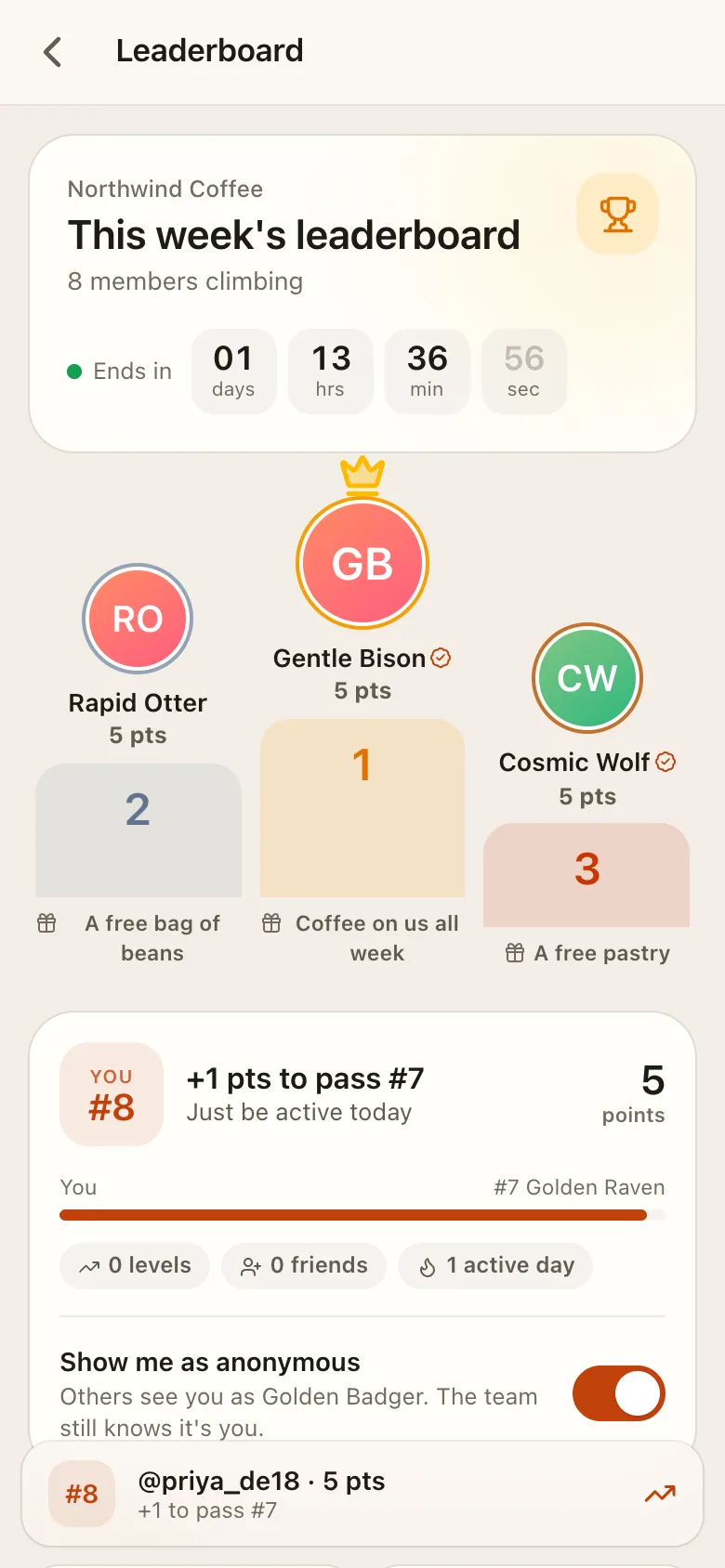
## Leaderboard
Turn on **Leaderboard** in Features (needs Verified clients).
| Earns points | Points |
| --- | --- |
| Going up a level | +100 |
| A friend they invited says hi | +100 |
| Each day they're active | +5 |
- It starts fresh every **day**, **week** or **month**, in your time zone.
- Verified members, VIPs and your team can open it. Guests see their place, locked.
- Members show under a **random name** unless they choose to show their own.
- Winners are posted in Verified groups. Set gifts for places 1–10 in business settings.
- [Apps](https://docs.facia.chat/build/partner-api#board-score) can post scores to their own named boards.
- The leaderboard page (`/leaderboard/`) is also where members get their **Invite a friend** link.
## Games & more
The Verified group shows a slim **Member Apps & More…** bar with a countdown to the next game, or **Live**. It opens the **Games & more** page (`/play/`) with three tabs:
- **Apps**: an icon grid of games and [apps](https://docs.facia.chat/build/overview).
- **Feed**: live now, coming up, and more.
- **Board**: the leaderboard.
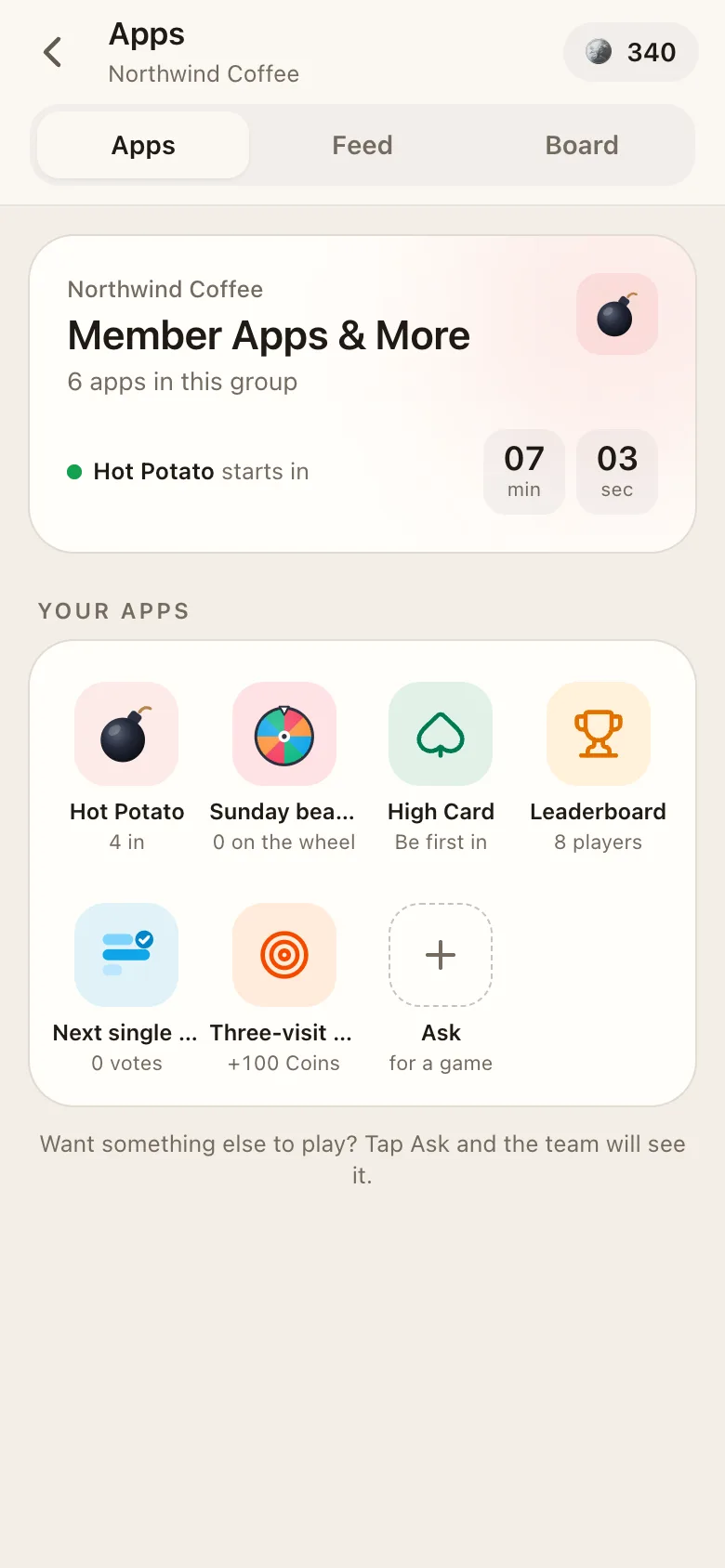 
Clients can tap **+ Ask for a game** to send your team a message in their support chat.
## Game cards in the group
Games post cards in the group chat: what's up next and who won. **Settings → Game cards** chooses, per game (Hot Potato, Raffle Spin, High Card, Poll), whether **Up next** and **Finished** cards show. By default, up next is on and finished is off. Agents and managers with **Manage game cards** can change this.
## Fair play
- The server plans and deals every round. Nothing is decided on a phone.
- Spam clients are left out of games and boards.
- Coins can't be bought or cashed out in Facia.
- Clients only see other players' aliases.
---
Source: https://docs.facia.chat/business/blocks
# Blocks
> Build pages, polls, announcements, missions and raffle spins without code, and place them where clients will see them.
# Blocks
Blocks are things you compose in HQ, with no developer: a page, a poll, a scheduled announcement, a mission or a raffle spin. Each one is placed somewhere in your app, shown to the clients you pick, in a layout and tone that matches your look.
**Where to make them:**
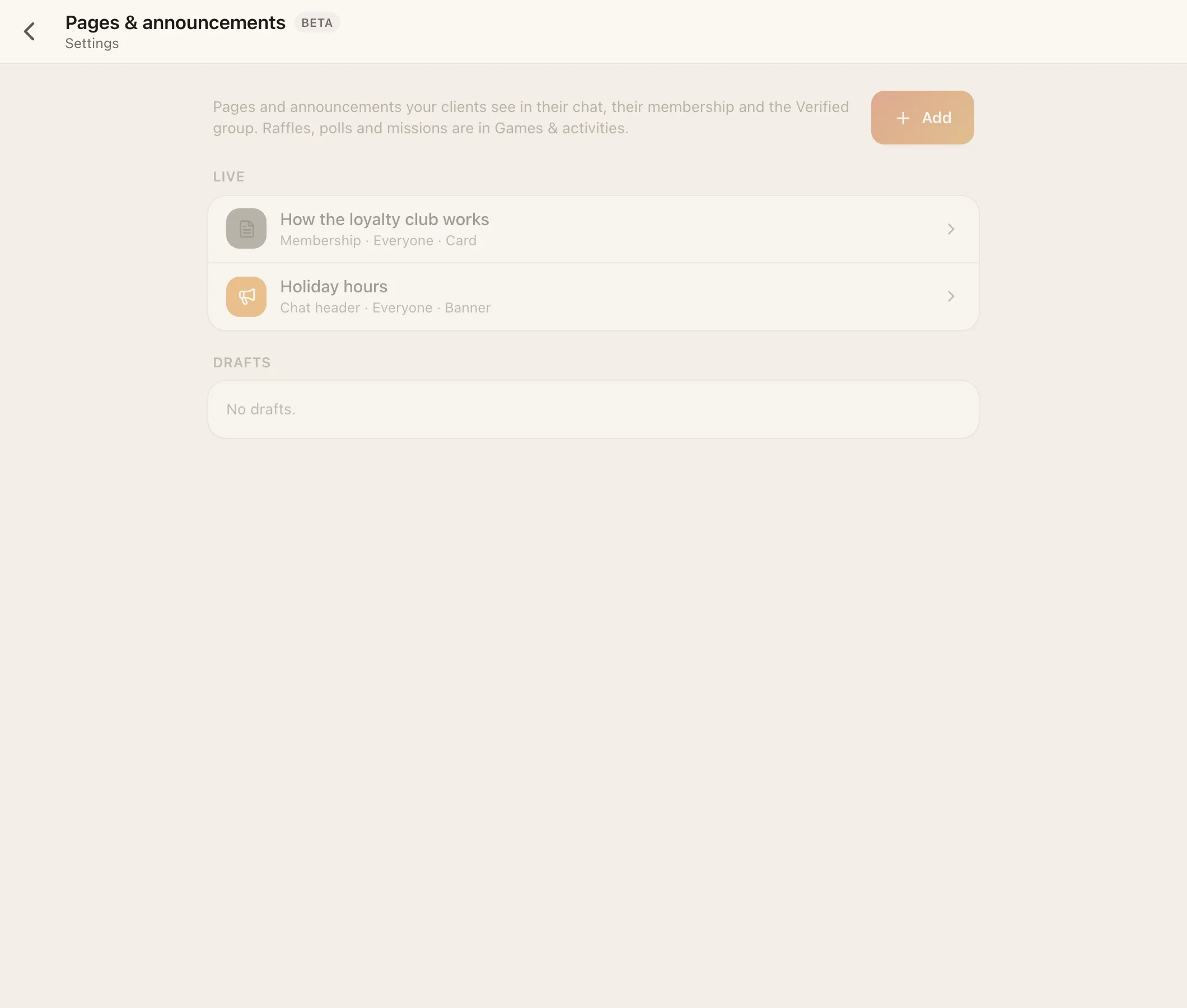
- **HQ → Settings → Pages & announcements** (`page=blocks`): pages and announcements.
- **HQ → Settings → Games & activities** (`page=games`): polls, missions and raffle spins.
Owners and admins can create and edit blocks. Your [AI bot](https://docs.facia.chat/business/ai#build-with-ai) can also propose blocks for you to approve.
## Lifecycle
**Draft → Live → Ended.** You can move a block back to draft, **duplicate** it, **reorder** it, or delete it. The editor shows a live preview in your look.
## Settings every block has
| Setting | Choices |
| --- | --- |
| **Title** | Up to 60 characters |
| **Where it shows** | **Under the chat header** · **In Membership** · **Top of the Verified group** · **On the Games & more page** (and in the group's bar while it's on) |
| **Who sees it** | Everyone · Verified members · VIP only. Spam never sees blocks |
| **Layout** | Card · Row · Banner · Chip |
| **Tone** | Quiet · Accent · Good news · Heads up · VIP gold |
## Page
Information that stays put: opening hours, a price list, rules, how to pay.
- Text (up to 2,000 characters) and/or up to **4 photos**.
- Up to **3 buttons**, each opening the support chat, a group, or a link.
- Default: In Membership, Card, Quiet, Everyone.
## Poll
- A question with **2–6 options** and an optional end time.
- One vote per client, and they can change it. Results update live.
- **Post to group** puts it in a group now, and it can be pinned.
- Default: Top of the Verified group, Card, Accent, Verified. Can't use the Banner layout.
## Announcement
A post that goes out at a set time.
- Text (up to 1,000 characters) and one photo.
- **Target**: a group or channel (required).
- **Post at**: a date and time.
- **Push**: on by default. Turn it off for a silent post.
- Default: Under the chat header, Banner, Accent, Everyone.
## Mission
A goal with a coin reward.
| Field | Notes |
| --- | --- |
| **Goal** | What to do, e.g. "Send 3 messages this week" |
| **Reward** | Coins, up to 100,000 (default 50). Needs coins on, and the audience Verified or VIP |
| **Start / end** | The window |
| **Done when** | **Your team says so** · **They send messages** · **They send a receipt** · **An app reports it** (with an event name your [app](https://docs.facia.chat/build/partner-api#mission-event) sends) |
| **Target** | How many times |
With "Your team says so", staff press **Mark done** for each client. Default: Games & more, Card, Good news, Verified.
## Raffle spin
| Field | Notes |
| --- | --- |
| **Prizes** | Up to 5. Text, coins, or both. Coin prizes need coins on and the Verified audience |
| **Who's on the wheel** | Opt-in ("I'm in") · Everyone · People you pick · Options you write (2–24). Written options can't win coins |
| **Mode** | One spin picks the winner · Last one standing (at most 16) |
| **Spins at** | A time, or **Spin now** |
| **Every week** | Repeats weekly |
| **Post in** | The group that watches |
| **Remind an hour before** | On or off |
The wheel holds up to 200 people. After the spin, your team ticks off written prizes as delivered. See [Games](https://docs.facia.chat/business/games#raffle-spins).
## Ideas
- A "How to pay" **page** in Membership, with a button to the support chat.
- A Friday **poll** in the Verified group: "What should we restock?"
- A weekly **announcement** with this week's offers, sent to your channel at 9:00.
- A **mission**: "Send your first receipt this month → 100 coins".
- A Sunday-night **raffle spin** for everyone who chatted that week.
> [!AI]
> Ask your AI to plan a month of blocks with the prompt in [Set it up with AI](https://docs.facia.chat/start/setup-with-ai#design-your-games-and-activities).
---
Source: https://docs.facia.chat/business/hq
# HQ
> The staff control room. Overview, Analytics, Clients, Payments, Team, Activity, Bots, Live TV and Settings.
# HQ
HQ (`/hq`) is where your team sees how the business is doing and changes how it works. Every tab has an address: `/hq?tab=`.

In the **Futuristic** style, HQ becomes a widget dashboard with a side rail on computers and a bottom bar on phones (Overview, Inbox, All apps, Team, Settings). The Inbox shows a badge with how many clients are waiting. Every chart and widget has **Open big** for a full-screen view.
## Who sees which tab
| Tab | Owner / admin | Manager | Agent |
| --- | --- | --- | --- |
| Overview | ✓ | ✓ | ✓ |
| Analytics | ✓ | ✓ | – |
| Clients | ✓ | ✓ | With **See Clients insights** |
| Payments | ✓ (AI and Payments on) | – | With **See Payments** |
| Team | ✓ | Agents only | Read-only |
| Activity | ✓ | – | – |
| Bots | ✓ | – | – |
| Live TV | ✓ (Futuristic style) | ✓ (Futuristic style) | – |
| Settings | ✓ | Game cards only, with permission | Game cards only, with permission |
## Overview
Today at a glance: open, new and resolved conversations, unassigned, first reply time and the longest wait. It also shows who's waiting for a reply, the team today, clients waiting for verification approval, and the **HQ chat**, where the Reporter and AI bot post. **Send a report now** posts an instant report.
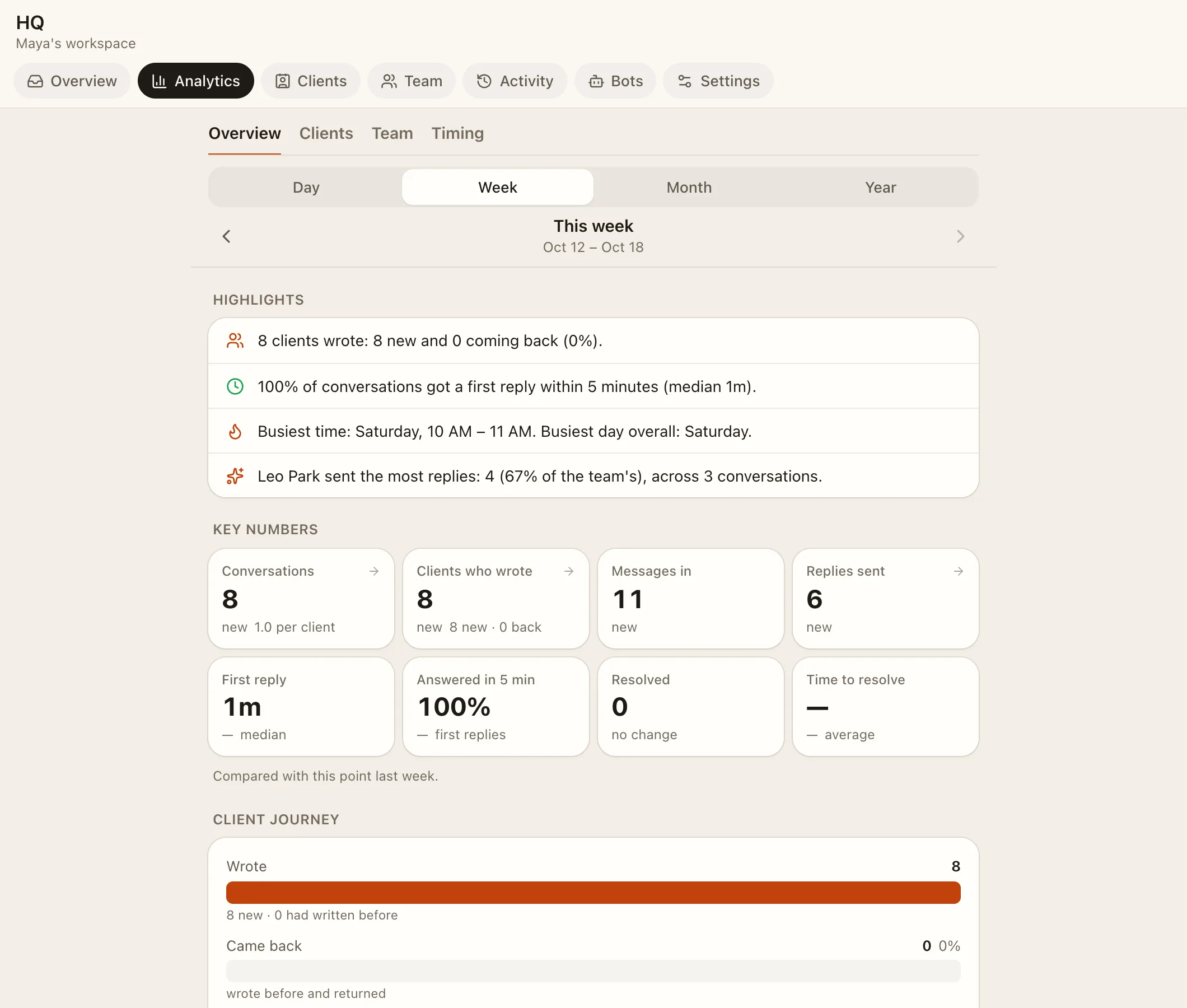
## Analytics
Sub-tabs **Overview**, **Clients**, **Team** and **Timing**, with charts and donut charts: key numbers, new vs returning, the client journey, how fast you answer, busiest times, whether your coverage matches when clients write, who replied when, a per-business breakdown, and money in next to conversations. **Export CSV** downloads the data.
## Clients
Sub-tabs **Overview**, **Loyalty**, **Service**, **Sources** and **People**, over 7, 30 or 90 days or everyone.
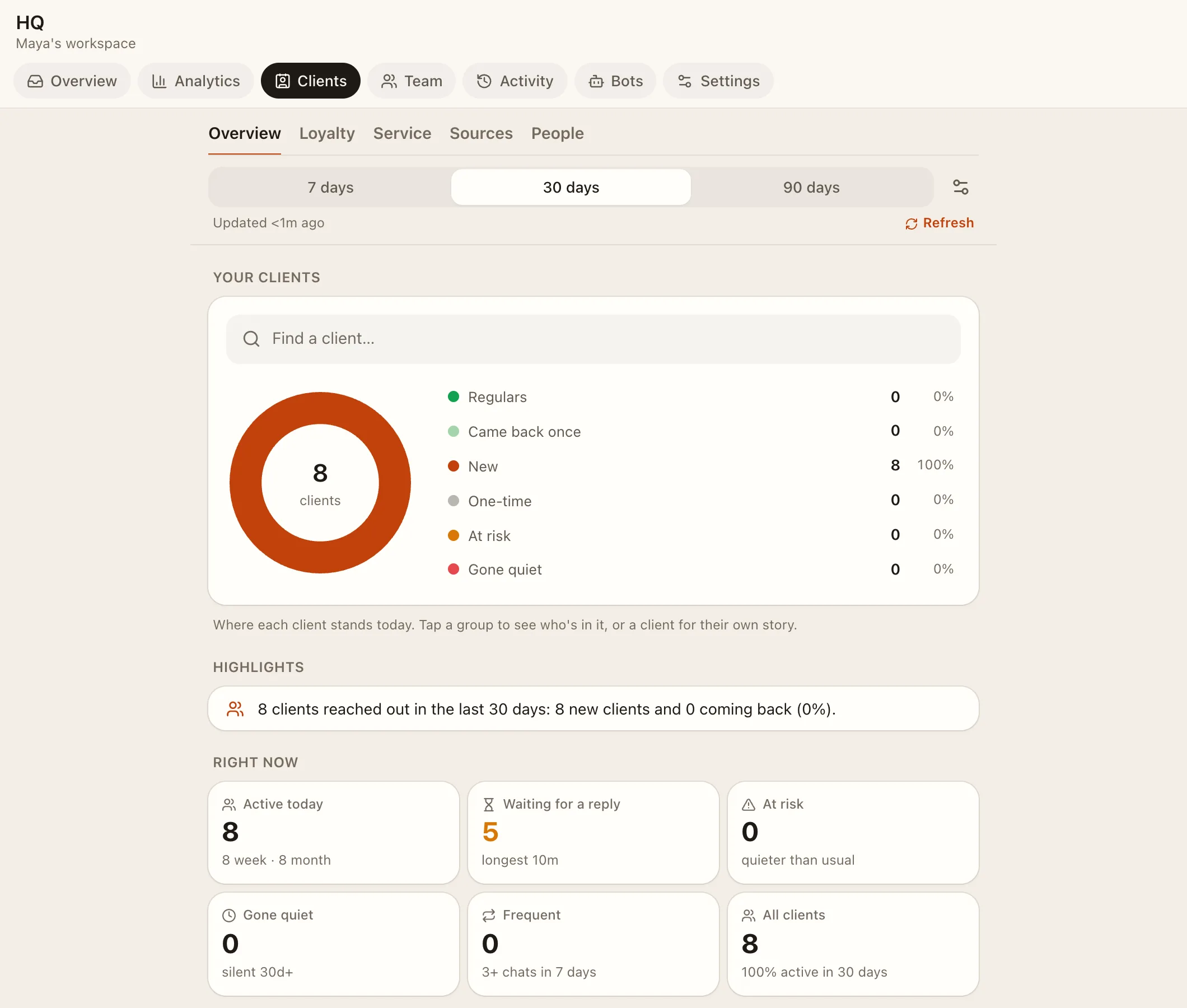
- **Highlights**: regulars, clients at risk, gone quiet, unanswered and slow.
- **Outreach**: quick "We miss you" and "Checking in" messages.
- **Sources**: where clients came from (a friend, a campaign link, your page, an embed, a group invite, direct), top inviters and invite chains. See [Growth](https://docs.facia.chat/business/growth).
- **Client profile**: rhythm, who helped them, insights, and an AI note.
- **Download CSV**.
**How clients are counted** (admins): a new conversation after *N* minutes of quiet (default 10), quick repeats (15), slow first reply (15), gone quiet after *N* days (30), and **Close silent chats** after a number of days.
## Payments
Needs the AI and Payments features. Sub-tabs **Overview**, **Products**, **Team** and **Receipts**.
- Money in and out, read from receipt photos and from deals agreed in chats.
- **Products**: the AI adds them as it sees them, and admins rename, merge, hide, or add a note for the AI.
- **Checks**: receipts to confirm, deals to check (**Looks right**, fix, or **Not a payment**), photos it couldn't read.
- Top paying clients, payment apps used, and how fast payments are handled.
See [The AI bot](https://docs.facia.chat/business/ai#photo-reads-and-payments).
## Team
People, roles, businesses, permissions, invite links and devices. See [Team and roles](https://docs.facia.chat/business/team).
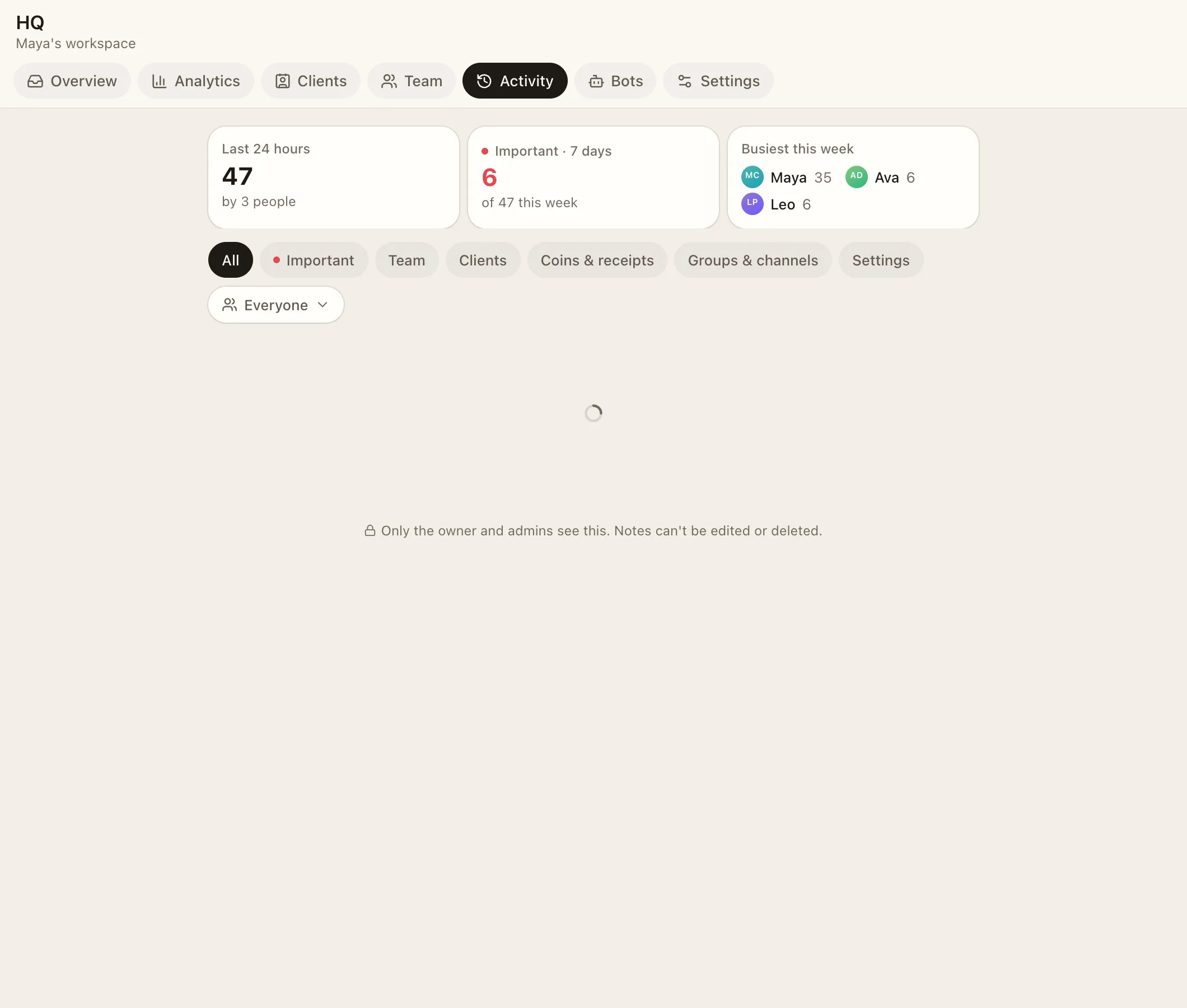
## Activity
An audit log of everything that changed: settings, tiers, coins, receipts, groups, team, deletions and apps. Filter by **All**, **Important**, **Clients**, **Coins & receipts**, **Groups & channels**, **Team** or **Settings**, or by one person ("by" or "about" them). Kept for one year. Owners and admins.
## Bots
- **Reporter** (no AI): daily reports, waiting alerts and `@Reporter` commands. See [The support inbox](https://docs.facia.chat/business/inbox#the-reporter).
- **AI bot**: see [The AI bot](https://docs.facia.chat/business/ai).
## Live TV Beta
A full-screen live wall for a screen in the office (`/live`): waiting chats, open conversations per person, who's online, clients with the app open, messages per minute, week, month and year trends, and a monthly money goal ring. In the Futuristic style, for owners, admins and managers.
## Settings
The menu groups the pages:
| Group | Pages |
| --- | --- |
| **Your business** | One row per business: [Business settings](https://docs.facia.chat/business/settings) |
| **Your app** | [Business look](https://docs.facia.chat/business/look), [Features](https://docs.facia.chat/business/features), [Games & activities](https://docs.facia.chat/business/games), [Pages & announcements](https://docs.facia.chat/business/blocks), [Apps](https://docs.facia.chat/build/overview), Replies, [AI](https://docs.facia.chat/setup/ai-keys) |
| **Team** | [Agent permissions](https://docs.facia.chat/business/team#permissions) |
| **Reach** | [Email](https://docs.facia.chat/setup/email), [Connect a website](https://docs.facia.chat/setup/connect-website), [Refer a server](https://docs.facia.chat/business/growth#refer-a-server) |
| **Workspace** | General: name and time zone |
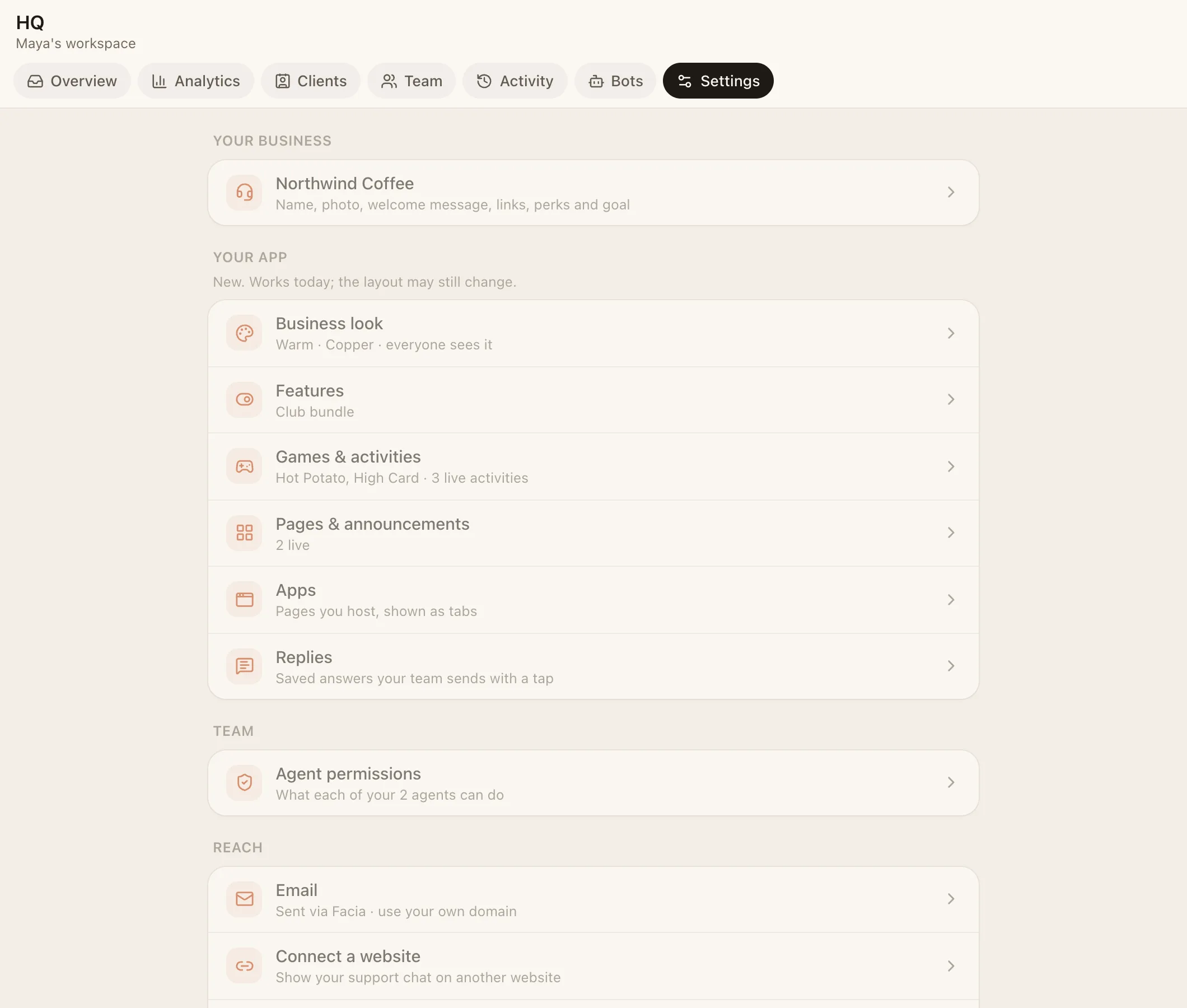
Each row shows its current state, like the preset in use, the bundle, how many blocks are live, or whether the AI is on.
---
Source: https://docs.facia.chat/business/ai
# The AI bot
> Your business's AI. Ask it about the business, let it read receipts, suggest tags, propose improvements, and run it on your own provider key.
# The AI bot
Every business can have an AI bot. It's named after your business, e.g. **AcmeBot** (or **AppBot** for long names). It reads your chats, learns the business, and answers the owner's and admins' questions. It never talks to clients.
## Turn it on
1. **HQ → Settings → Features → AI assistant**. It's workspace-wide. If you can't see it, AI isn't available for your business yet. Ask Facia support.
2. **HQ → Bots → AI bot** → turn on the bot.
3. If Facia isn't providing the AI for you, add your own provider key in **HQ → Settings → AI**. See [AI provider keys](https://docs.facia.chat/setup/ai-keys).
## Talk to it
- **Open my chat with *Bot***: a private chat between you and the bot. Ask anything: "How many new clients this week?", "Which agent is slowest to reply?", "What do people complain about most?", "What came in yesterday from Cash App?"
- In HQ, tag it: `@AcmeBot …`.
- **Thinking** (in the bot chat header) lets it think longer for hard questions.
- **New conversation** starts fresh when you change topic.
- Give **👍 or 👎** on its answers. It learns from both.
It can look at any time range ("last 3 months", "from March 1 to March 15") and filter by agent.
## Switches in HQ → Bots
| Switch | What it does |
| --- | --- |
| **Can read conversations** | Off: it only sees numbers and lists. On: it reads chats to answer and learn |
| **Proposes improvements** | Weekly "What changed" notes and proposals (see below) |
| **Payments** | Reads receipts and deals into HQ → Payments |
You'll also find:
- **Knowledge sheet**: facts about your business it has learned. Approve or reject each one.
- **Nightly notes**: a digest of the day.
- **Notes**: anything it remembers, each with **Forget this**.
Agents can't use the bot.
## Build with AI
With **Proposes improvements** on, the bot suggests changes as cards in your private bot chat, each with what clients would get, the numbers behind it, and **Approve** or **Decline**:
- a [block](https://docs.facia.chat/business/blocks) (page, poll, announcement, mission),
- a feature change,
- a saved reply,
- a new welcome message,
- a group post,
- better wording for your goal or description, or lines for the knowledge sheet.
Nothing changes until you approve. A declined idea is never proposed again. Every Monday it posts "What changed" with up to three proposals, sometimes a quick one in the afternoon, and you can also just ask it "how could we improve?".
## Photo reads and payments
With Payments on, every photo in a support chat is read: receipts, screenshots, documents. The bot picks out the amount, payment app, transaction id and status. This feeds [HQ → Payments](https://docs.facia.chat/business/hq#payments), [levels](https://docs.facia.chat/business/levels-coins) and missions.
- Your team sees the reading under each photo with **See photo readings**. Clients never see it.
- Staff can mark a payment as **money came** (👍) or **didn't come** (👎), or edit the amount and what it was for.
- It also reads **deals** agreed in conversation ("2 for $40"); receipts are the evidence.
## Tags and client notes
The bot adds `$tags` when a theme comes up on two or more days, and writes a short note about each client for your team. Removing a tag teaches it not to add that tag again.
## Privacy
The AI sees clients by **alias and tier only**: never names, usernames, phone numbers, emails or devices. Codes on receipts are shortened before it sees them. It answers only your owner and admins, and never messages clients.
> [!NOTE]
> On your own provider key, the bot, questions, proposals and photo reads work. Payment tagging, deals, client notes and nightly notes currently also need Facia's AI helper set up for your business. Ask Facia support.
---
Source: https://docs.facia.chat/business/calls
# Voice calls
> Voice calls between your team and clients, clients and each other, plus live voice rooms in groups.
# Voice calls
Facia has built-in voice calls: no extra app, no code, and nothing to host. They're **voice only** and **never recorded**.
## Turn them on
**HQ → Settings → Features → Voice calls → Settings.** Calls are off by default and not part of any bundle.
| Who can call whom | Default |
| --- | --- |
| Admins → clients | On |
| Agents → clients | On |
| Clients → team (rings everyone allowed; the first to answer takes it) | Off |
| Admins ↔ agents | On |
| Agents ↔ agents | On |
| Clients ↔ clients (by alias, from a group message) | Off |
Agents and managers also need the **Make calls** [permission](https://docs.facia.chat/business/team#permissions). Blocked and Spam clients can't call or be called.
## Where the call buttons are
- The phone icon in a support chat's header.
- Next to teammates in **Chat info → Team**.
- In a community group, long-press a message → **Call *Silver Fox***, if clients ↔ clients is on. Only aliases are shown.
The chat gets a note for every call: "📞 Voice call · 3:12", "Missed voice call" or "Call declined". An incoming call rings for 45 seconds.
## During a call
- **Microphone and speaker**: pick which mic and speaker to use. Facia remembers the choice on that device, and follows plugged-in headsets or AirPods while you talk. Choosing a speaker works on computers (Chrome, Edge, Firefox). On phones, the phone decides between earpiece, speaker and Bluetooth.
- **Mute and hang up from the lock screen** and the browser's media controls, so you don't have to unlock your phone.
- **"You're muted"**: a reminder pops up if you start talking while muted.
- **Call quality**: after a call, your team sees how it sounded on each side (clear, good, choppy at times or poor, e.g. "Client sound clear · Team sound choppy at times"), with the reason, such as sound lost or a slow connection. Only the team sees this. It's numbers only: calls are never recorded.
## Voice rooms
Turn on **Group voice rooms** in the same settings to get live audio rooms (🎙) in community groups and the Team chat.
- **Hosts** (your team) talk. **Listeners** (clients) listen and **raise a hand**.
- Hosts can **Let them talk**, **Move to listeners** or **Remove**.
- One room per chat, up to 3 live rooms per business at a time, 6 hours max.
- **People per room**: 25, 50 (default), 100 or 200. **Talking at once**: 3, 6 (default) or 10.
## Good to know
- On iPhone, an incoming call shows as a notification. Tap it to answer. Installing the app helps (see [Notifications](https://docs.facia.chat/business/notifications)).
- If you [embed Facia](https://docs.facia.chat/setup/embed) on your site, the frame needs `allow="microphone; autoplay"` for calls to work.
- Calls are private: other callers never see anyone's IP address.
---
Source: https://docs.facia.chat/business/growth
# Growth and invites
> Share links, QR codes, campaign links, friend referrals, group invites, team invites, sources and referring other businesses.
# Growth and invites
## Your links
| Link | Opens |
| --- | --- |
| `https://yourhandle.facia.chat` | Your app, locked to your business |
| `https://chat.yourbrand.com` | The same, on your own [domain](https://docs.facia.chat/setup/domains) |
| `https://facia.chat/@yourhandle` | Your page on facia.chat |
| `https://…/join/` | A group or channel invite |
| `https://…/embed/yourhandle` | The embeddable chat (see [Embed](https://docs.facia.chat/setup/embed)) |
**Share link & QR code** in business settings gives you the link and a printable QR code.
## Campaign links
Add `?src=` to any link to see which campaign brought each client:
```text
https://chat.yourbrand.com/?src=instagram-bio
https://chat.yourbrand.com/?src=flyer-oct
```
`?utm_source=` works too. Results are in **HQ → Clients → Sources**, next to friends, your page, embeds, group invites and direct visits.
## Friend referrals
Verified members get an **Invite a friend** link on the leaderboard page. When the friend says hi, the member earns **+100 leaderboard points**. **HQ → Clients → Sources** shows your top inviters and invite chains (friends of friends).
Member links look like `?ref=CODE` and are remembered for 30 days on the friend's device.
## Group invites
**Chat info → Invite links** in any group or channel: copy, show a QR code, or revoke. A link stops working if the admin who made it leaves.
## Team invites
**HQ → Team** → invite link for an agent, manager or admin, valid 72 hours. See [Team and roles](https://docs.facia.chat/business/team).
## Refer a server
Know another business that should be on Facia? **HQ → Settings → Refer a server** (owners) gives you a referral code or link that lasts 30 days. With it, they [create their server](https://docs.facia.chat/start/create-a-server) instantly, with no review.
## Link previews
When someone shares your link on WhatsApp, Telegram, iMessage and so on, the preview shows your business name, description and logo. Group invites show the group too. Keep your logo and description up to date in [business settings](https://docs.facia.chat/business/settings).
---
Source: https://docs.facia.chat/business/notifications
# Notifications and the app
> Push notifications, installing Facia on the home screen with your name and icon, and in-app browsers.
# Notifications and the app
## Install as an app
Facia is a web app that installs like a real one, with your business name and logo on the home screen. No app store is needed.
- **Android and desktop Chrome or Edge**: **Settings → Get the app → Install *Name***, or the browser's install button.
- **iPhone and iPad**: open in **Safari** → **Share** → **Add to Home Screen**. Settings → Get the app shows these steps.
The app is named after your business. Turn on **Add "Support" to the app name** in [business settings](https://docs.facia.chat/business/settings) to call it "*Name* Support".
## Push notifications
- Facia offers notifications to clients after their first message. Staff turn them on in **Settings → Notifications**.
- **Settings → Notifications**: on or off for this device, **show message text** in the notification, and **send a test**.
- **On iPhone, push only works once the app is installed** to the home screen (an Apple rule).
- Notifications show your logo, and come a few seconds after a message. If it's already been read or the chat is muted, none is sent.
- `@tags` get through mutes.
- In groups, clients see other clients by alias in notifications too.
- If notifications are blocked in the browser, Facia shows how to unblock them.
- "Not now" hides the prompt for 3 days (clients) or 14 days (staff).
## In-app browsers
Links opened inside Instagram, Facebook, TikTok and the like open in a limited browser that can't install apps or get push. Facia notices and offers **Open in Safari / Chrome**, carrying the client's chat across with a one-time code.
## Updates
When a new version of Facia is out, staff see a small **New version · Update** bar. Clients get updates automatically.
---
Source: https://docs.facia.chat/setup/domains
# Domains
> Your free yourhandle.facia.chat address, and connecting your own domain like chat.yourbrand.com with one DNS record.
# Domains
Every business can be reached at three kinds of address. On all of them, clients see only your business.
| Address | Setup |
| --- | --- |
| `https://yourhandle.facia.chat` | Automatic. Free for every business |
| `https://facia.chat/@yourhandle` | Automatic |
| `https://chat.yourbrand.com` | Your own domain: one DNS record (below) |
Your handle comes from your [business settings](https://docs.facia.chat/business/settings). If you change your handle, your `facia.chat` address changes with it.
## Use your own domain
Most businesses use a **subdomain** such as `chat.yourbrand.com`, `support.yourbrand.com` or `club.yourbrand.com`. Your main website stays where it is.
### 1. Ask for the address
Message Facia support from your business with the address you want, e.g. "Please connect chat.yourbrand.com". Facia adds it to your server and tells you the exact records.
### 2. Add the DNS record
At your domain's DNS provider (Cloudflare, GoDaddy, Namecheap, Google/Squarespace, Route 53…), add:
| Type | Name | Value |
| --- | --- | --- |
| `CNAME` | `chat` (the part before your domain) | `customers.facia.chat` |
Sometimes Facia also gives you a `TXT` record to prove the domain is yours. It's optional, but it makes the address go live faster.
> [!WARNING]
> **On Cloudflare**, set the CNAME to **DNS only** (grey cloud), not Proxied, unless Facia support tells you otherwise.
### 3. Wait for it to go live
Facia checks the record in the background for about a day and a half, and issues the security certificate (https) automatically. Most domains are live within minutes to an hour. Facia can make it your **primary** address, so links and emails use it.
### Check it yourself
```bash
dig +short chat.yourbrand.com CNAME
```
It should print `customers.facia.chat.`. If it prints nothing, the record isn't there yet or the name is wrong.
## Common problems
| Symptom | Fix |
| --- | --- |
| "Waiting for DNS" for hours | Check the record name. Many providers add your domain automatically, so the name should be `chat`, not `chat.yourbrand.com` |
| Certificate error | Wait a little longer. If it's on Cloudflare, switch the record to DNS only |
| Root domain (`yourbrand.com`) | Use a subdomain. Most providers can't put a CNAME on the root domain |
| Old site still shows | Remove any old `A` or `CNAME` record with the same name |
## Embedding instead
If you'd rather keep clients on your own website, embed the chat there. See [Embed Facia](https://docs.facia.chat/setup/embed).
> [!AI]
> Your AI can guide you through your exact registrar's screens. See the domain prompt in [Set it up with AI](https://docs.facia.chat/start/setup-with-ai#set-up-your-own-domain).
---
Source: https://docs.facia.chat/setup/email
# Email (Resend)
> Send sign-in and verification emails under your business name, from your own domain, or through your own Resend account.
# Email
Facia sends a few emails for you: sign-in and password codes, and the 6-digit code for [Get verified](https://docs.facia.chat/business/membership#get-verified). They always go out under your **business name**. You choose the address they come from.
**HQ → Settings → Email** (`page=email`). Owners and admins.
## Three options
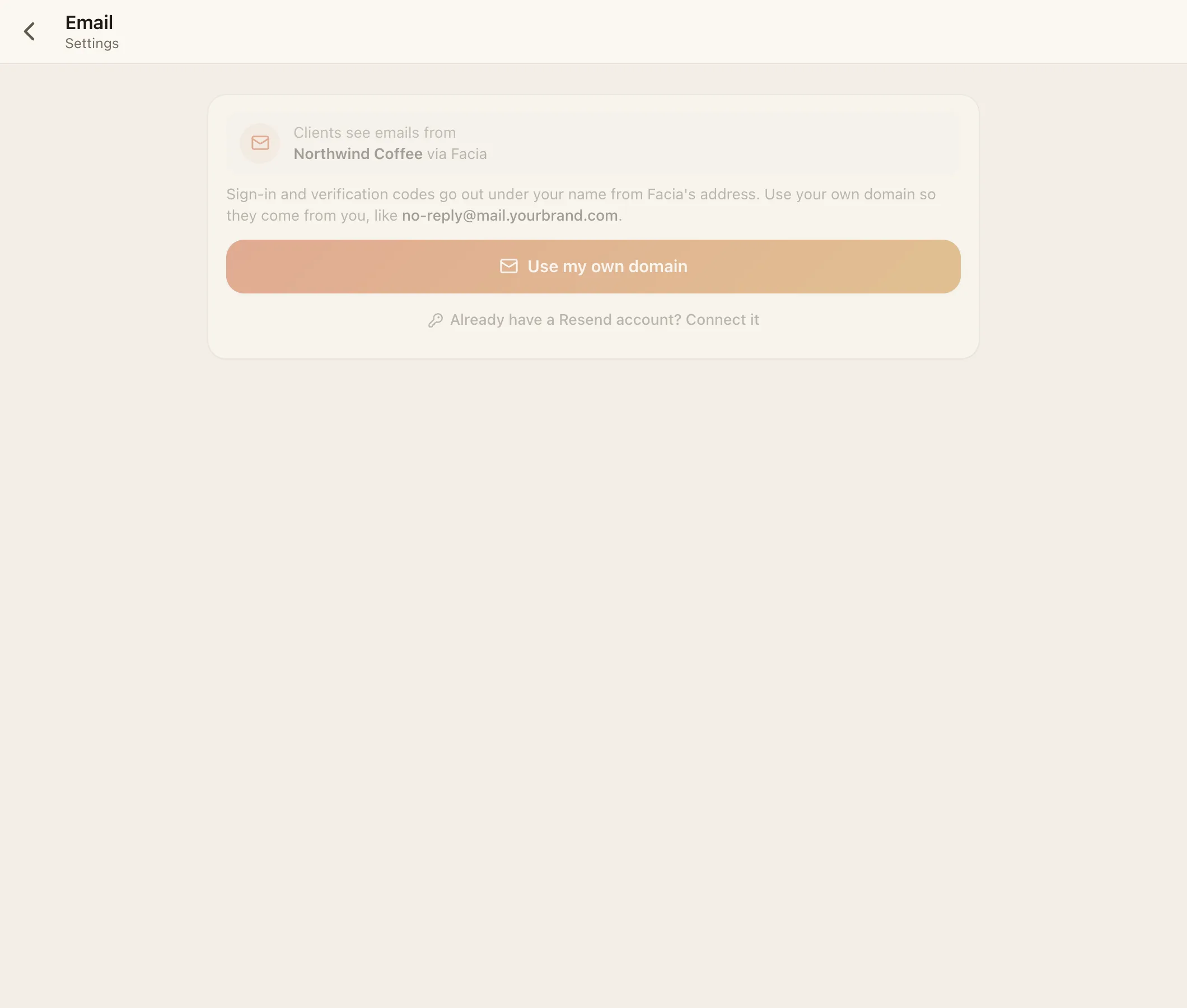
| Option | From address | You need |
| --- | --- | --- |
| **1. Facia's address** (default) | Facia's sending address, with your business name | Nothing |
| **2. Your own domain** | e.g. `no-reply@mail.yourbrand.com` | Access to your domain's DNS |
| **3. Your own Resend account** | Any address verified in your Resend account | A [Resend](https://resend.com) account and API key |
If you set up both 2 and 3, your own Resend account wins.
## Option 2: your own domain
Facia sends through its own email service, but from your domain.
1. **HQ → Settings → Email → Use your own domain.**
2. Type a domain. We recommend a **subdomain** like `mail.yourbrand.com`, so your main email (Google Workspace, Outlook…) isn't affected.
3. Facia shows the **DNS records** to add, each with a Name and Value you can copy. There are usually a few `TXT` records (SPF, DKIM) and one `MX` record.
4. Add them, either way:
- **Add the records for me** (Cloudflare only): paste a one-time Cloudflare API token, and Facia adds them for you. See below.
- **Add them yourself**: copy each Name and Value into your DNS provider.
5. Press **Check**. Status goes from **Waiting for DNS** to **Verified**. DNS can take a few minutes, sometimes longer.
6. Choose the **address**: the part before the `@`, e.g. `no-reply` or `support`.
Your codes now come from your own domain. **Remove** goes back to Facia's address at any time.
### The one-time Cloudflare token
1. In Cloudflare, go to **My Profile → API Tokens → Create Token**.
2. Next to **Edit zone DNS**, choose **Use template**.
3. Under **Zone Resources**, choose **Include → Specific zone → yourbrand.com**.
4. **Continue to summary → Create Token**, and copy it.
5. Paste it into Facia and press **Add the records for me**.
Facia uses it once to add the records, then forgets it. It's never stored. You can delete the token in Cloudflare straight afterwards.
## Option 3: your own Resend account
Send through your own [Resend](https://resend.com) account. Your sending reputation and logs stay yours.
1. In Resend, add and verify your domain under **Domains**.
2. Go to **API Keys → Create API Key**, with permission **Sending access**. Copy the key (it starts with `re_`).
3. In Facia: **HQ → Settings → Email → Connect your Resend account**.
4. Fill in:
- **Resend API key**: `re_…`
- **Send from**: an address on a domain verified in your Resend account, e.g. `no-reply@mail.yourbrand.com`
- **Send a test to**: your own email
5. Facia sends a test email first and only saves the key if the test goes through.
The key is stored encrypted, and only its last 4 characters are ever shown. **Disconnect** removes it.
## Troubleshooting
| Problem | Fix |
| --- | --- |
| "Records not found" | Make sure each Name is exactly as shown. Some providers add the domain to the name for you, so don't add it twice |
| Stuck on "Waiting for DNS" | Wait 10–30 minutes and press **Check** again |
| Test email fails (option 3) | The **Send from** domain must be verified in Resend, and the key needs Sending access |
| Emails land in spam | Use a subdomain just for sending, and make sure the DKIM and SPF records are verified |
| Facia's domain refused | Facia's own domains can't be used as your sending domain |
> [!AI]
> Not sure which option fits? Use the email prompt in [Set it up with AI](https://docs.facia.chat/start/setup-with-ai#send-email-from-your-own-domain-resend).
---
Source: https://docs.facia.chat/setup/ai-keys
# AI provider keys
> Run your business bot on your own Anthropic, OpenAI or OpenAI-compatible key, with a monthly spending cap.
# AI provider keys
Your [AI bot](https://docs.facia.chat/business/ai) can run on your own AI account. You pay your provider directly, and Facia shows the spend and stops at your monthly cap.
**HQ → Settings → AI** (`page=ai`). Owners and admins can see it, but only the **owner** can change it. If the page says the AI assistant isn't available for your business, ask Facia support.
## Providers
| Provider | Where to get a key | Models Facia suggests |
| --- | --- | --- |
| **Anthropic** (Claude) | [console.anthropic.com](https://console.anthropic.com) → API keys | Claude Opus 5.5 (best answers), Claude Sonnet 5.5 (fast and capable), Claude Haiku 5.5 (cheapest) |
| **OpenAI** (GPT) | [platform.openai.com](https://platform.openai.com) → API keys | GPT-5, GPT-5 mini (cheaper), GPT-5 nano (cheapest), GPT-4.1 |
| **Your own endpoint** | Any OpenAI-compatible server: vLLM, Ollama, LM Studio, OpenRouter… | Any model id it serves |
You can also type any model id your provider offers.
## Connect a key
1. Create a key at your provider. Give it a name like "Facia" so you can recognise and revoke it later.
2. In Facia, open **HQ → Settings → AI**, pick the provider, and paste the key.
3. Pick a **model**.
4. Set a **monthly cap** in USD (default $20). The bot pauses when this month's estimated spend reaches it. `0` means no cap.
5. **Your own endpoint** only: also give the **base address** (ending in `/v1`, e.g. `https://my-server.example.com/v1`), and your **price in and price out per 1M tokens**, so the cap means something.
6. Save, then turn the bot on in **HQ → Bots**.
The key is stored encrypted, and only its last 4 characters are shown. **Change key or settings** replaces it, and **Remove** deletes it (the bot stops until a new key is added).
## The spend meter
The page shows **This month**: the estimated spend so far. When it reaches the cap, the bot shows **Paused: this month's budget is used up** until the next month or until you raise the cap.
| Typical use | Suggested model | Suggested cap |
| --- | --- | --- |
| Small business, a few questions a day | Claude Haiku 5.5 or GPT-5 mini | $5–10 |
| Busy inbox, receipts read every day | Claude Sonnet 5.5 or GPT-5 | $20–50 |
| Best answers and long reports | Claude Opus 5.5 | $50+ |
Your actual cost depends on how many chats and photos it reads. Start low and raise the cap if it pauses.
## What is sent to your provider
- Conversations and numbers it needs to answer, with clients shown **by alias and tier only**: never names, usernames, phones, emails or devices.
- Receipt photos, for photo reads (with codes shortened).
- Nothing about other businesses.
## Running your own model
With **Your own endpoint**, you can run open models on your own hardware and pay nothing per token. Example with Ollama:
```bash
ollama pull qwen3:14b
OLLAMA_HOST=0.0.0.0 ollama serve
```
Ollama's OpenAI-compatible address is `http://:11434/v1`. Put it behind HTTPS (for example a Cloudflare Tunnel) so Facia can reach it, then use that https address as the base address and `qwen3:14b` as the model. Set both prices to `0`.
> [!NOTE]
> If Facia already runs an AI helper for your business, it keeps answering, and your key is only used while that helper is offline. Payment tagging, deals, client notes and nightly notes currently need that helper. See [The AI bot](https://docs.facia.chat/business/ai#privacy).
---
Source: https://docs.facia.chat/setup/embed
# Embed Facia
> Put your Facia chat on your own website with one script tag, or in an iframe or native app WebView, with theme and name hints.
# Embed Facia
Keep clients on your own website or inside your own app, and give them your Facia chat there. Embeds are for **clients**: staff who open one are pointed to the inbox.
## Option 1: the chat button (one line)
Paste this before `
Daily Bonus
Loading…
` on your site:
```html
```
| Attribute | Meaning |
| --- | --- |
| `src` | `widget.js` on any of your Facia addresses (your domain, `yourhandle.facia.chat` or `facia.chat`) |
| `data-handle` | Your business handle |
| `data-color` | The button colour |
| `data-position` | `right` (default) or `left` |
It adds a floating chat button. The chat opens in a panel (380 px wide on desktop, full screen on phones) the first time someone clicks it. Control it from your own code:
```js
window.FaciaWidget.open();
window.FaciaWidget.close();
```
## Option 2: an iframe
Use this for a full chat page, a sidebar, or a help-centre panel:
```html
```
> [!WARNING]
> Keep `allow="microphone; autoplay"`. Without it, [voice calls](https://docs.facia.chat/business/calls) and voice messages can't use the microphone inside the frame.
### Hints after `#`
Settings after `#` in the address stay in the browser and are never sent to a server.
| Hint | Example | Effect |
| --- | --- | --- |
| `name` | `name=Pat` | Prefills the client's name (up to 64 characters) |
| `theme` | `theme=dark` | `light` or `dark` |
| `insets` | `insets=0` | Your page already handles the phone's safe areas |
| `accent` | `accent=3d6bff` | Accent colour, 6-digit hex without `#` |
| `bg` | `bg=0e1014` | Background colour |
| `surface` | `surface=171a20` | Card colour |
Facia works out the remaining colours from these.
### Query parameters
| Parameter | Effect |
| --- | --- |
| `?ref=CODE` | A member's invite code (4–16 letters and numbers), remembered for 30 days |
| `?src=name` | Campaign tag shown in [Sources](https://docs.facia.chat/business/growth#campaign-links). Embeds also record the site they're on |
### Messages from the frame
The embed tells your page about a few things with `postMessage`:
```js
window.addEventListener("message", (e) => {
if (e.origin !== "https://yourhandle.facia.chat") return;
const m = e.data;
if (m?.ns !== "relay") return;
if (m.type === "unread") setBadge(m.count); // unread messages for the client
if (m.type === "close") hideChatPanel(); // the client pressed close
});
```
## Option 3: native apps (WebView)
Load `https://yourhandle.facia.chat/embed/yourhandle` in a WebView.
- **Grant microphone access** to the WebView (Android `onPermissionRequest`, iOS `WKUIDelegate` media capture).
- **iOS**: set `allowsInlineMediaPlayback = true`.
- Use `#insets=0` if your app already pads for the notch and home bar.
- Rule of thumb: web things go *inside* Facia as [apps](https://docs.facia.chat/build/overview), and native apps *wrap* Facia with an embed.
## Sign-in and storage
Each embedded business keeps its own sign-in in the browser, so a client signed in to one embedded business isn't signed in to another. Clients start as guests and can save their account from Settings inside the embed.
Signing clients in automatically from your own site's login (single sign-on) isn't available yet.
---
Source: https://docs.facia.chat/setup/connect-website
# Connect a website
> Link your Facia support chat to a partner website or platform with a one-time connect code.
# Connect a website
Some websites and platforms have Facia support built in. For example, a game or shop platform can show your Facia chat as its **Support** tab. To link your business to one of them, you make a **connect code** in Facia and paste it into the other site.
## Make a code
1. **HQ → Settings → Connect a website** (`page=connect`). Owners and admins.
2. Press **New code**. You get a code like `ABCD-EFGH-JKMN`.
3. In the other site's admin panel, paste it where it asks for your Facia support code.
| Rule | |
| --- | --- |
| Valid for | 24 hours, one use |
| A new code | Cancels your older unused ones |
| Letters | No 0, O, 1, I or L, so it's easy to read out. Not case-sensitive |
| Limit | 20 codes an hour per person |
## See where you're connected
The same page lists each business and the sites it's shown on, with when each was connected.
## For platforms that want to offer this
Platforms integrate through Facia's partner programme, with a partner key issued by Facia. They can connect existing businesses by code, look one up by handle or address, and create a new business with an owner login for their users. To become a partner, contact Facia support.
If you just want Facia on your own site, you don't need any of this. Use the [embed](https://docs.facia.chat/setup/embed).
---
Source: https://docs.facia.chat/build/overview
# Build on Facia
> The ways to extend Facia (blocks, apps, the partner API and embeds) and which one to pick.
# Build on Facia
There are four ways to add your own things to Facia. Pick the lightest one that does the job.
| Way | Who | Code? | Good for |
| --- | --- | --- | --- |
| **[Blocks](https://docs.facia.chat/business/blocks)** | Owners and admins | No | Pages, polls, scheduled announcements, missions, raffle spins |
| **[Apps](https://docs.facia.chat/build/first-app)** | Developers | Yes, on your server | Games, shops, booking, quizzes, dashboards: anything in a browser, shown as a tab inside Facia |
| **[Partner API](https://docs.facia.chat/build/partner-api)** | Your app's server | Yes | Charging or paying coins, posting scores, giving badges, posting in groups, push, mission events |
| **[Embed](https://docs.facia.chat/setup/embed)** | Your website or native app | A little | Putting the Facia chat inside *your* product |
Rule of thumb: **web things go inside Facia** (apps), and **native things wrap Facia** (embed).
## What an app is
An app is a web page **you host**, with any stack: plain HTML, React, Vue, Svelte, Phaser, Godot, Unity WebGL, or a no-code tool. Facia shows it in a tab inside a business's app, in the business's colours, and tells your page **which client is looking** with a signed token.

```text
Client's phone Your server
┌──────────────────────────┐ ┌───────────────────────┐
│ Facia │ │ │
│ ┌────────────────────┐ │ token │ verify token (HS256) │
│ │ your page (iframe) │──┼─────────▶│ your data, your rules│
│ └────────────────────┘ │ │ │
└──────────────────────────┘ └──────────┬────────────┘
│ partner API (Bearer secret)
▼
Facia: coins, scores, badges,
group posts, push, missions
```
**What Facia gives you:**
- **Identity**: a signed [token](https://docs.facia.chat/build/token) with the client's per-business id, alias, tier, level and coins.
- **A frame that fits**: the business's theme, light or dark, safe-area insets, and a small [bridge](https://docs.facia.chat/build/bridge).
- **An API**: [partner calls](https://docs.facia.chat/build/partner-api) for coins, scores, badges, group posts, push and missions, each scoped to one business, permission-gated and logged.
**What you never get:** other clients, other businesses, messages, real names, phone numbers, emails or devices. If your server is down, only your tab is down.
## The pieces
1. **[Your first app](https://docs.facia.chat/build/first-app)**: from zero to a working tab in 15 minutes.
2. **[The token](https://docs.facia.chat/build/token)**: claims, verification in Node, Python, Go and PHP.
3. **[The frame bridge](https://docs.facia.chat/build/bridge)**: `facia-app.js`, theme variables, insets and messages.
4. **[Partner API](https://docs.facia.chat/build/partner-api)**: every call, body, response and error code.
5. **[Listing your app](https://docs.facia.chat/build/listing)**: offer it to every business on Facia.
6. **[Recipes](https://docs.facia.chat/build/recipes)**: a coin raffle, a scored game, a daily check-in, a members-only shop.
## Rules for every app
- **No real-money payments or transfers inside the frame**, and never ask for card or bank details there.
- **Don't collect names, phones, emails or passwords** in the tab. The alias is all you need.
- **Don't pretend to be Facia** or the business's support team.
- Keep your **app secret on your server**, never in the browser, a repo or a message.
Apps that break these rules get turned off.
## Limits
Up to **20 apps per business**. Partner calls: **1,200 an hour** per app per business (bursts of 120), and push **120 an hour** (bursts of 20). See [Limits](https://docs.facia.chat/reference/limits).
> [!AI]
> Want an assistant to build it? Use the Claude Code prompt in [Set it up with AI](https://docs.facia.chat/start/setup-with-ai#build-an-app-with-claude-code-or-any-coding-assistant).
---
Source: https://docs.facia.chat/build/first-app
# Your first app
> Build, run and register a Facia app in about 15 minutes, with a Node server, one page, token verification and a coin call.
# Your first app
We'll build **Daily Bonus**: a tab where a Verified member presses a button once a day and gets 10 coins. It uses everything an app needs: the token, the theme, and one partner call.
You need **Node 20+** and a business where you're an owner or admin, with **Apps** and **Client coins** on in [Features](https://docs.facia.chat/business/features).
## 1. The server
```bash
mkdir daily-bonus && cd daily-bonus
npm init -y
npm install express jsonwebtoken dotenv
```
`server.js`:
```js
import "dotenv/config";
import express from "express";
import jwt from "jsonwebtoken";
const { FACIA_APP_ID, FACIA_APP_SECRET, FACIA_API, PORT = 3000 } = process.env;
const app = express();
app.use(express.json());
app.use(express.static("public"));
// Verify the token Facia gave the page. Never trust it without this.
function client(req) {
return jwt.verify(req.body.token, FACIA_APP_SECRET, {
algorithms: ["HS256"],
issuer: "facia",
audience: FACIA_APP_ID,
});
}
// Call Facia's partner API from the server, with the secret.
async function facia(call, body) {
const res = await fetch(`${FACIA_API}/${call}`, {
method: "POST",
headers: { Authorization: `Bearer ${FACIA_APP_SECRET}`, "Content-Type": "application/json" },
body: JSON.stringify(body),
});
return res.json();
}
app.post("/api/me", (req, res) => {
try {
const c = client(req);
res.json({ alias: c.alias, tier: c.tier, coins: c.coins });
} catch {
res.status(401).json({ error: "bad_token" });
}
});
app.post("/api/claim", async (req, res) => {
let c;
try { c = client(req); } catch { return res.status(401).json({ error: "bad_token" }); }
if (c.tier !== "verified" && c.tier !== "vip") return res.json({ ok: false, error: "verified_only" });
const day = new Date().toISOString().slice(0, 10);
// The ref makes it once per client per day: a second claim gets the first answer back.
const out = await facia("coins.pay", { sub: c.sub, amount: 10, reason: "Daily bonus", ref: `bonus:${c.biz}:${c.sub}:${day}` });
res.json(out);
});
app.listen(PORT, () => console.log(`Daily Bonus on http://localhost:${PORT}`));
```
Add `"type": "module"` to `package.json` so the `import` lines work.
## 2. The page
`public/index.html`:
```html